Test your pixel tracking
Put simply: pretend you are a shopper and make a test purchase, so you can see whether your events are firing correctly.
Step 1: Get the test event code from Meta
Section titled “Step 1: Get the test event code from Meta”-
Open Meta Events Manager.
-
Go to Data Sources → your dataset → Test events.
-
Select the Website channel.
-
Expand Confirm your server’s events are set up correctly.
-
Copy the code shown, for example
TEST2904.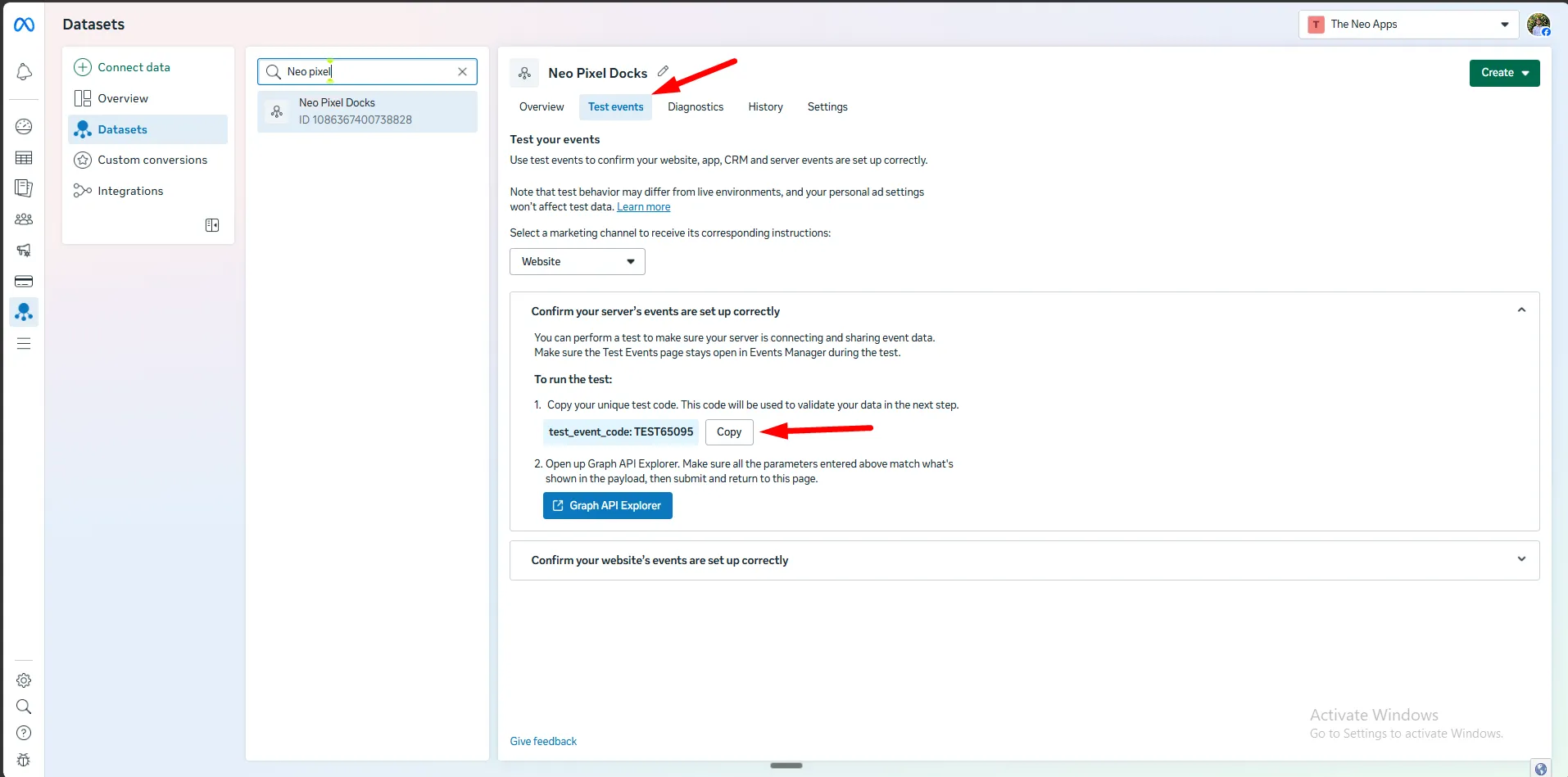
Step 2: Paste the test event code into the app
Section titled “Step 2: Paste the test event code into the app”-
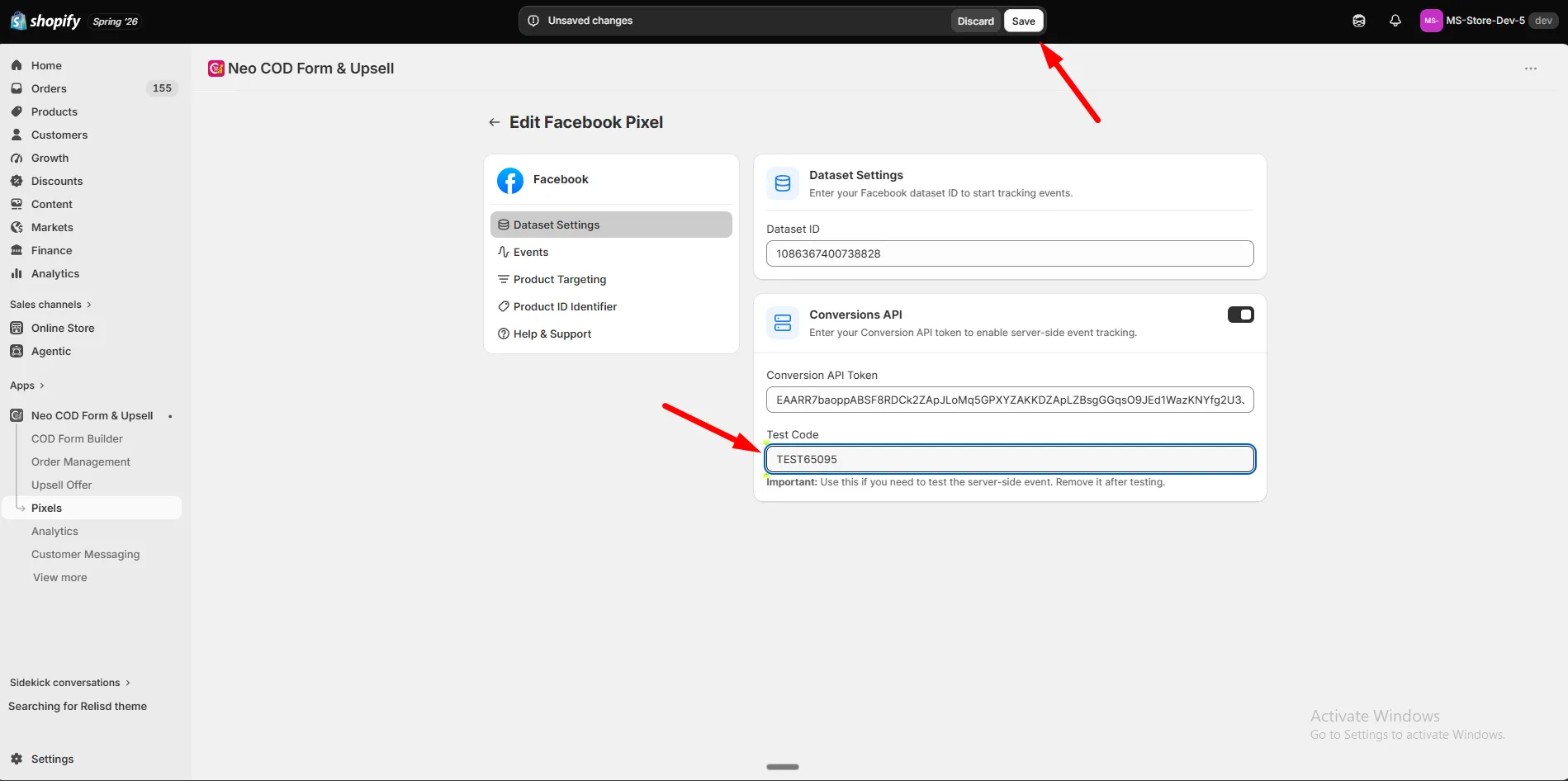
Open Pixels in the app and edit your Facebook pixel.
-
Under Conversions API, find the Test Code field.
-
Paste the code and click Save.
Step 3: Test from your storefront
Section titled “Step 3: Test from your storefront”Walk through a real customer journey on your store: view a product, add it to cart, open the order form, and place a test order.
Check Meta Events Manager again. Your events should show up within seconds.
Verification
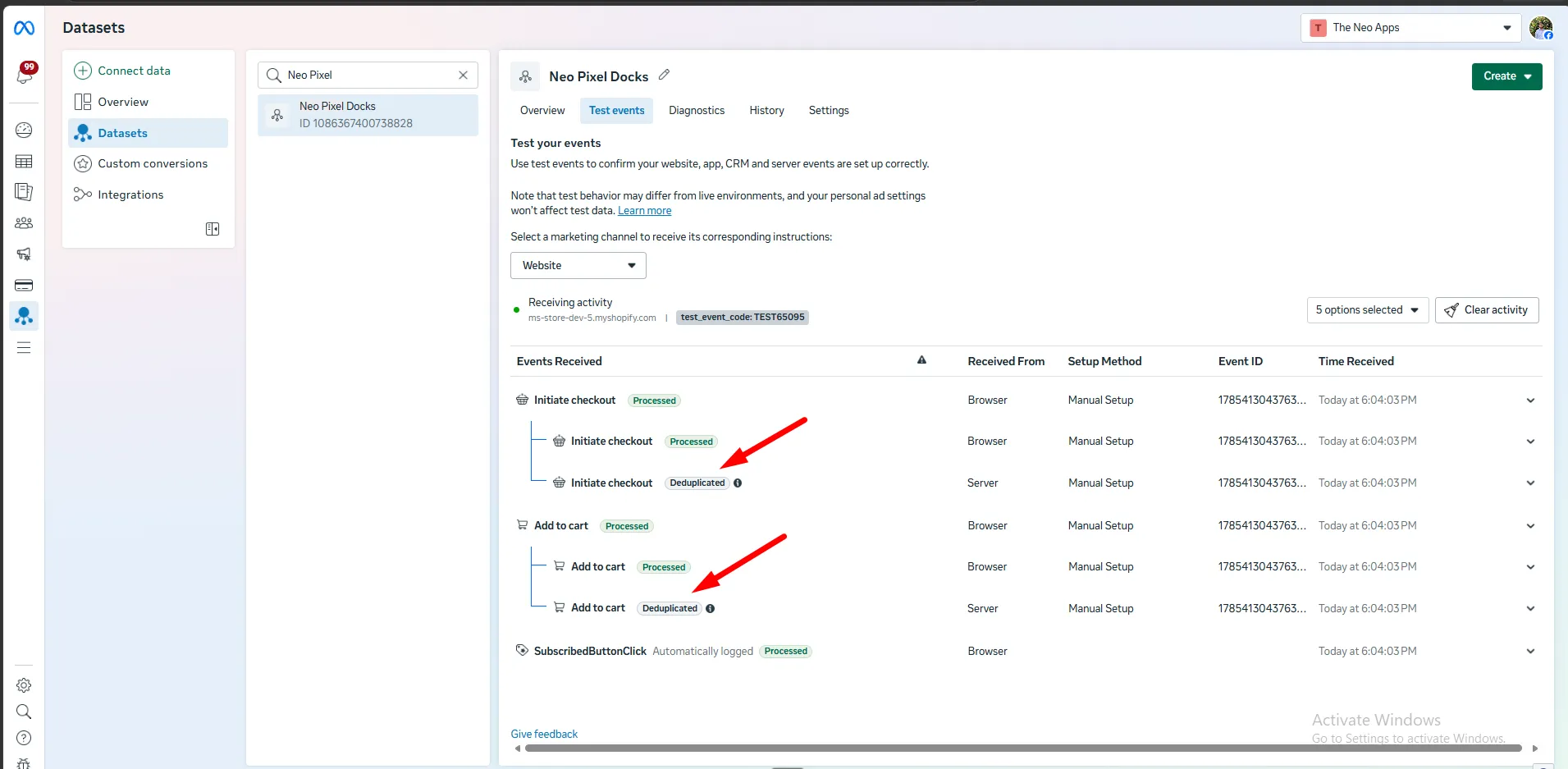
Section titled “Verification”A correctly set up pixel shows duplicate events for the same action — one labeled Browser and one labeled Server. This means Meta Pixel and CAPI are both working, and Meta is deduplicating them correctly.