
Add a Shopify Checkout button
The Shopify Checkout element sends customers to Shopify’s normal checkout instead of placing a COD order. Use it if you want to offer regular checkout alongside COD.
Add the button
Section titled “Add the button”Step 1: Go to Form Builder → Elements and add the Shopify Checkout element.
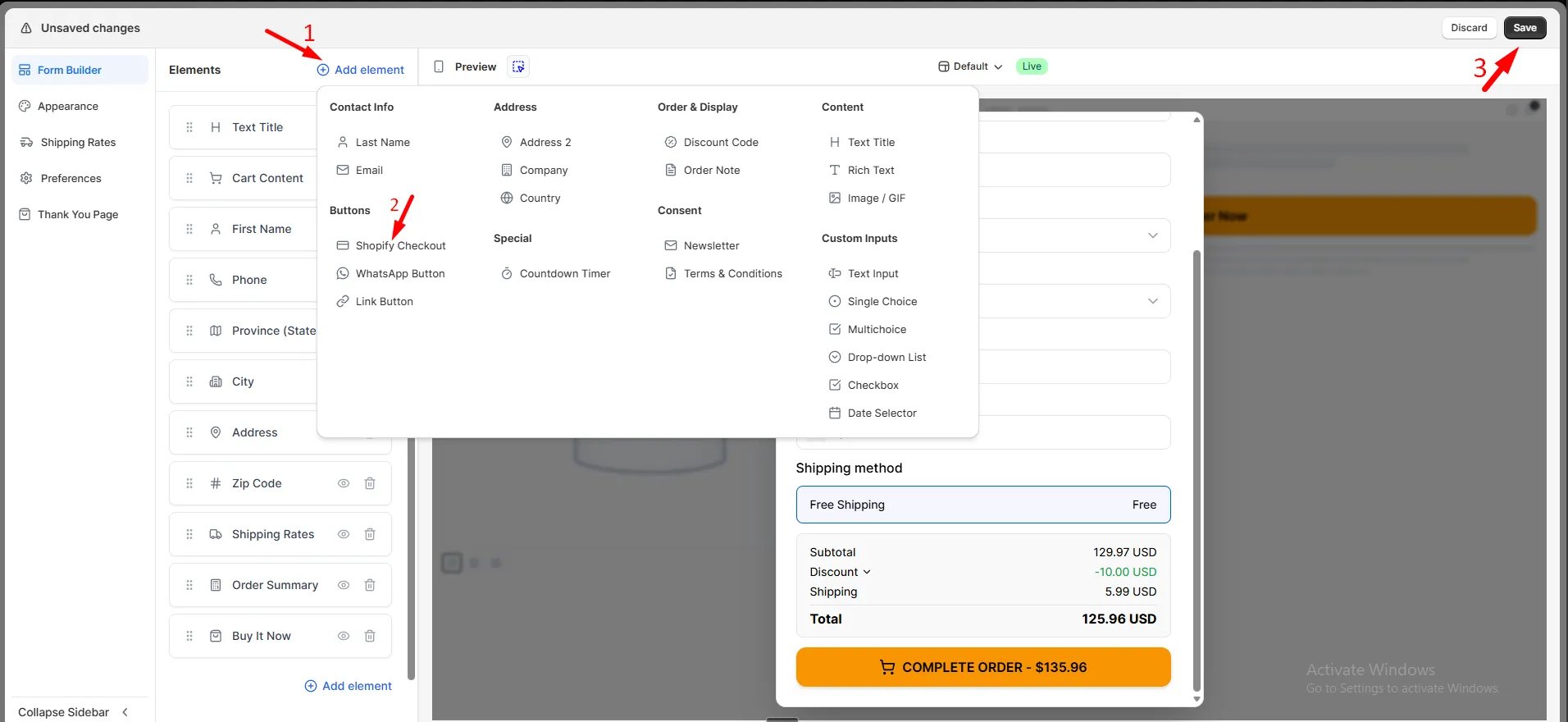
Step 2: Set Button Text. Use {{total}} to show the order total.
Step 3: Optionally set a Button Subtitle.
Step 4: Click Save.
Add a discount
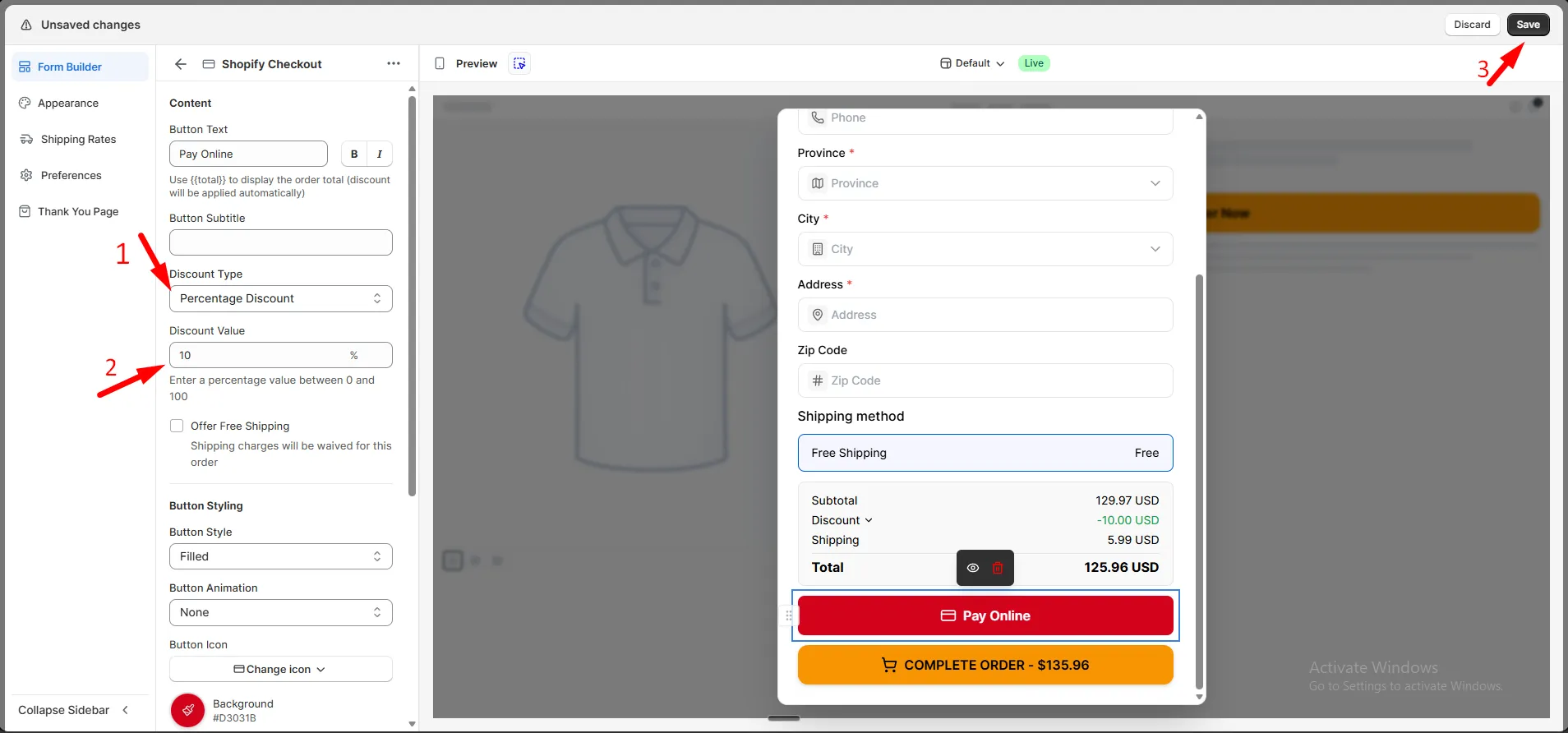
Section titled “Add a discount”Step 1: Select the Shopify Checkout element.
Step 2: Set Discount Type:
| Type | What to enter |
|---|---|
| Percentage Discount | A value between 0 and 100 |
| Fixed Amount Discount | The discount amount |
Step 3: Optionally check Offer Free Shipping to waive shipping charges.
Step 4: Click Save.
The discount is applied automatically when the customer checks out.