
Send order confirmation messages
An order confirmation message is sent to the customer automatically when an order is placed.
How to enable order confirmation messages
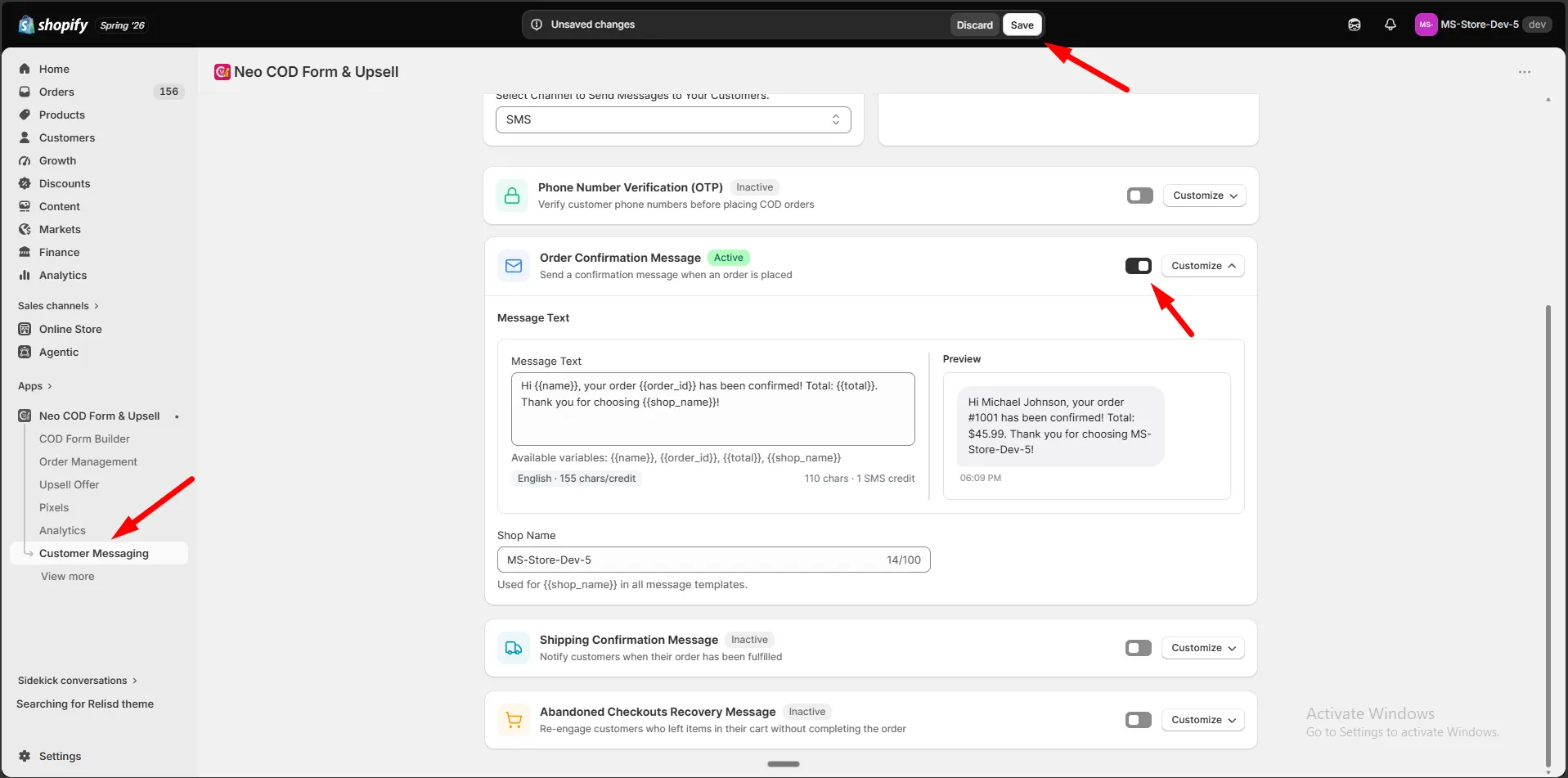
Section titled “How to enable order confirmation messages”Step 1: Go to Customer Messaging.
Step 2: Set the Messaging Channel (SMS or WhatsApp) in the channel card.
Step 3: Make sure your Balance has enough funds — top up if needed.
Step 4: Find Order Confirmation Message and turn on the switch.
Step 5: Click Customize.
Message
Section titled “Message”Step 1: Write the message under Message Text.
Step 2: Use these variables:
| Variable | Inserts |
|---|---|
{{name}} |
Customer name |
{{order_id}} |
Order number |
{{total}} |
Order total |
{{shop_name}} |
Your store name |
Step 3: Check the Preview.
Click Save. The message now sends automatically on every new order.