
Set up Meta Pixel and CAPI in the app
To start sending your store’s events to Meta, add your Facebook Pixel in the app and turn on the events you want to track.
Step 1: Add your Dataset ID
Section titled “Step 1: Add your Dataset ID”-
Go to Pixels and click Add Pixel.
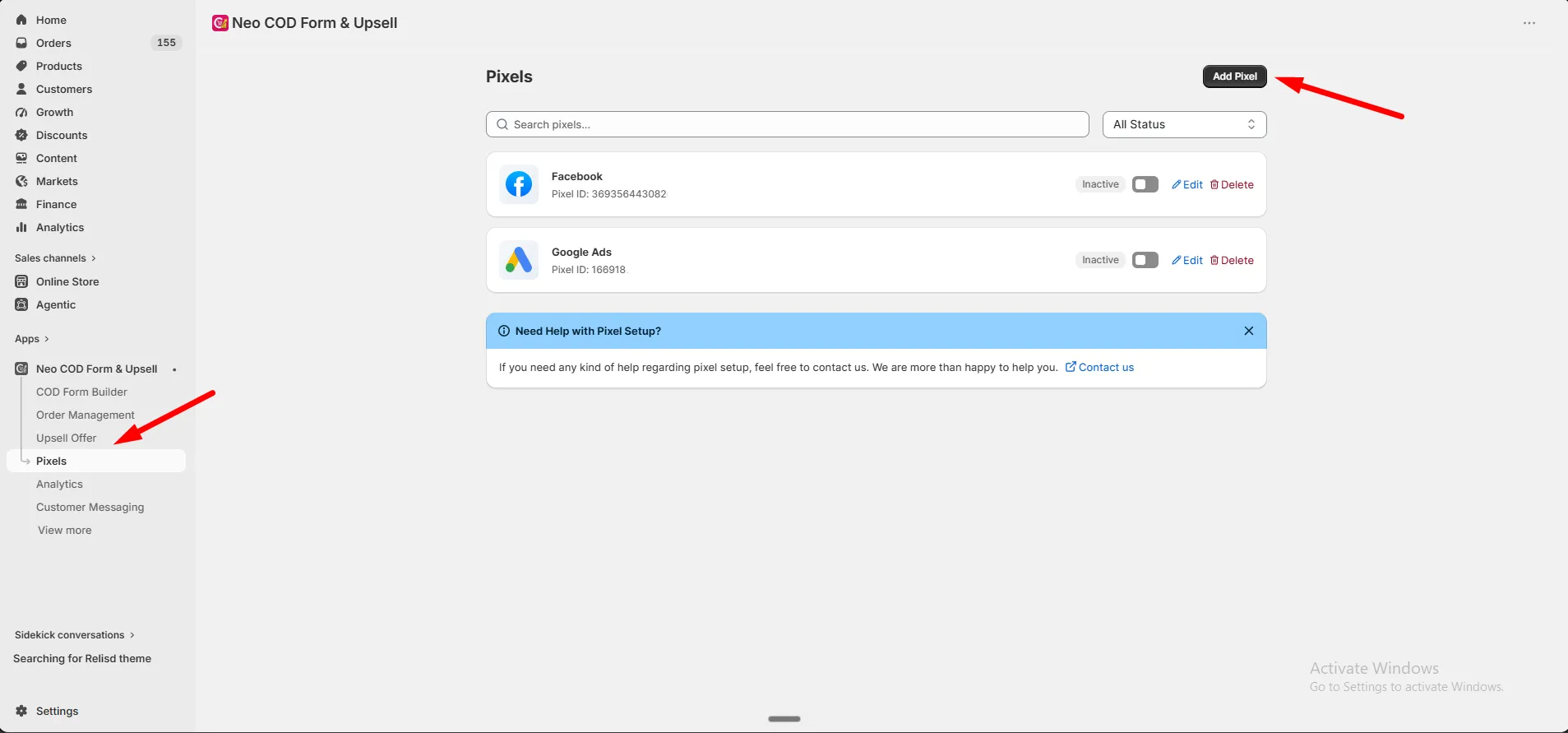
-
Select Facebook.
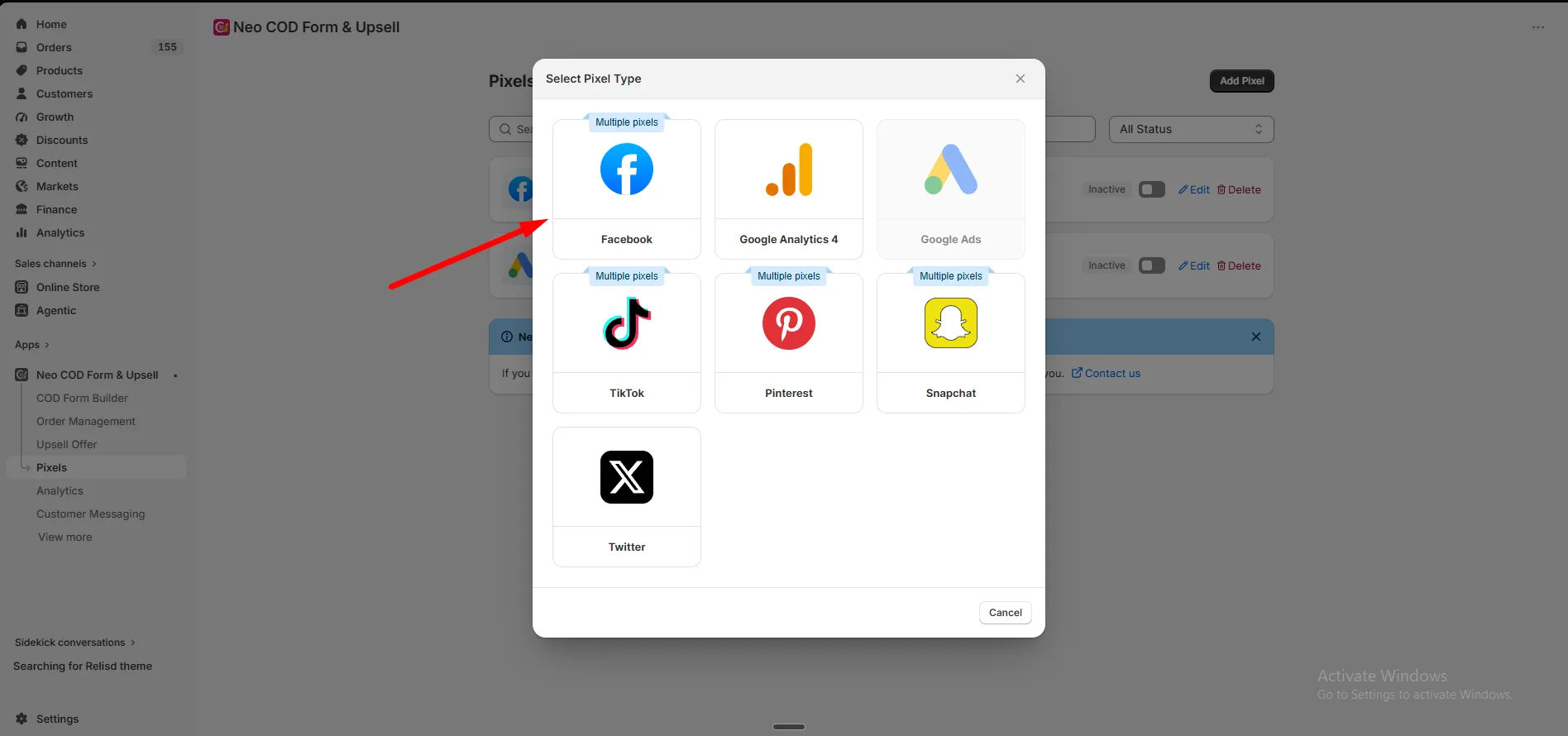
-
Paste your Dataset ID.
-
To enable Conversions API, switch it on and paste your Conversion API Token.
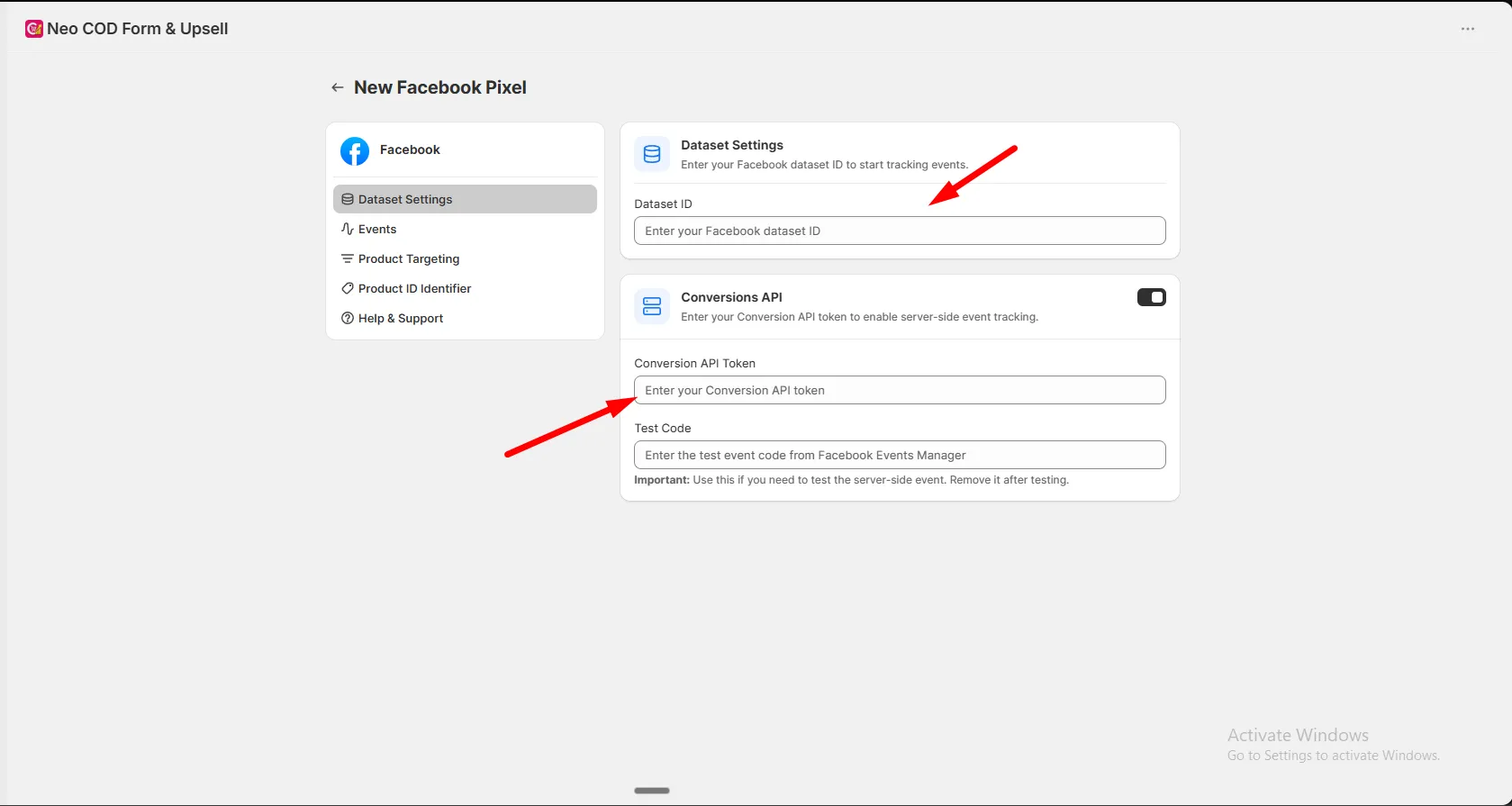
Step 2: Choose your events
Section titled “Step 2: Choose your events”Go to the Events tab and turn on the actions you want to send to Meta, such as Initiate Checkout, COD Form Purchase, and Add to Cart.
Step 3: Save and activate
Section titled “Step 3: Save and activate”-
Click Save.
-
On the Pixels page, make sure the pixel’s switch is turned on.
Test it
Section titled “Test it”Open Meta Events Manager’s Test Events tab and send a few test events from your store to confirm your data is arriving correctly. See Test your pixel tracking.