
Connect Pathao Courier
Once Pathao is connected, you can send orders to Pathao as parcels straight from the app, and their delivery status updates on its own as the parcel moves.
The setup has two parts:
- Pathao to the app: copy your Client ID and Client Secret from Pathao and paste them into the app, along with your Pathao login.
- The app to Pathao: copy the Callback URL and Secret from the app and paste them into Pathao’s webhook settings.
You’ll need a Pathao merchant account. If you don’t have one yet, sign up on the Pathao merchant panel first.
Open the Pathao settings in the app
Section titled “Open the Pathao settings in the app”Step 1: In the app, go to Order Management and open the Courier Integration tab.
Step 2: Find Pathao and click Configure.
You’ll land on the Configuration page. Leave it open. The API Configuration section is where your Pathao credentials go, and the Webhook Configuration section has the values you’ll paste into Pathao later.
Part 1: Get your Client ID and Client Secret
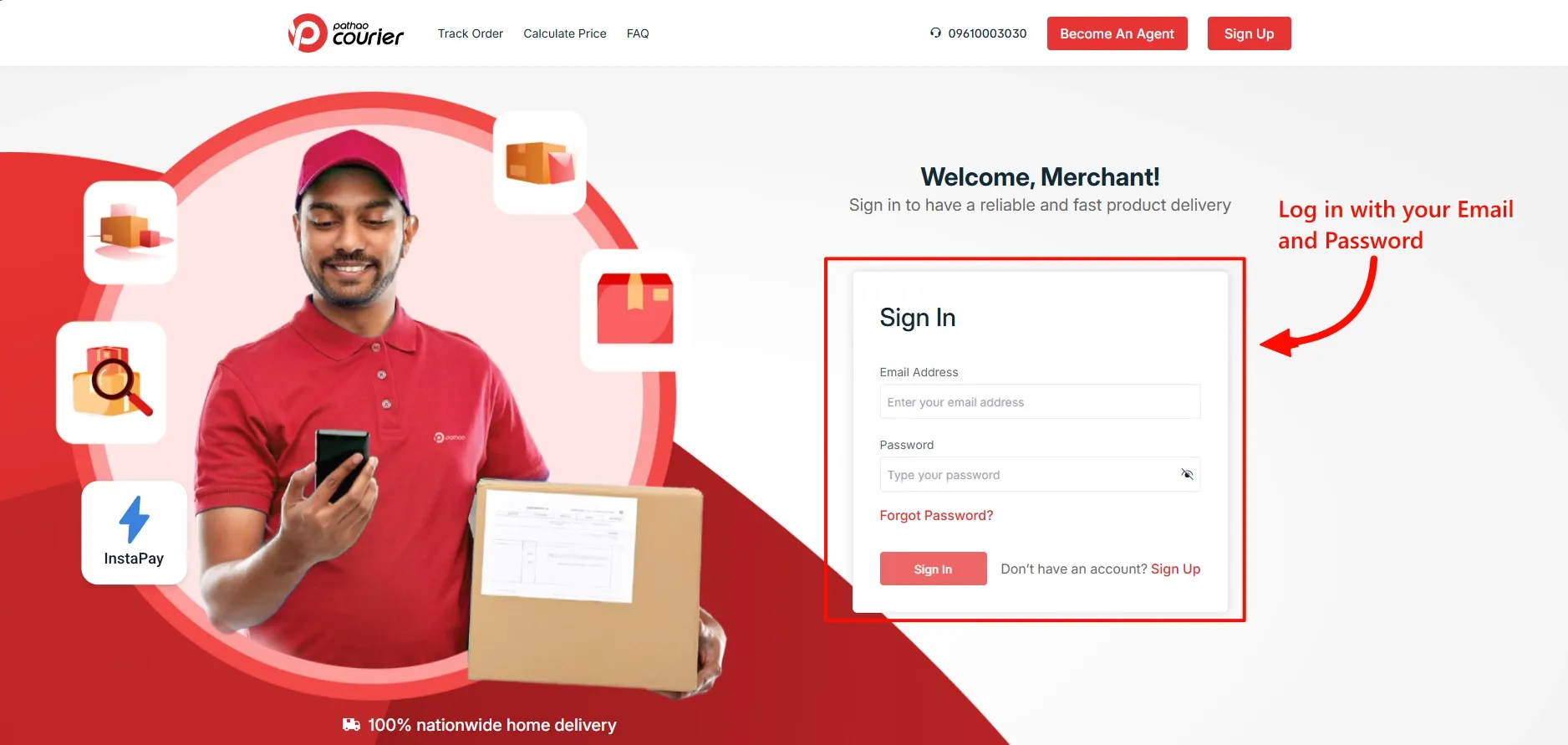
Section titled “Part 1: Get your Client ID and Client Secret”Step 1: Go to the Pathao merchant panel and sign in with your email address and password.
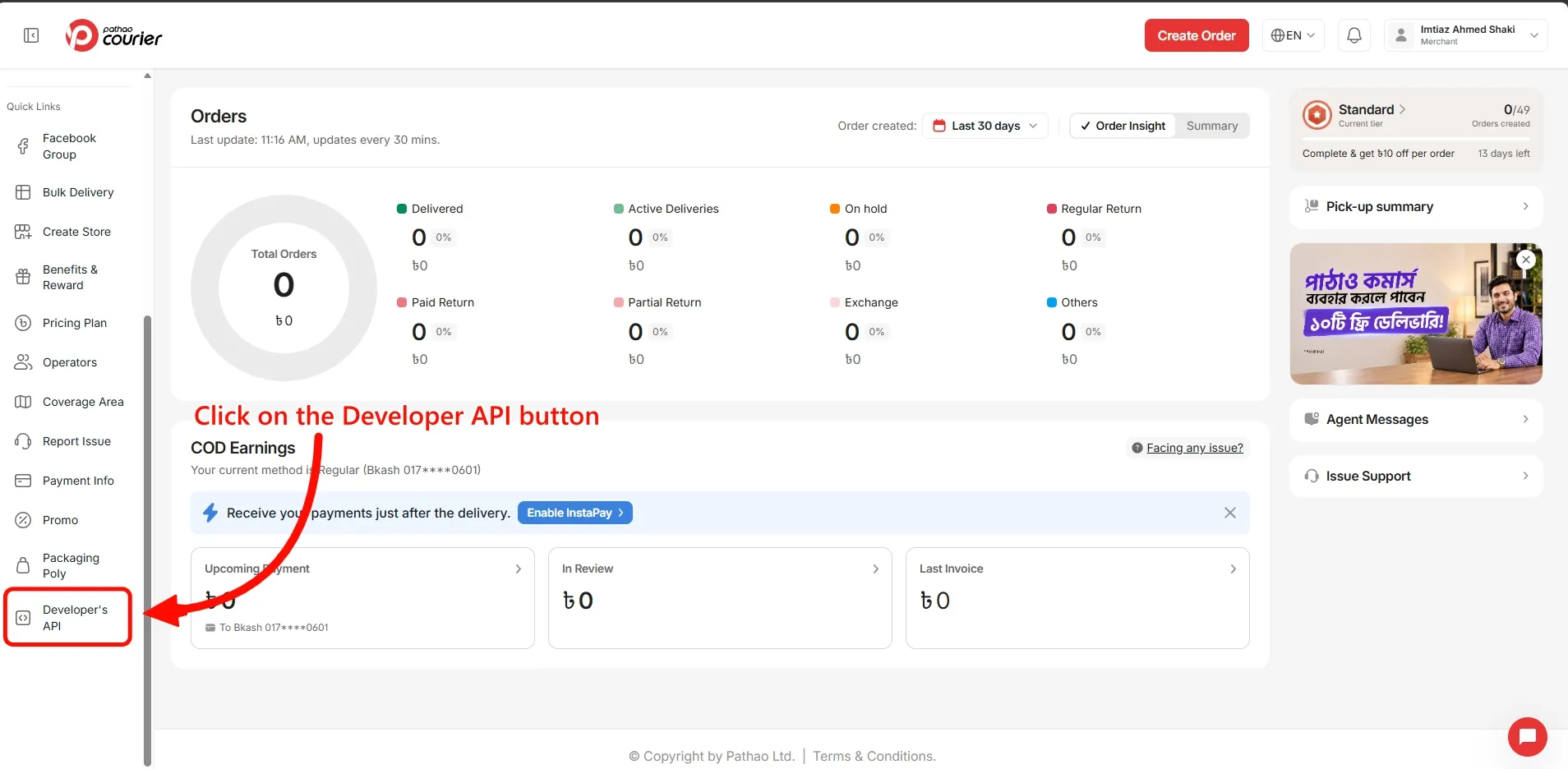
Step 2: In the left menu of your Pathao dashboard, click Developer’s API. You may need to scroll down the menu to see it.
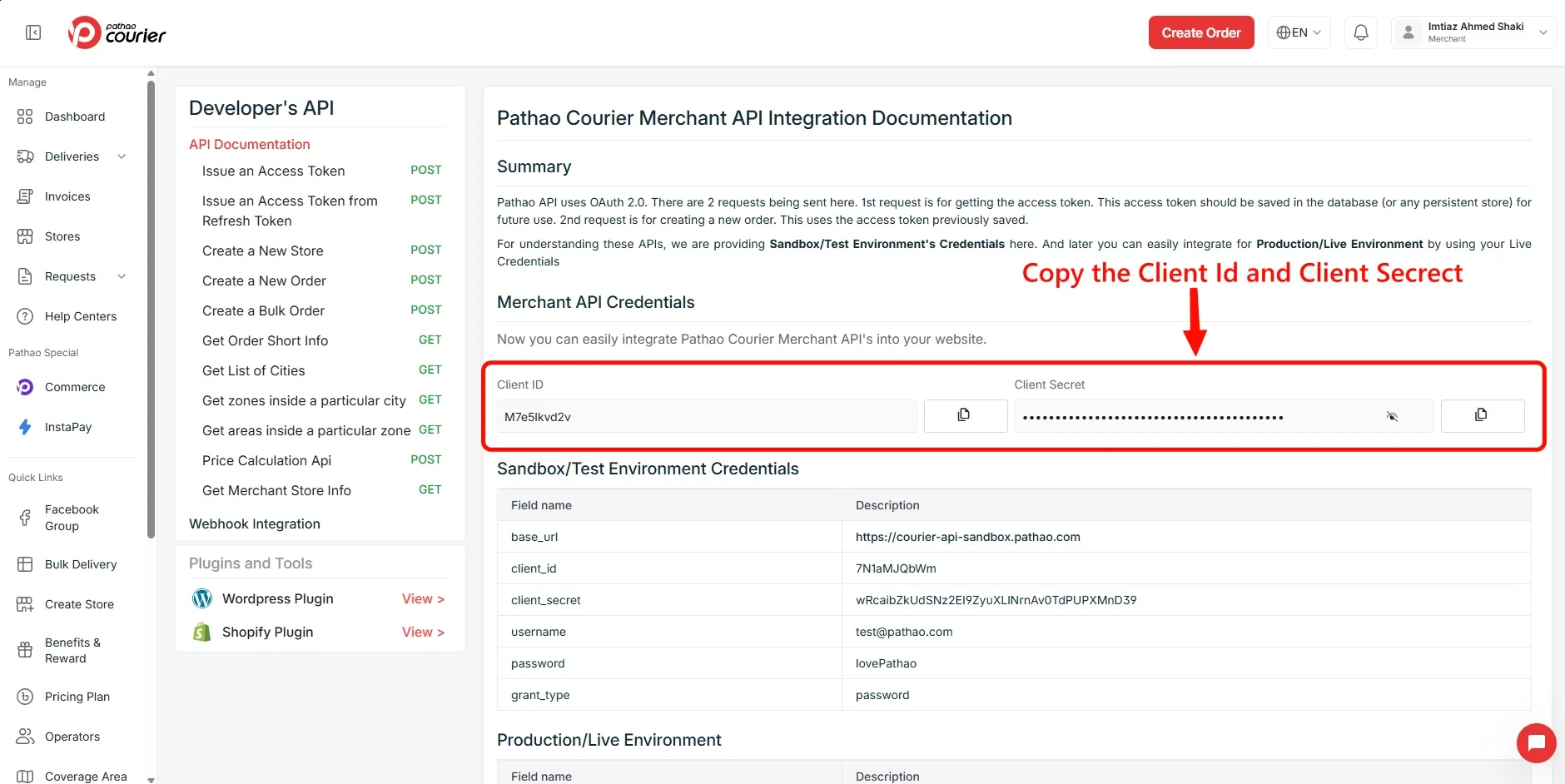
Step 3: On the Developer’s API page, find the Merchant API Credentials section. Click the copy button next to Client ID, then the copy button next to Client Secret.
Step 4: Back in the app, paste them into the API Configuration section:
- Paste the Pathao Client ID into Client ID.
- Paste the Pathao Client Secret into Client Secret.
Step 5: Fill in Email and Password with the same details you used to sign in to the Pathao merchant panel in Step 1. Pathao needs your login together with the Client ID and Client Secret before it lets the app book parcels, so all four fields are required.
Step 6: Click Save in the bar at the top of the page.
Part 2: Set up the webhook in Pathao
Section titled “Part 2: Set up the webhook in Pathao”The webhook is how Pathao tells the app that a parcel has been picked up, delivered, returned and so on. Without it, the app won’t know when a parcel’s status changes.
You don’t need to create anything here. The app already gives you both values.
Step 1: In the app, go to the Webhook Configuration section on the same Pathao page. You’ll see two fields:
- Callback URL
- Secret
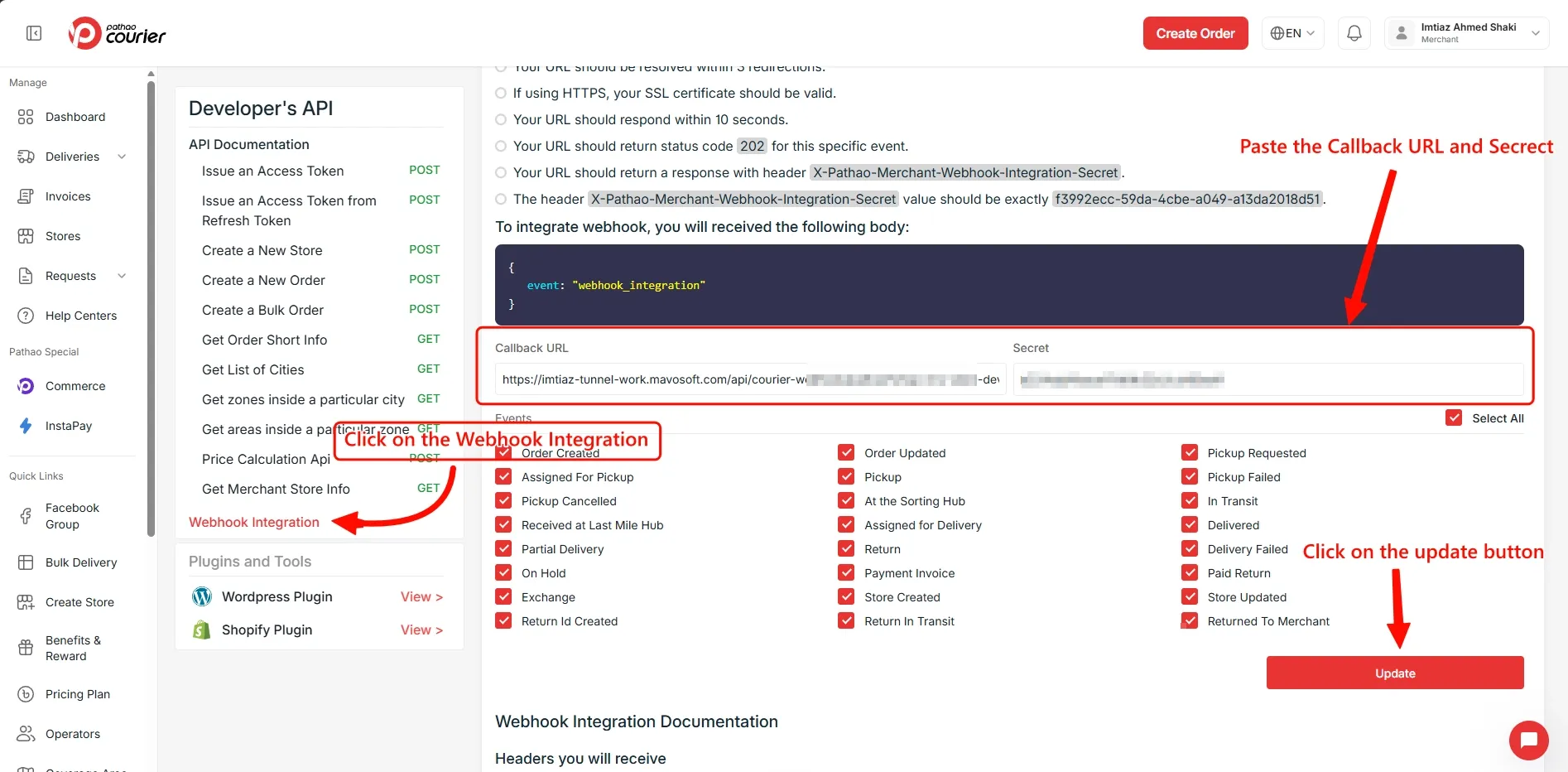
Step 2: In your Pathao dashboard, go back to Developer’s API and click Webhook Integration at the bottom of the list on the left.
Step 3: In the app, click Copy next to Callback URL. Paste it into the Callback URL field in Pathao.
Step 4: In the app, click Copy next to Secret. Paste it into the Secret field in Pathao.
Step 5: Under Events, make sure Select All is ticked so every status change is sent to the app. If you leave some events unticked, those updates won’t show up on your orders.
Step 6: Click Update.
When you click Update, Pathao sends a quick test request to the Callback URL to make sure it’s reachable. The app answers it for you, so you don’t need to do anything with the instructions Pathao shows above the form about status codes and headers.
That’s it. The next time one of your Pathao parcels changes status, the update will show up on the order in the app.
If Pathao won’t save the webhook
Section titled “If Pathao won’t save the webhook”If Pathao shows an error when you click Update, the test request didn’t go through. Usually it’s one of these:
- The values don’t match. Copy the Callback URL and Secret from the app again and paste them over what’s in Pathao. Don’t type them by hand.
- There’s an extra space. Check there’s nothing before or after either value.
- The Pathao settings in the app weren’t saved. Go back to the app, make sure your Client ID, Client Secret, Email and Password are filled in, and click Save. Then try Update in Pathao again.
If it still won’t save, contact us from the Help & Support tab on the Pathao page in the app and we’ll take a look.
Common questions
Section titled “Common questions”Does the webhook stop working if I change my Client Secret or password? No. The webhook is separate from your API credentials. But the app does need your current credentials to book parcels, so update them in the app if they change.
Can I untick some events? You can, but we don’t recommend it. Each event is a status update, and any you untick just won’t reach your orders in the app.