
Create a shipping rate
A shipping rate is a delivery charge you set for orders placed through your COD form. Customers see and choose these rates on the order form.
You can create multiple rates and control who sees them by price, weight, quantity, product, country, or province and city.
Where to find it
Section titled “Where to find it”Go to the Form Builder → Shipping Rates tab.
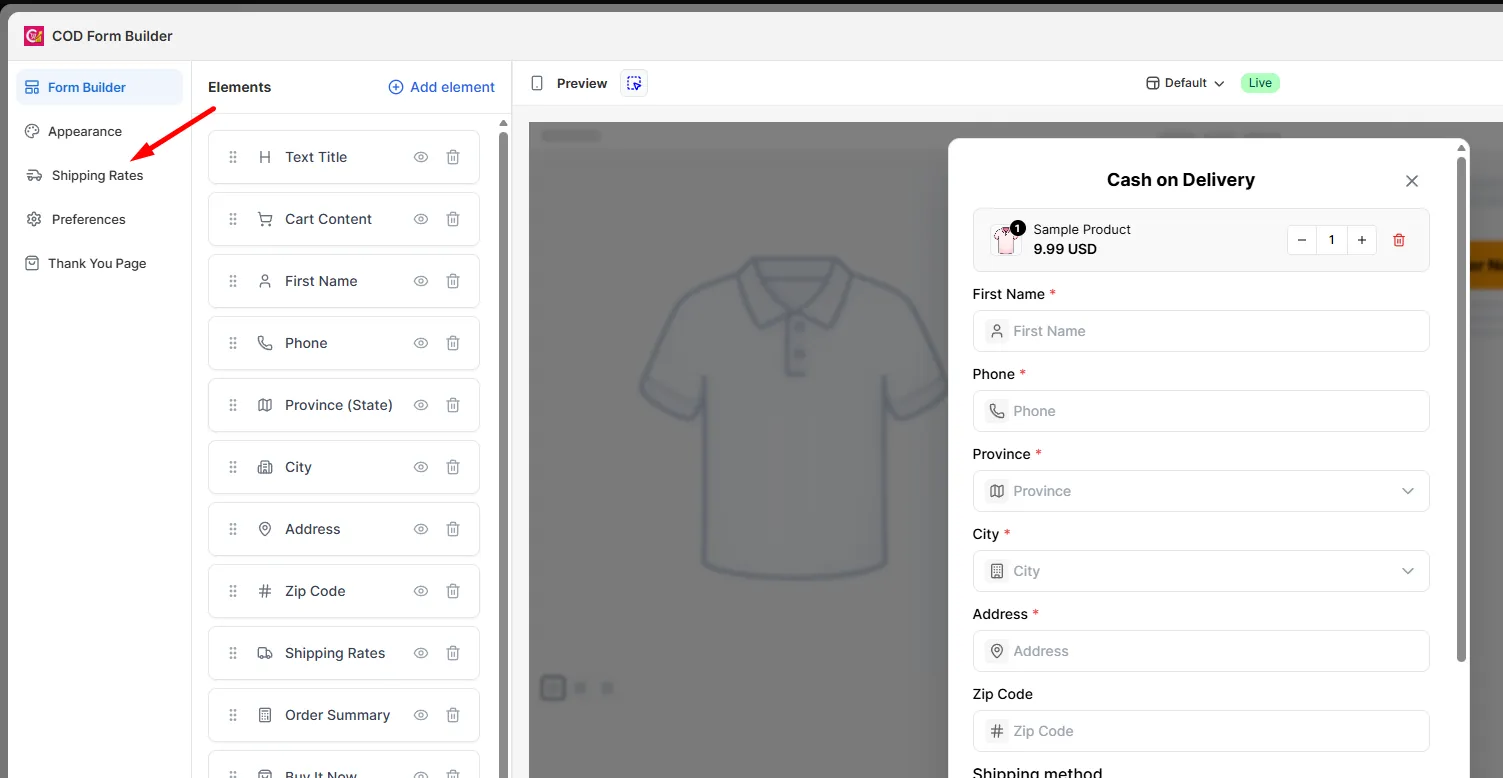
Create a rate
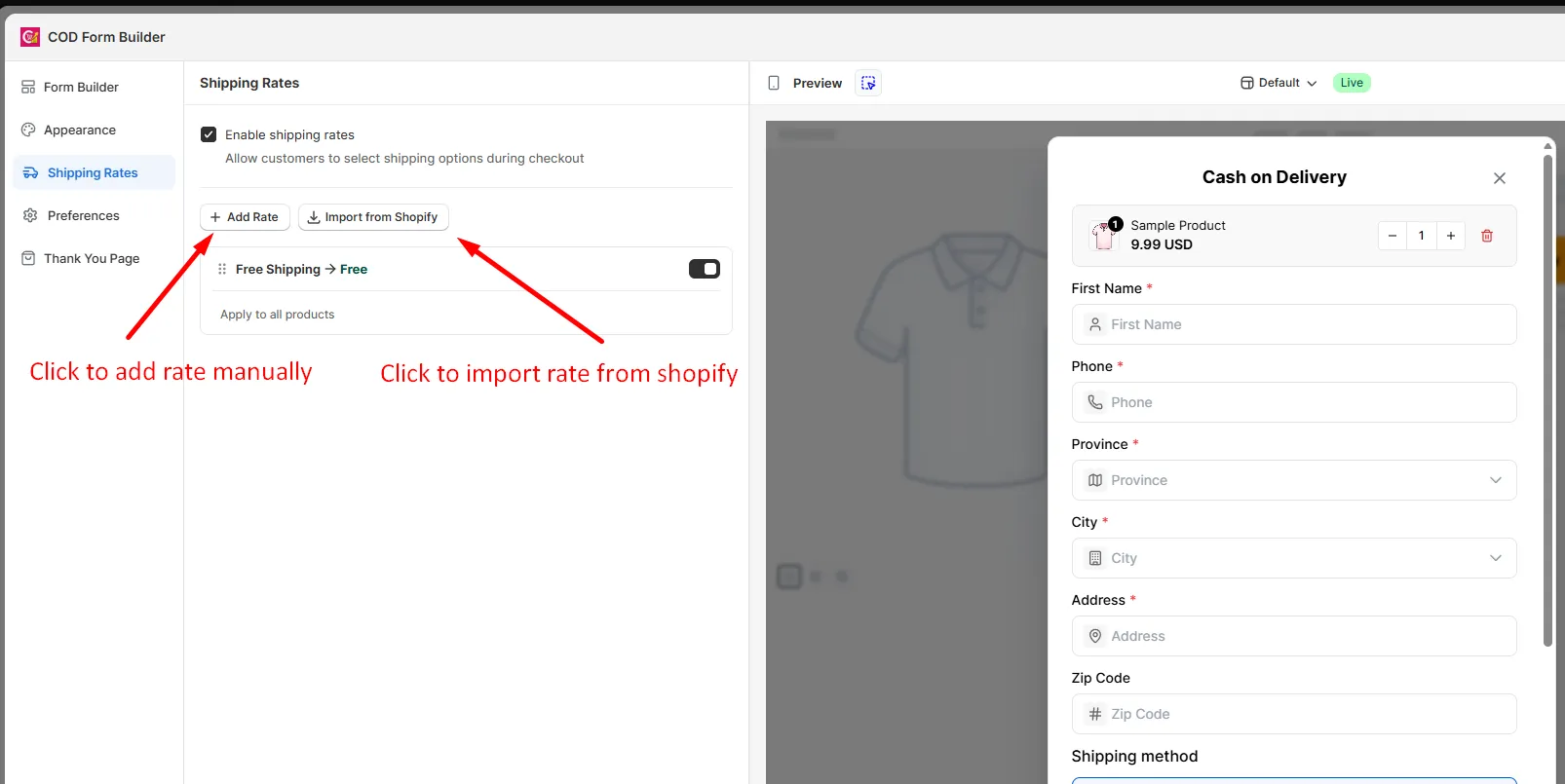
Section titled “Create a rate”Step 1: Click Add Rate.
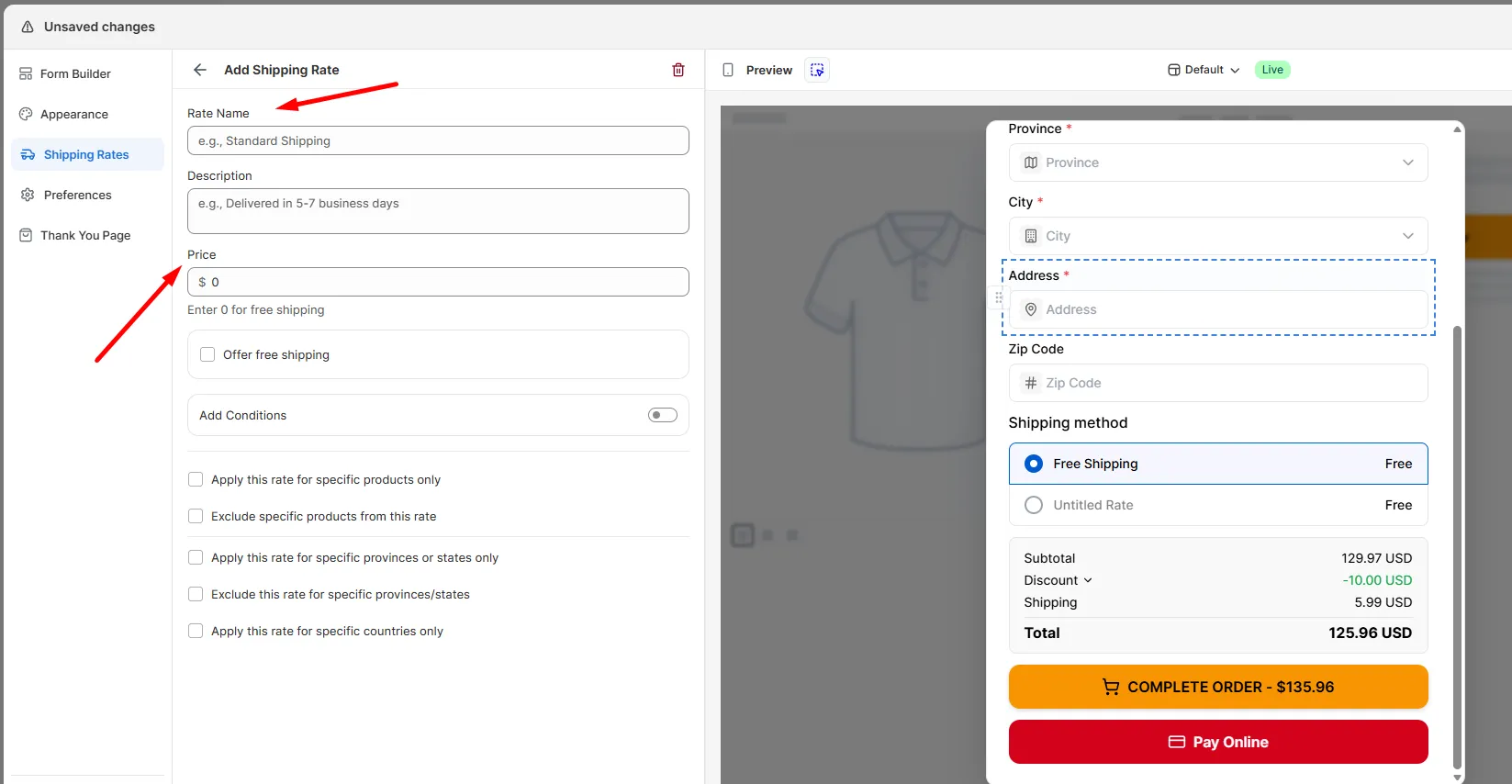
Step 2: Fill in the rate details: Rate Name, Description, and Price.
Step 3: Click Save.
The new rate appears in your shipping rates list and shows on your live form.
Import rates from Shopify
Section titled “Import rates from Shopify”Click Import from Shopify to pull in your existing Shopify delivery profiles as rates. This saves you from creating them manually.
Offer free shipping
Section titled “Offer free shipping”Turn on Offer free shipping to make a rate free once the order total crosses a limit.
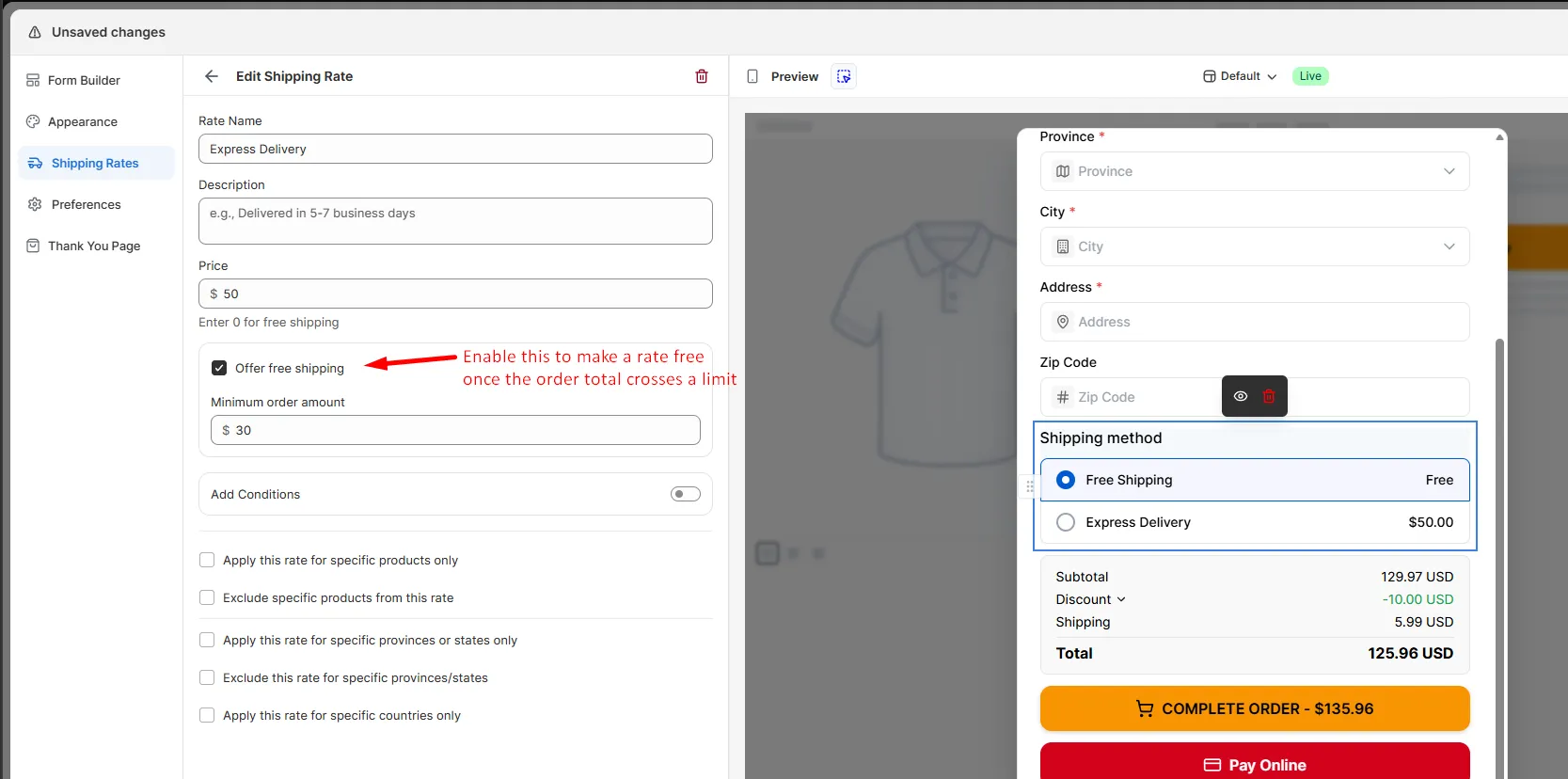
| Setting | What it does |
|---|---|
| Minimum order amount | The order total required to unlock free shipping |
Add conditions
Section titled “Add conditions”Turn on Add Conditions to show a rate only when the order matches a condition.
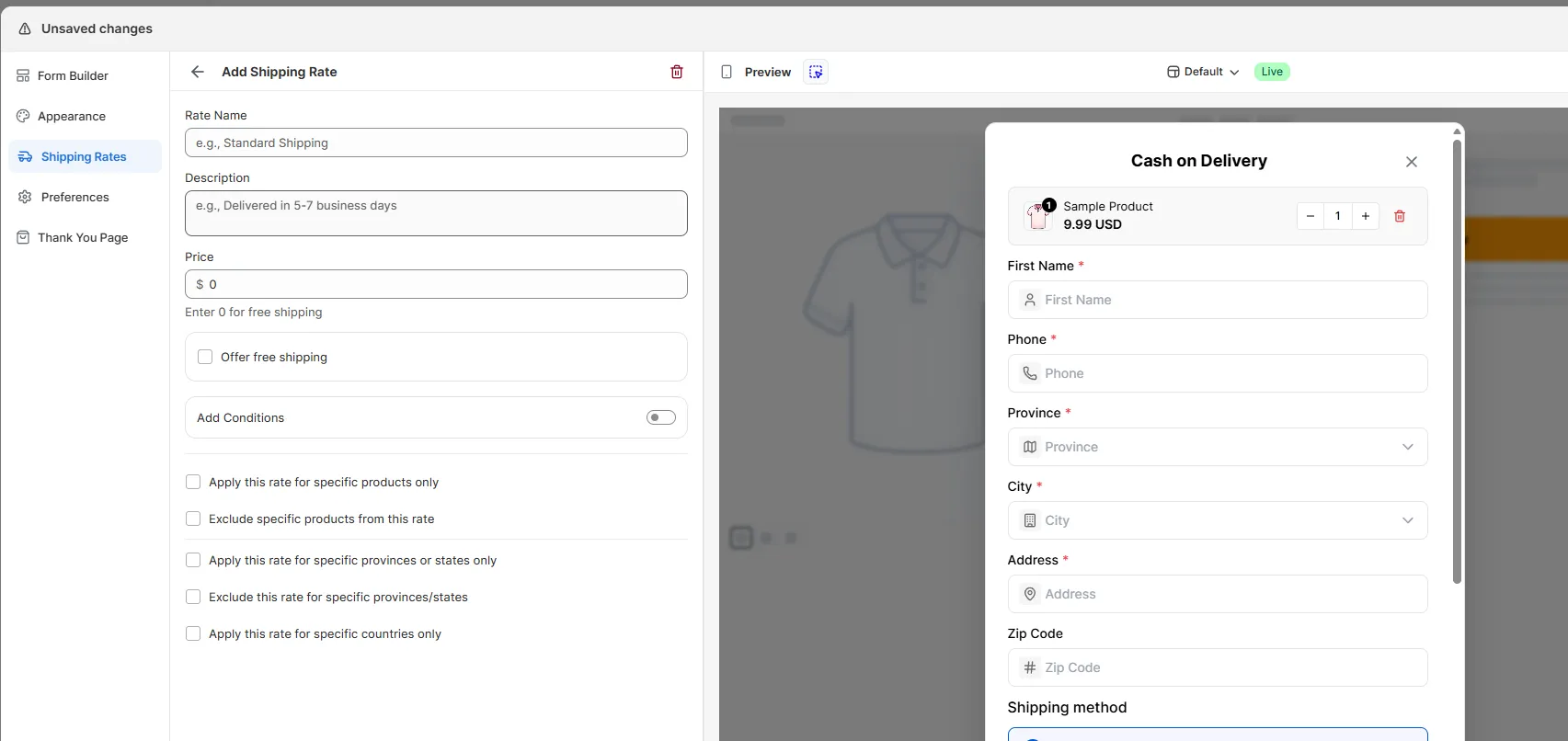
Choose one basis:
- Based on order price
- Based on order weight
- Based on order quantity
Then set:
| Setting | What it does |
|---|---|
| Minimum | Lowest value that qualifies |
| Maximum | Highest value that qualifies — leave empty for no limit |
Manage rates
Section titled “Manage rates”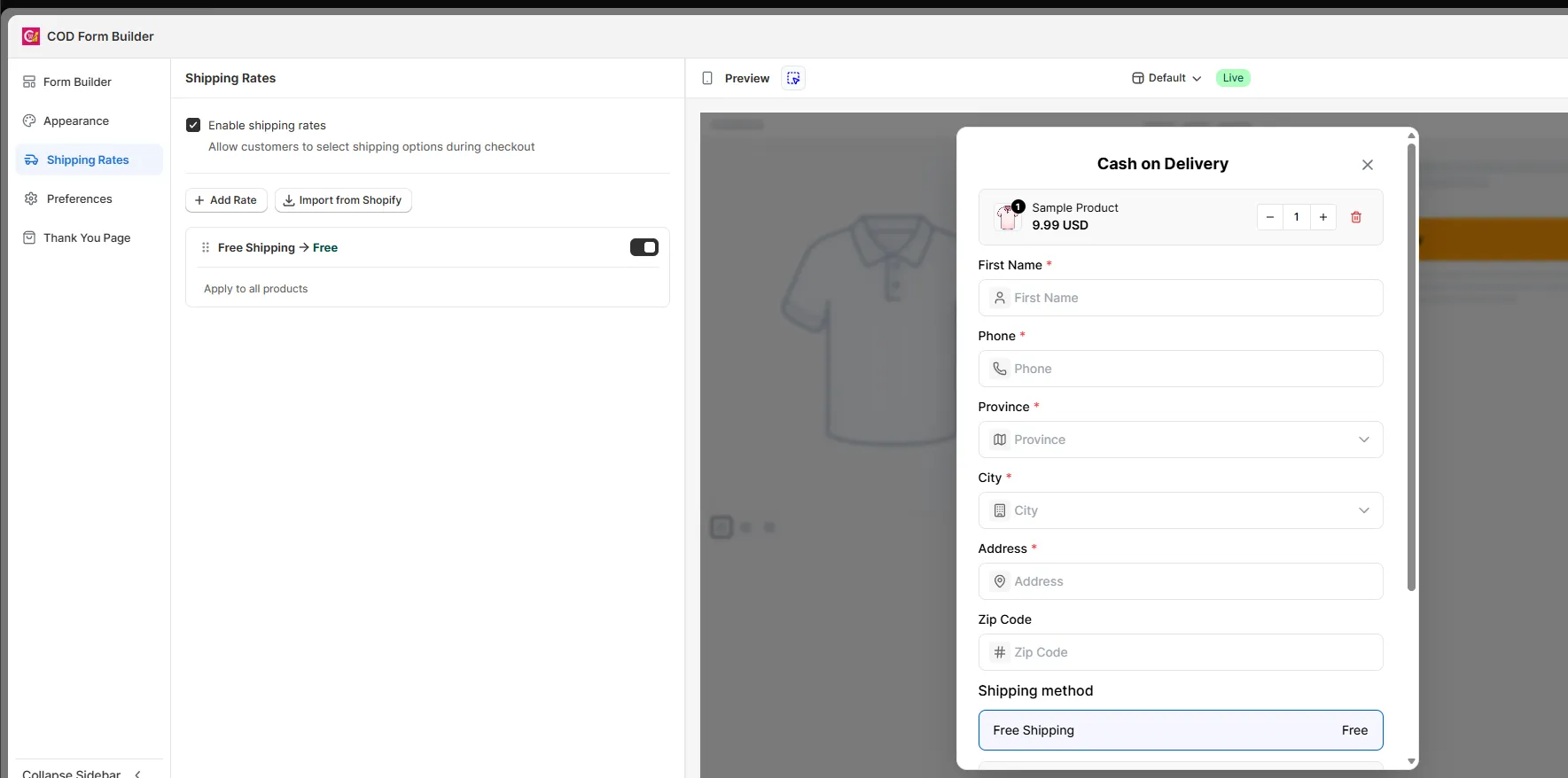
From the shipping rates list you can:
- Reorder: drag rates to change display order.
- Enable/Disable: toggle a rate on or off without deleting it.
- Delete: remove a rate permanently.