
Connect Steadfast Courier
Once Steadfast is connected, you can send orders to Steadfast as parcels straight from the app, and their delivery status updates on its own as the parcel moves.
The setup has two parts:
- Steadfast to the app: copy your API key and secret key from Steadfast and paste them into the app.
- The app to Steadfast: copy the Callback URL and Auth Token from the app and paste them into Steadfast’s webhook settings.
You’ll need a Steadfast merchant account. If you don’t have one yet, register on the Steadfast website first.
Open the Steadfast settings in the app
Section titled “Open the Steadfast settings in the app”Step 1: In the app, go to Order Management and open the Courier Integration tab.
Step 2: Find SteadFast and click Configure.
You’ll land on the Configuration page. Leave it open. The API Configuration section is where your Steadfast keys go, and the Webhook Configuration section has the values you’ll paste into Steadfast later.
Part 1: Get your API key and secret key
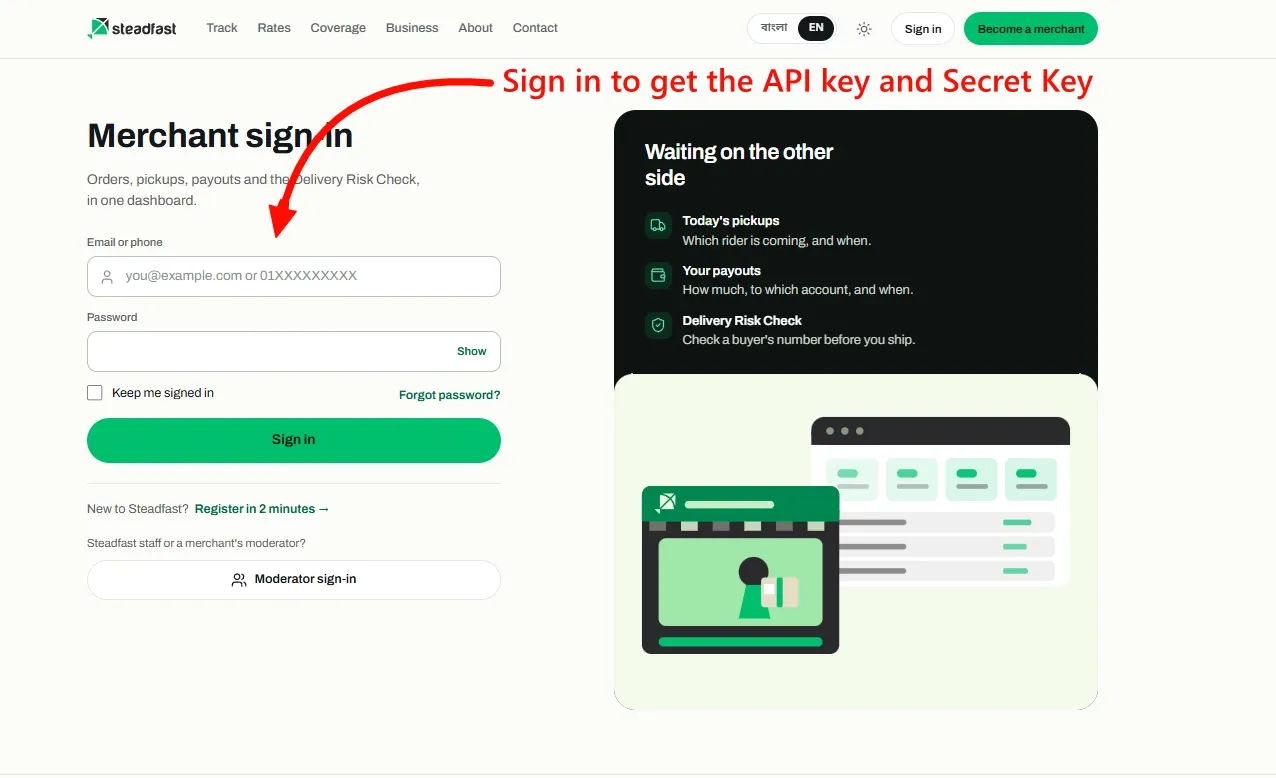
Section titled “Part 1: Get your API key and secret key”Step 1: Go to the Steadfast merchant sign in page and sign in with your email or phone number and password.
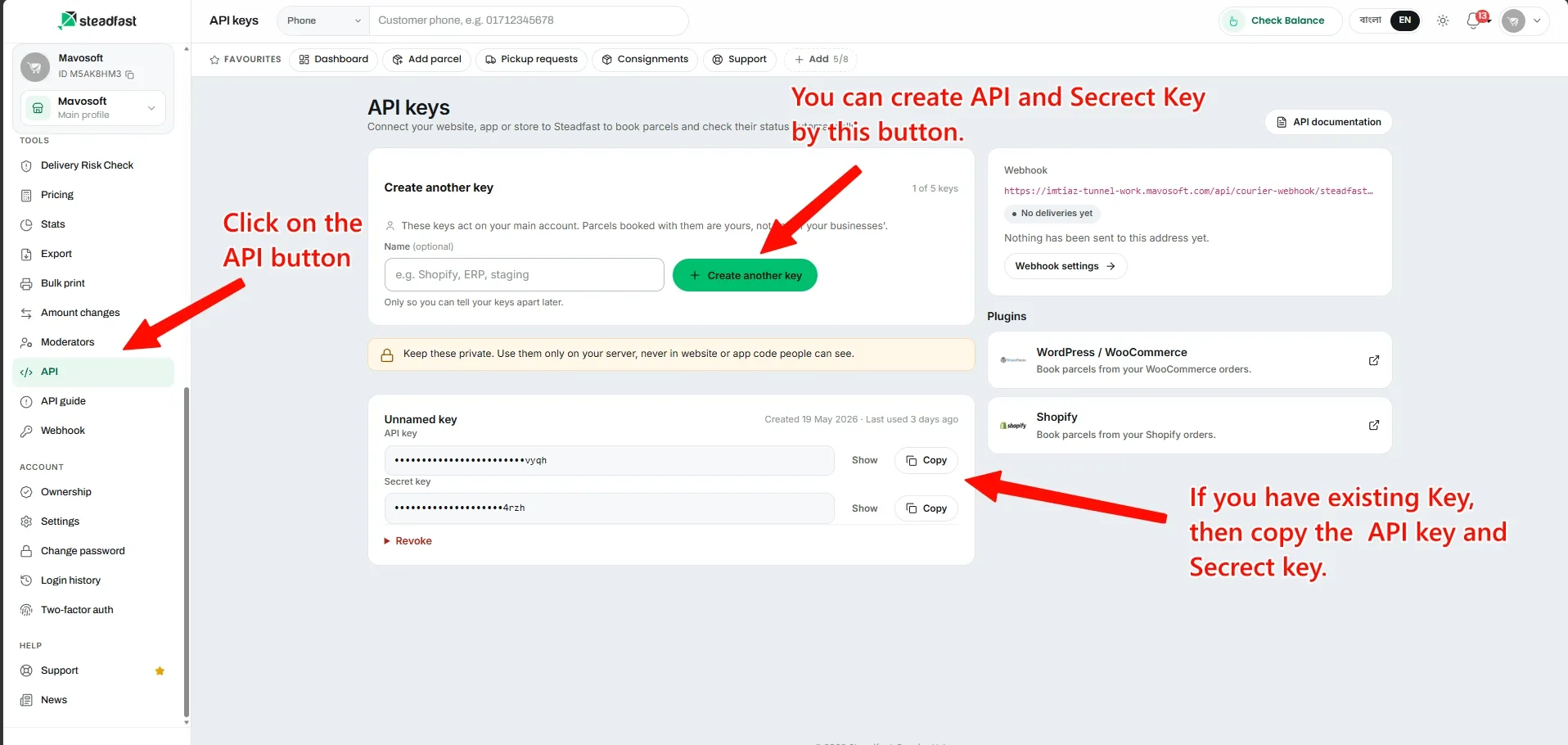
Step 2: In the left menu of the Steadfast dashboard, click API. This opens the API keys page.
Step 3: Get a key pair:
- If you already have a key, it’s listed on this page. Click Copy next to API key, then do the same for Secret key.
- If you don’t have a key yet, type a name in the Name field if you like (something like “Shopify” makes it easy to recognise later), then click Create another key. The new key shows up below, and you can copy both values from there.
Step 4: Back in the app, paste them into the API Configuration section:
- Paste the Steadfast API key into API Key.
- Paste the Steadfast secret key into Secret Key.
Step 5: Fill in Email and Password with the same details you use to sign in to the Steadfast merchant panel. The app uses this login to look up a customer’s delivery history with Steadfast, so you can see how many of their past parcels were delivered or returned.
Step 6: Click Save in the bar at the top of the page.
Part 2: Set up the webhook in Steadfast
Section titled “Part 2: Set up the webhook in Steadfast”The webhook is how Steadfast tells the app that a parcel has been picked up, delivered, returned and so on. Without it, the app won’t know when a parcel’s status changes.
You don’t need to create anything here. The app already gives you both values.
Step 1: In the app, go to the Webhook Configuration section on the same Steadfast page. You’ll see two fields:
- Callback URL
- Auth Token
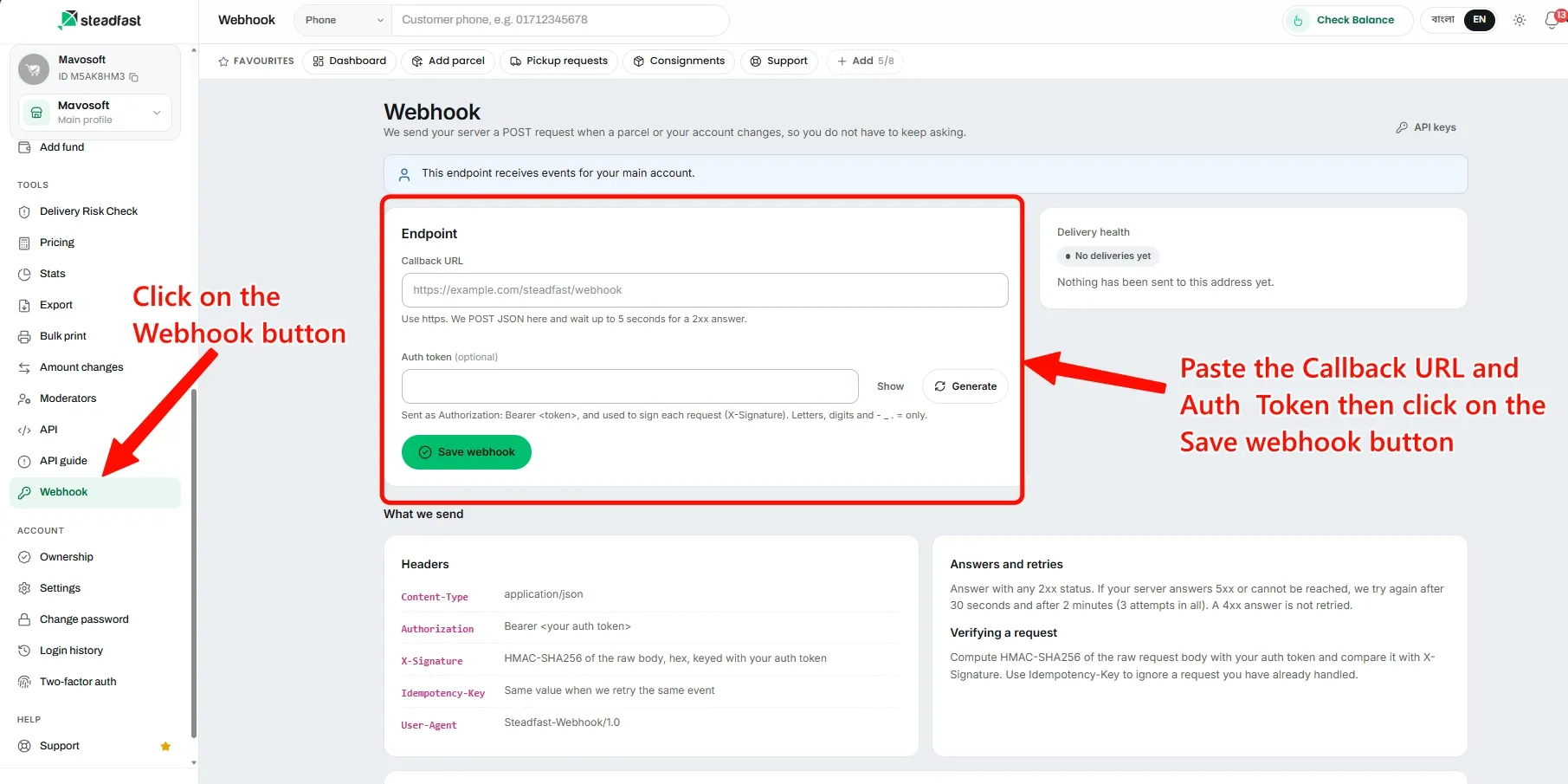
Step 2: In the Steadfast dashboard, click Webhook in the left menu.
Step 3: In the app, click Copy next to Callback URL. Paste it into the Callback URL field in Steadfast.
Step 4: In the app, click Copy next to Auth Token. Paste it into the Auth token field in Steadfast.
Step 5: Click Save webhook in Steadfast.
That’s it. The next time one of your Steadfast parcels changes status, the update will show up on the order in the app.
Check that it’s working
Section titled “Check that it’s working”Steadfast’s Webhook page has a Delivery health box on the right. Before any parcel has moved it says No deliveries yet, which is normal. After your first parcel gets a status update, it shows whether Steadfast was able to reach the app.
If deliveries are failing:
- Make sure the Callback URL and Auth Token in Steadfast match the app exactly. The easiest fix is to copy both again from the app and paste them over the old values.
- Check that there are no extra spaces at the start or end of either value.
- Confirm you clicked Save webhook after pasting.
Common questions
Section titled “Common questions”Can I use the same key for another website or app? You can, but it’s better to create a separate key for each one. If you ever need to revoke a key, only that one connection stops working.
I revoked my key in Steadfast. What now? The app can’t book parcels with a revoked key. Create a new key on the Steadfast API keys page, then paste the new API key and secret key into the app and save.
Do I need to set up the webhook again if I change my API key? No. The webhook and the API key are separate. Changing your key doesn’t affect the Callback URL or Auth Token.