
Edit your form safely with Draft Mode
Draft Mode makes a copy of your live form. You edit the copy, not the live form, so customers keep seeing the live form until you publish your changes.
Why use it
Section titled “Why use it”- Test new designs or fields without breaking the live form.
- Compare two versions before choosing the best one.
- Undo bad changes easily — just delete the draft.
Create a draft
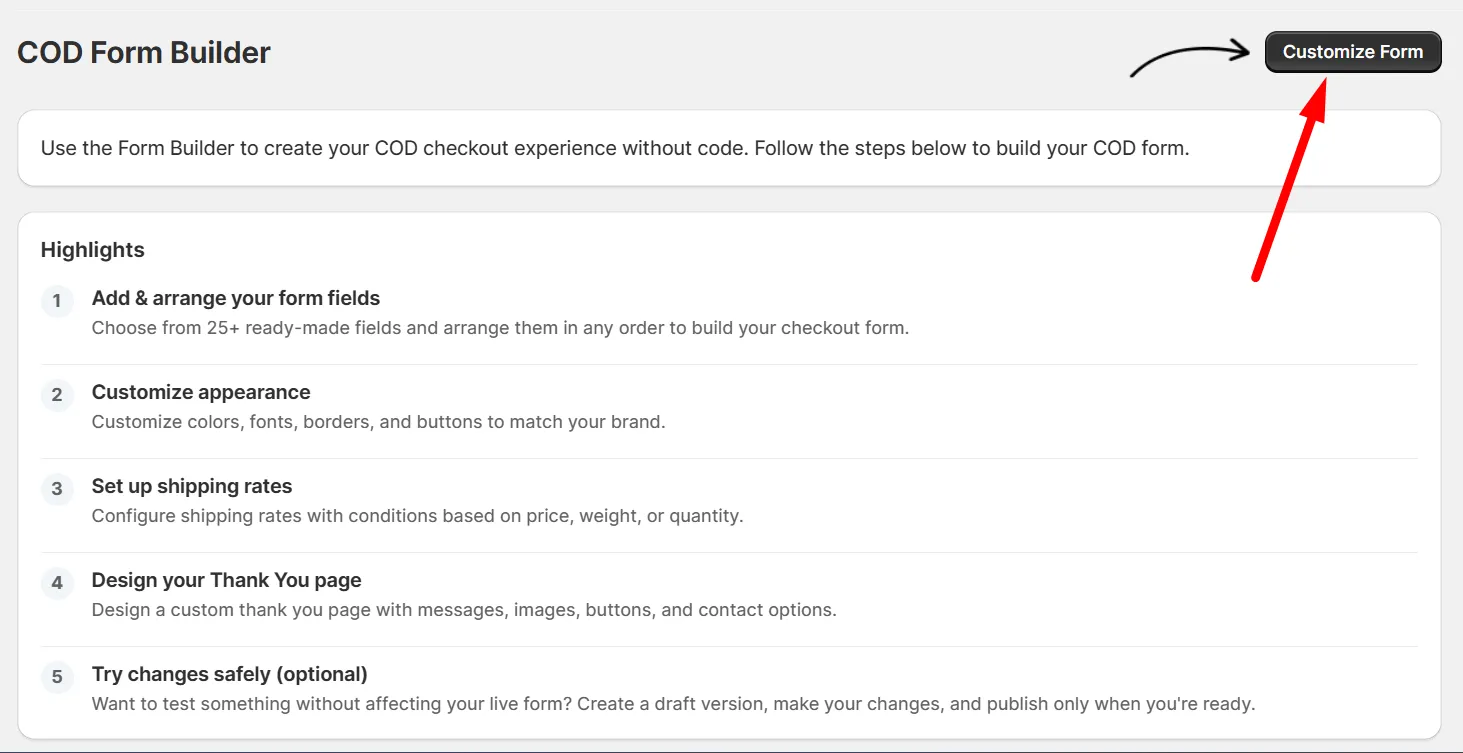
Section titled “Create a draft”Step 1: Open the COD Form Builder and click Customize Form.
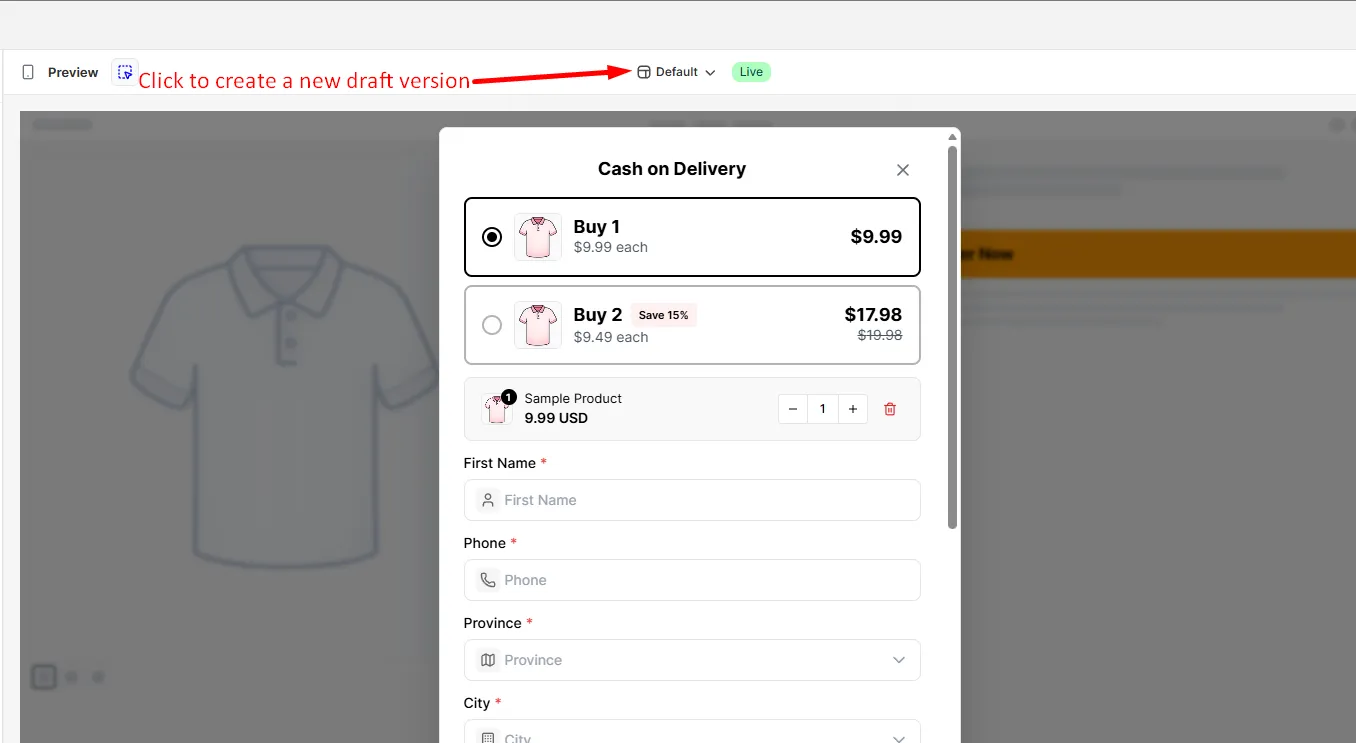
Step 2: Click the version switcher at the top. It shows the name of the version you are editing.
Step 3: In the dropdown, click Create new draft version.
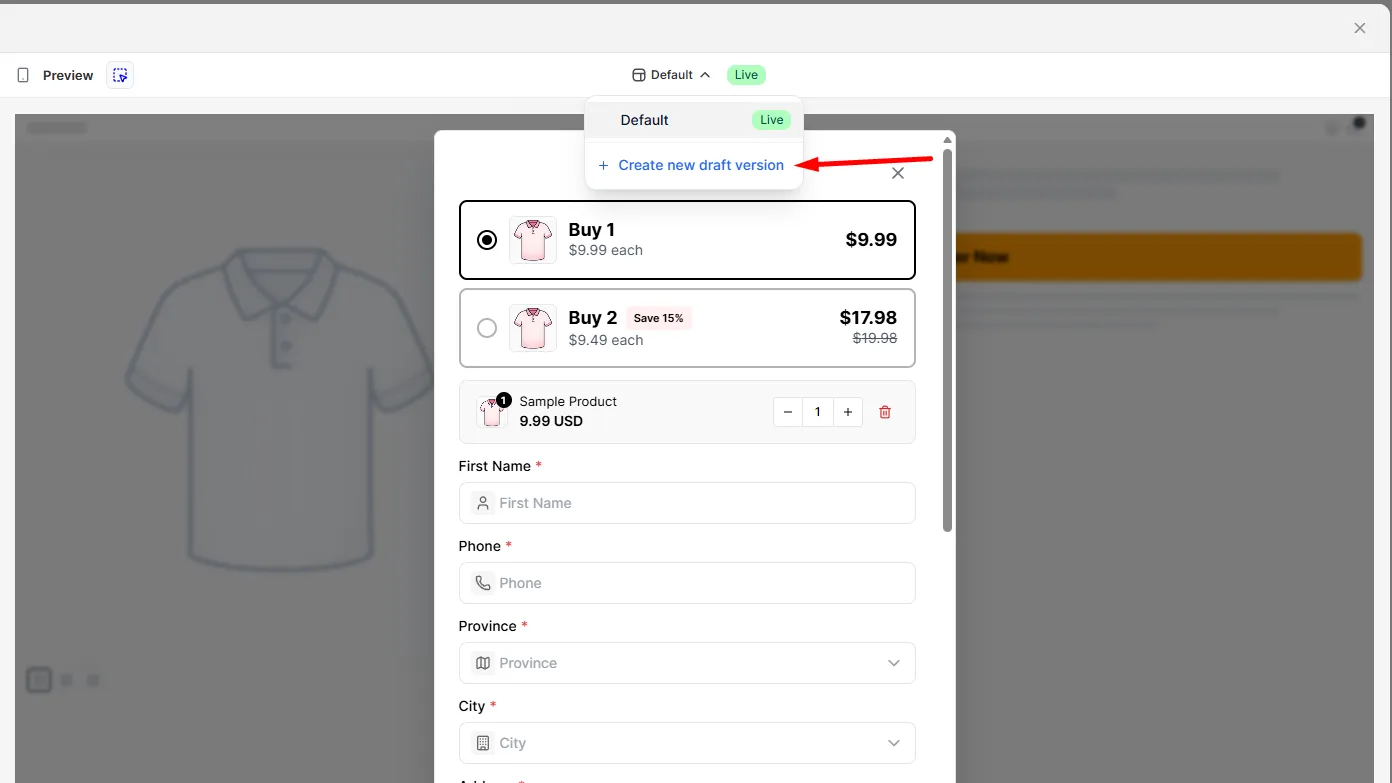
A new draft is created from your current live form, and you can now edit it freely.
Switch between versions
Section titled “Switch between versions”Step 1: Click the version switcher.
Step 2: Select Live or any draft.
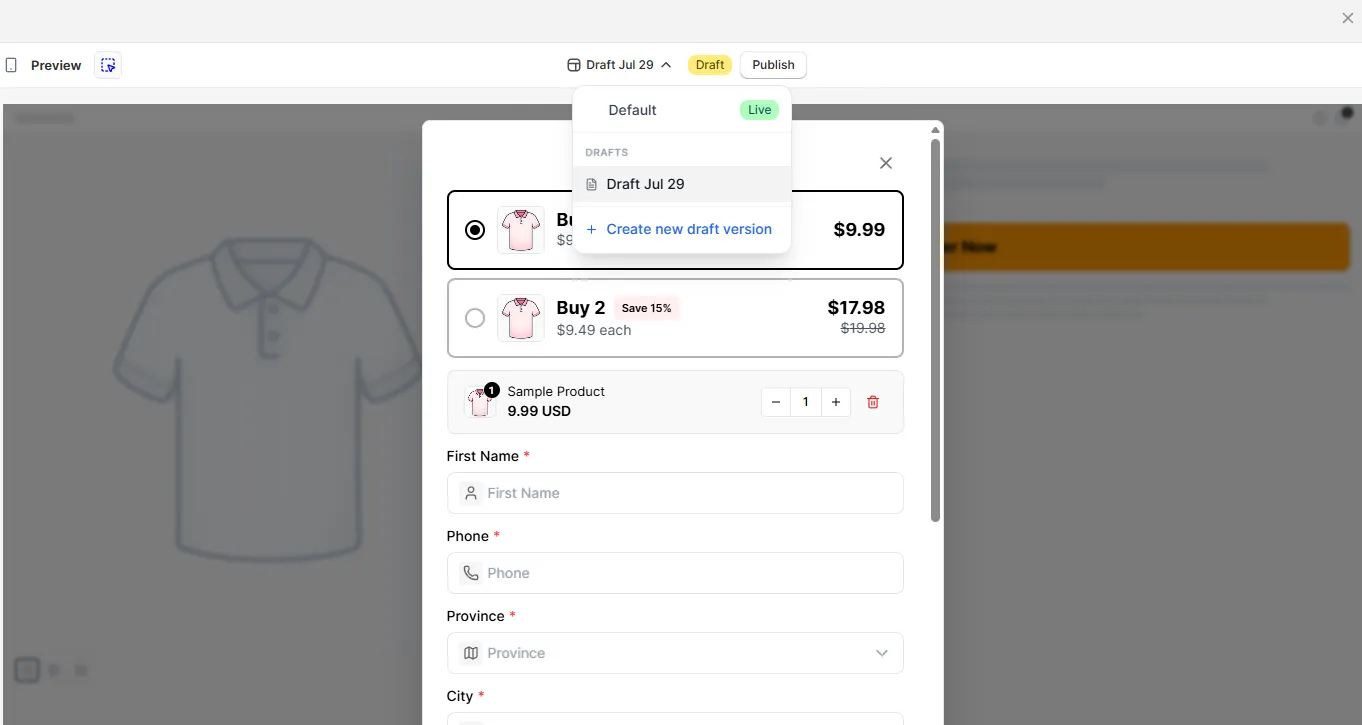
Your current changes are saved automatically before switching.
Rename a draft
Section titled “Rename a draft”Step 1: Click the version switcher.
Step 2: Hover over the draft and click the edit icon.
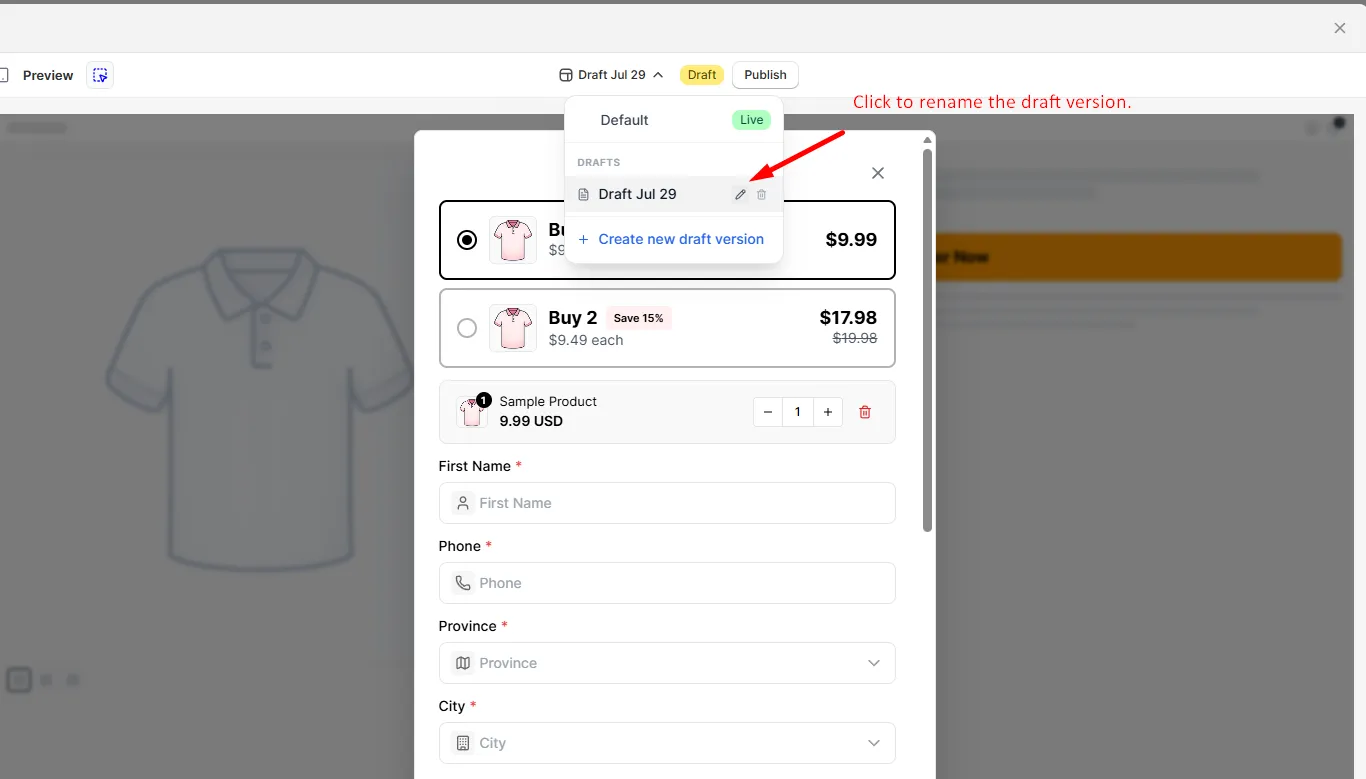
Step 3: Type a new name and press Enter.
Publish a draft
Section titled “Publish a draft”Publishing makes the draft your new live form.
Step 1: Switch to the draft you want to publish.
Step 2: Click Publish.
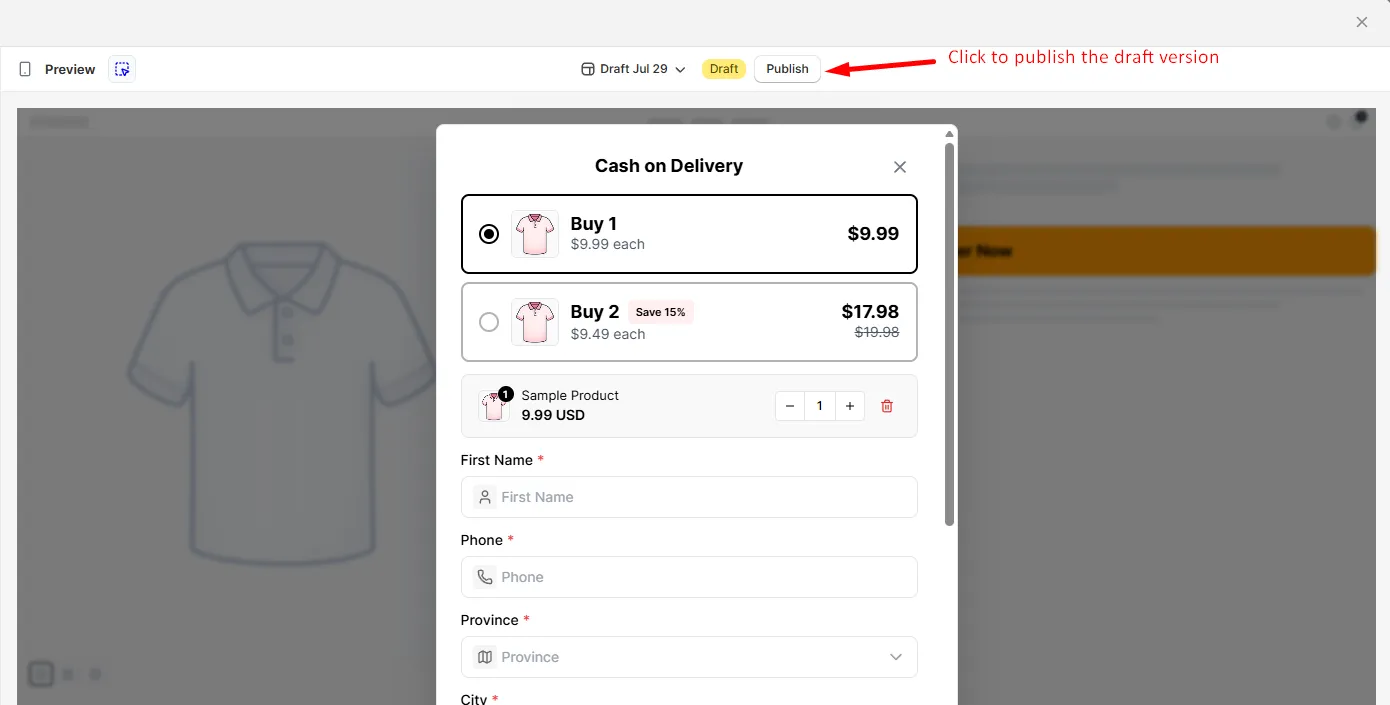
Step 3: Confirm.
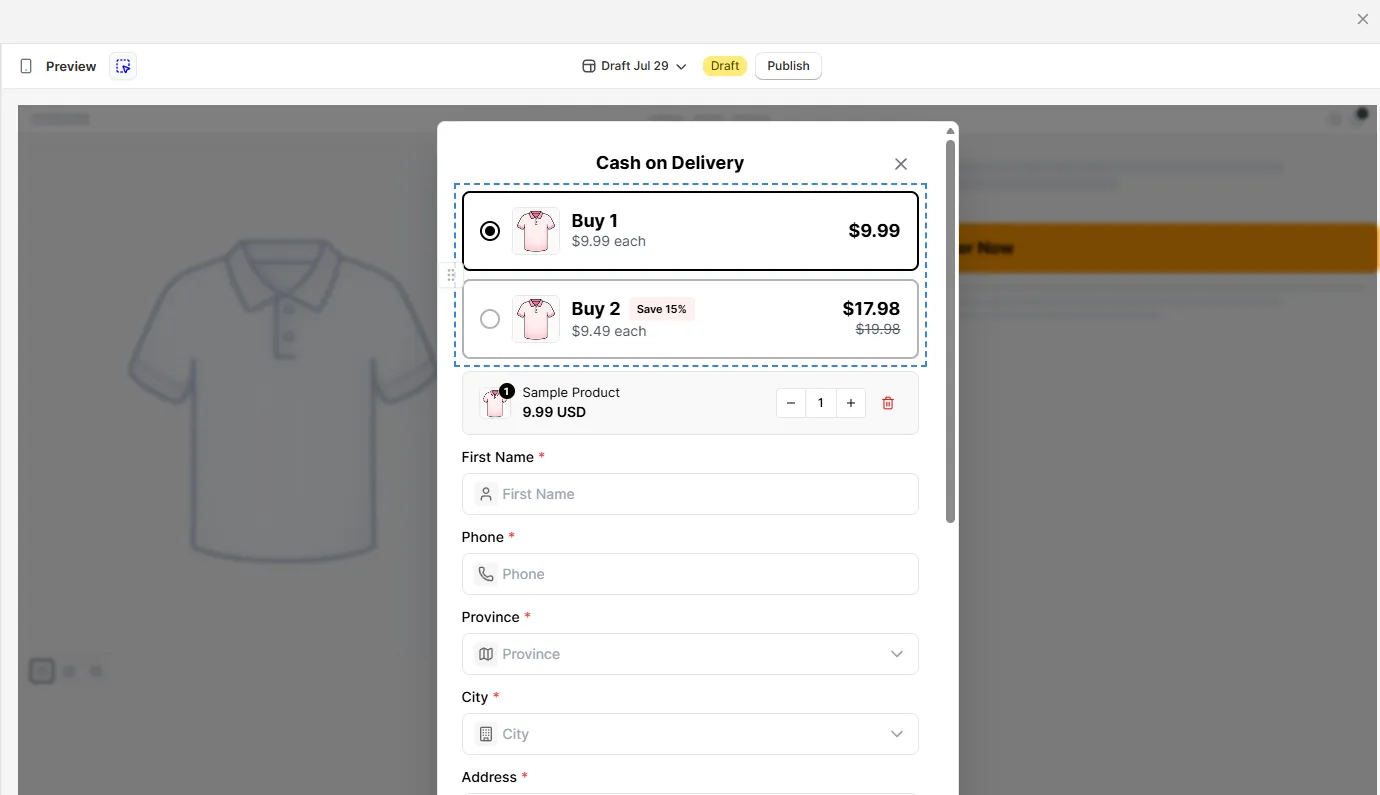
Your old live version becomes a draft, so you can still go back to it if needed.
Delete a draft
Section titled “Delete a draft”Step 1: Click the version switcher.
Step 2: Find the draft and click the delete icon.
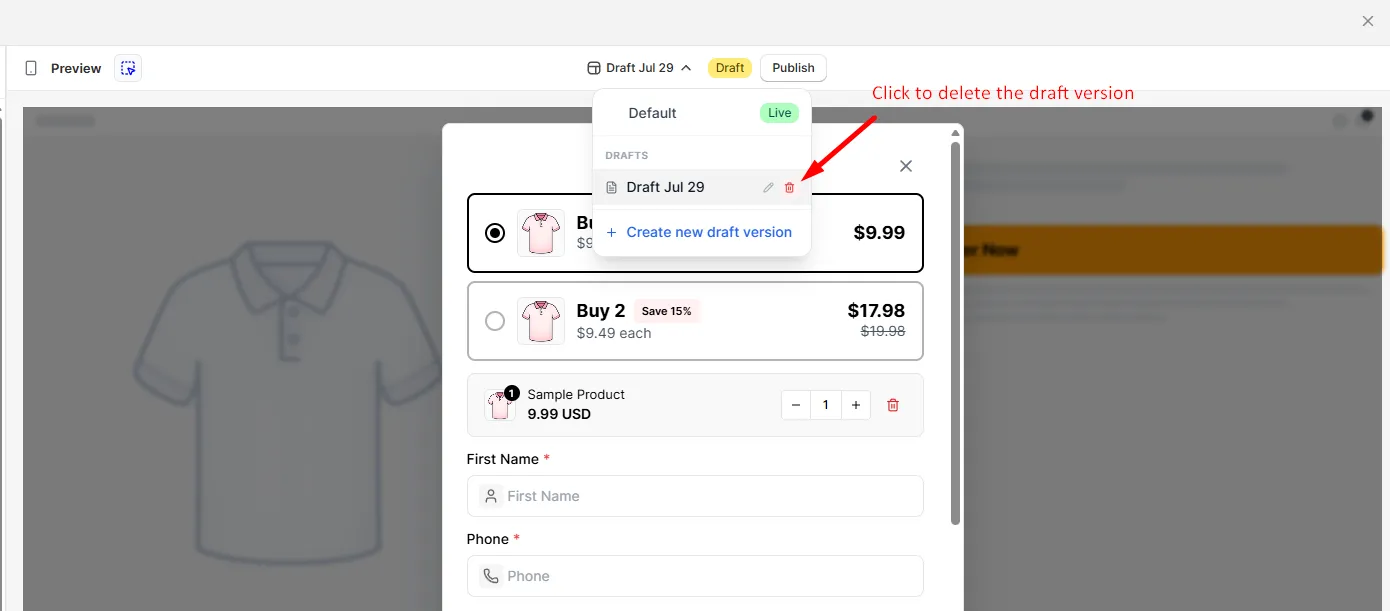
Step 3: Confirm.