
Create a downsell offer
A downsell is a last-chance discount shown when a customer tries to close the order form without buying. It is a way to win back customers who are about to leave.
1. Create the offer
Section titled “1. Create the offer”-
Go to Offers → Downsells.
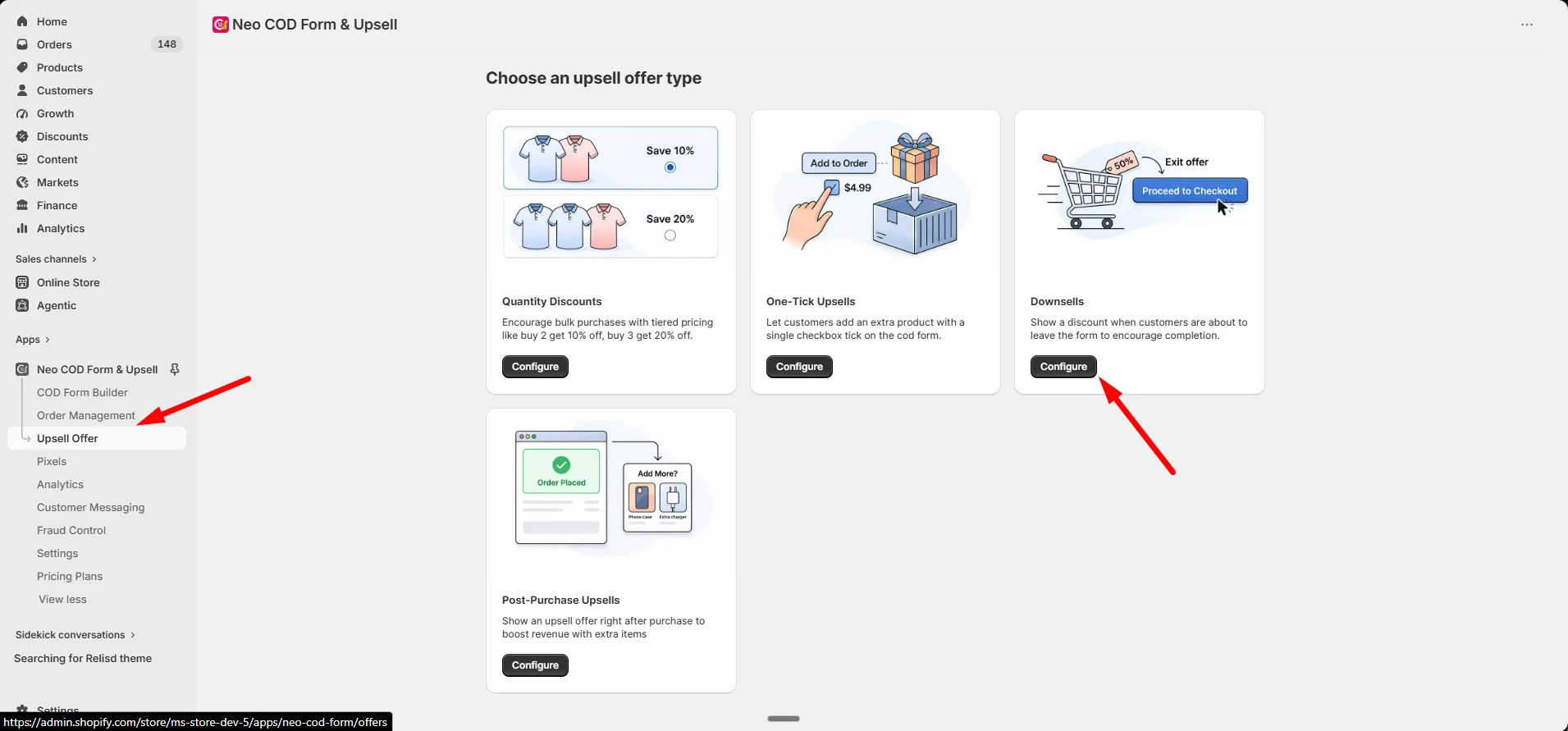
-
Click Add Offer.
2. Set up the offer
Section titled “2. Set up the offer”On the General tab:
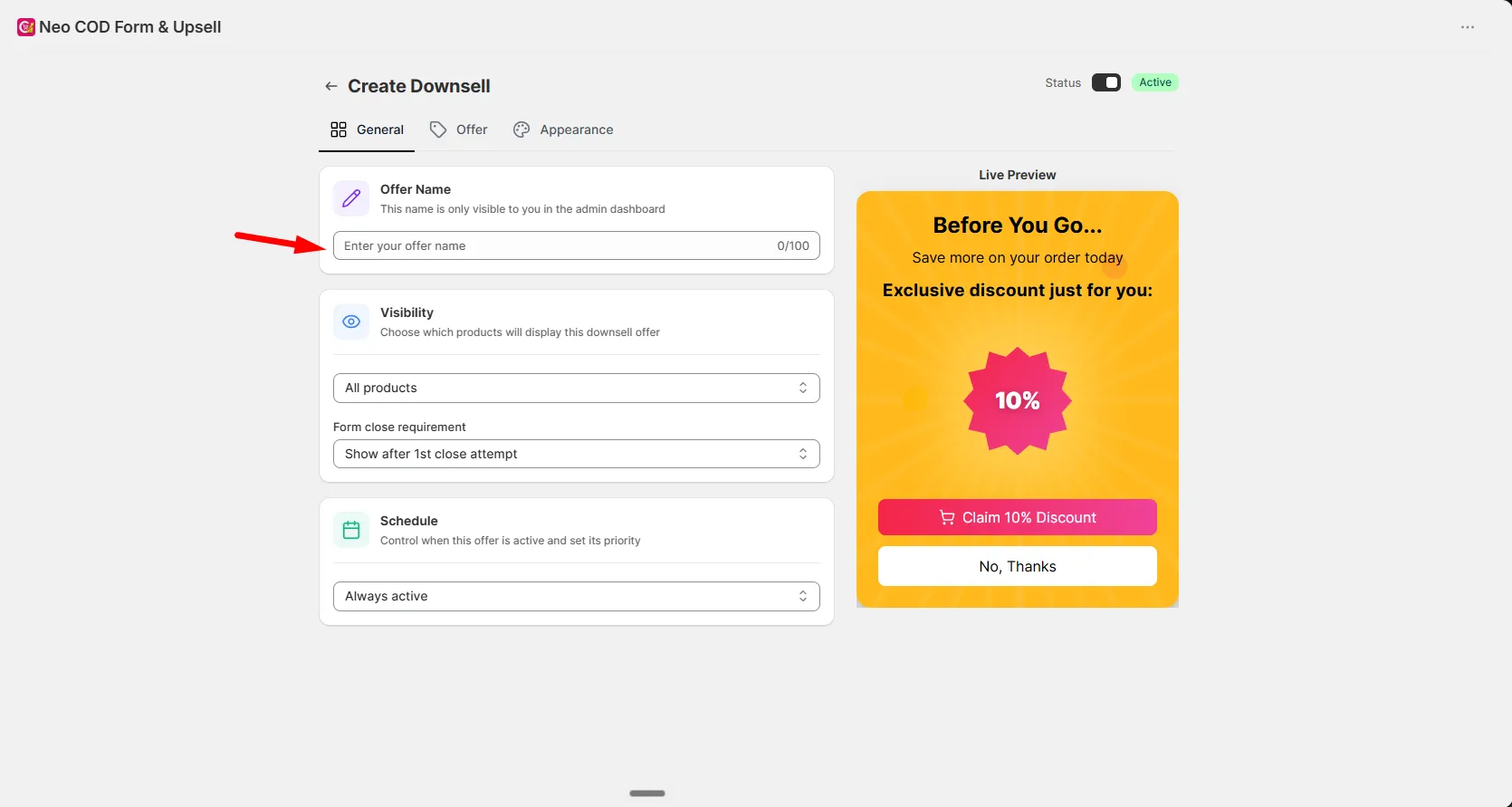
| Setting | What it does |
|---|---|
| Offer Name | Internal name, admin use only |
| Visibility | All products, Specific products, Specific collection, or All products except |
| Form close requirement | How many times the customer must try to close the form before this offer shows (1st, 2nd, 3rd, or 4th attempt) |
| Schedule | Optional start and end date |
3. Set up the discount
Section titled “3. Set up the discount”On the Offer tab:
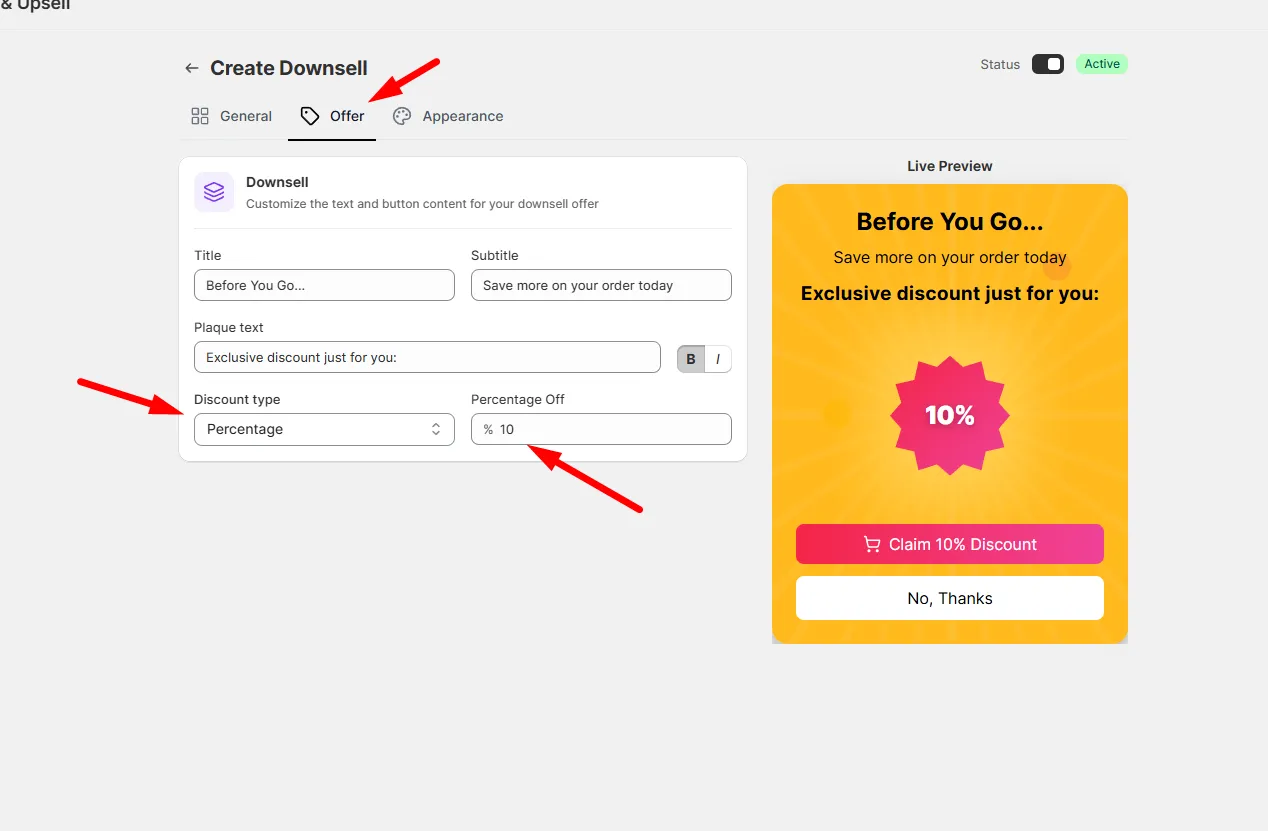
-
Set Title, Subtitle, and Plaque text.
-
Set Discount type: Percentage or Fixed amount.
-
Set the discount value.
-
Set Button text, Button icon, and Button animation.
4. Style the offer
Section titled “4. Style the offer”Go to the Appearance tab to customize the theme, badge, text colors and sizes, accept button, and no-thanks button.
5. Save
Section titled “5. Save”Click Save. The offer is active by default.