
Create a quantity discount
A quantity discount gives customers a lower price when they buy more — for example Buy 1, Buy 2, and Buy 3, each with its own price.
1. Create the offer
Section titled “1. Create the offer”-
Go to Offers → Quantity Discounts.
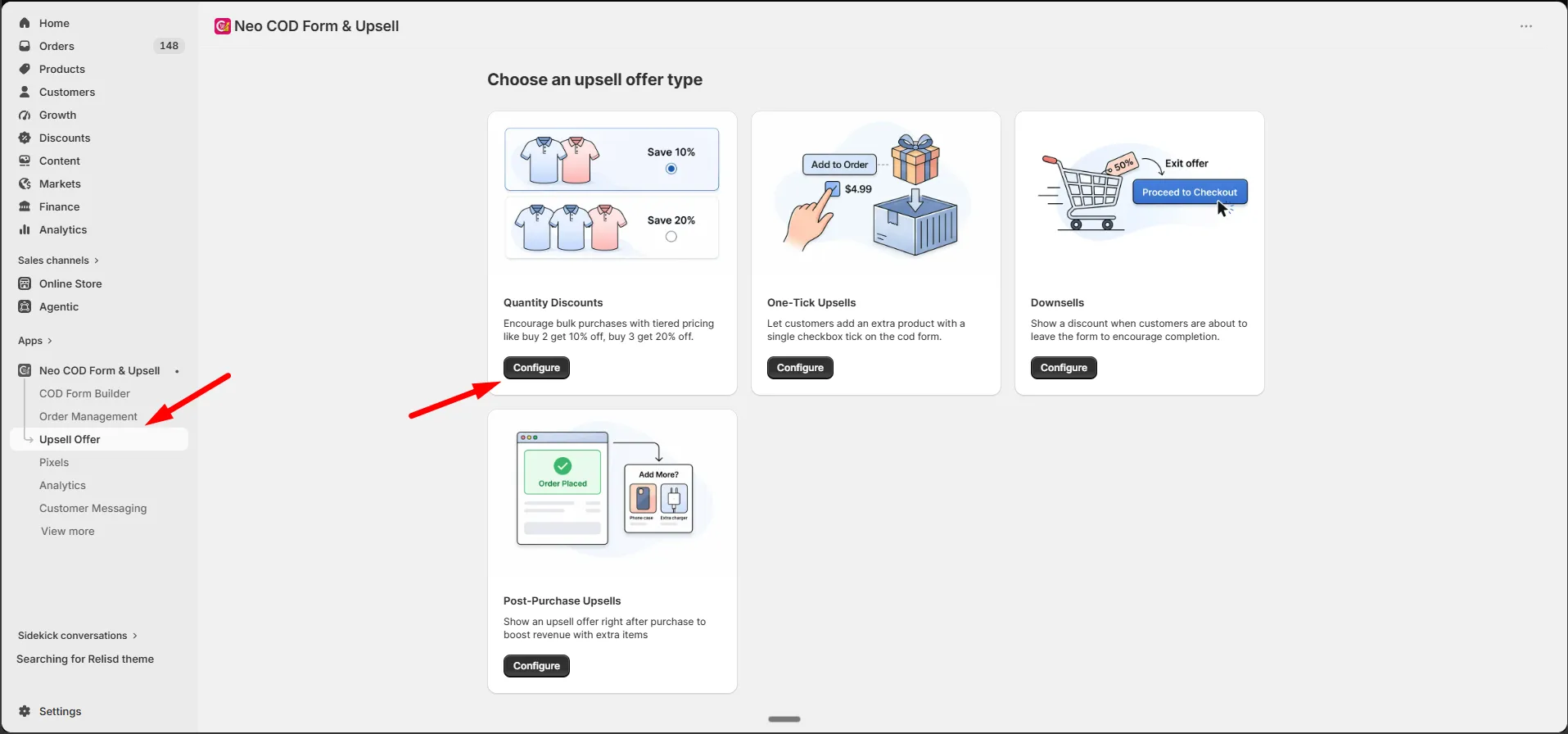
-
Click Add Offer.
2. Set up the offer
Section titled “2. Set up the offer”On the General tab:
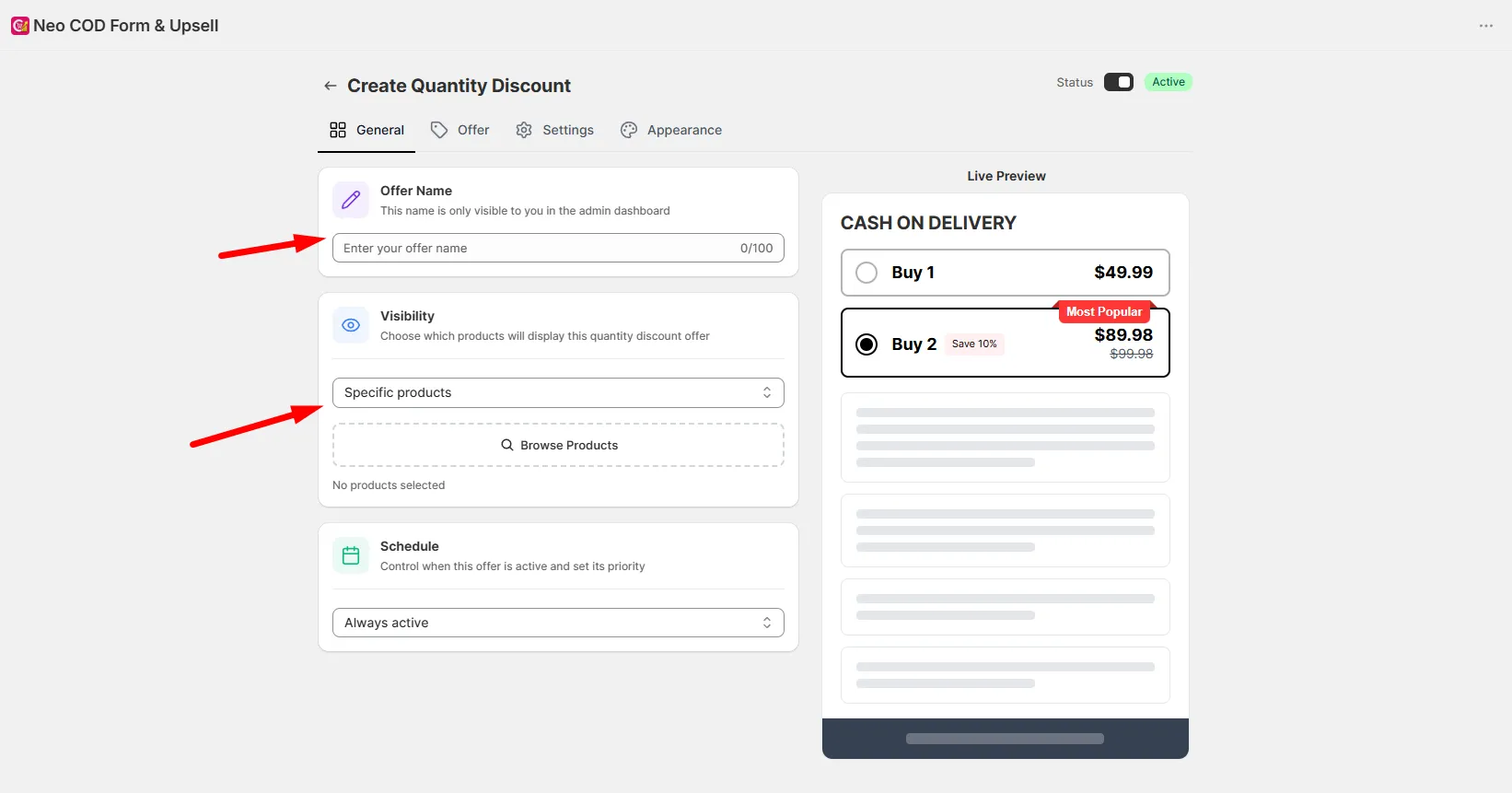
| Setting | What it does |
|---|---|
| Offer Name | Internal name, admin use only |
| Visibility | All products, Specific products, Specific collection, or All products except |
| Schedule | Optional start and end date |
3. Set up tiers
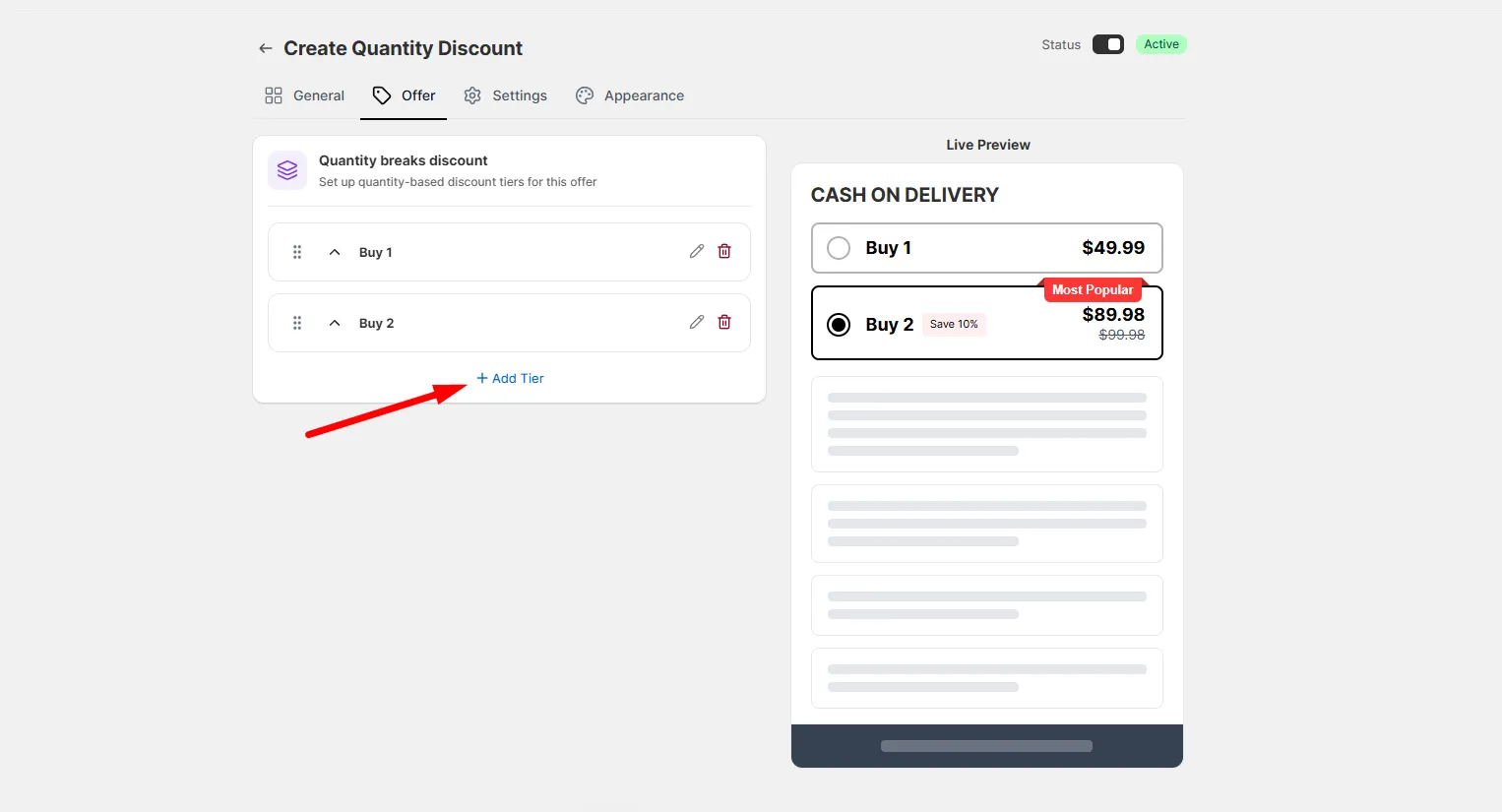
Section titled “3. Set up tiers”On the Offer tab, two tiers (Buy 1, Buy 2) are added by default. Edit them, or click Add Tier to create more.
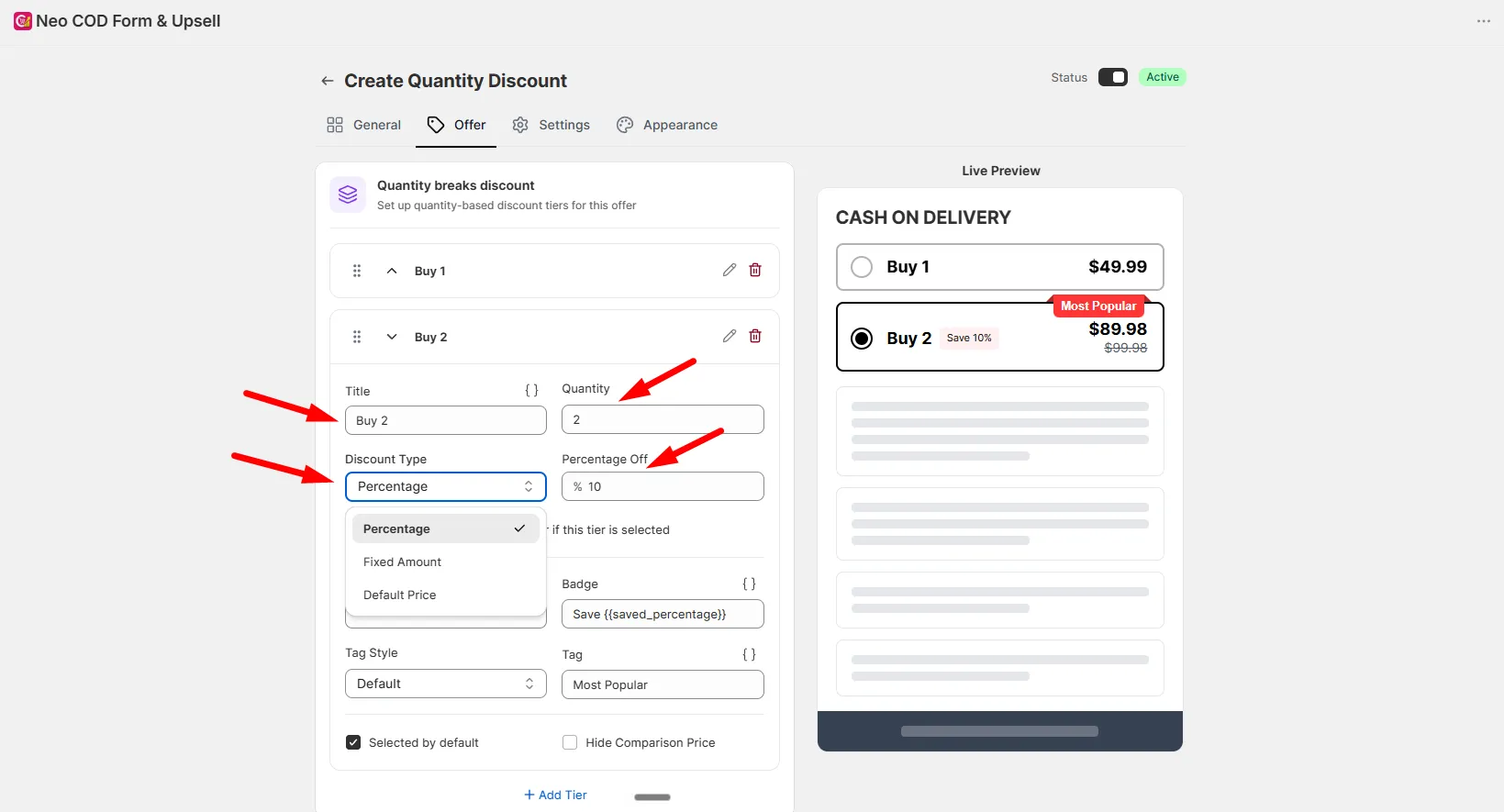
For each tier, set:
- Title and Quantity
- Discount Type: Percentage, Fixed Amount, or Default Price
- Discount Value
- Free Shipping (optional)
- Subtitle, Badge, Tag (optional)
- Selected by default and Hide Comparison Price (optional)
- Tier Image (optional)
Drag tiers to reorder them.
4. Settings
Section titled “4. Settings”Go to the Settings tab to control display behavior — hide product image, hide variant numbers, and so on — and to customize stock error messages.
5. Style the offer
Section titled “5. Style the offer”Go to the Appearance tab for color theme, layout (Classic, Modern, Vertical), display position, card design, and badge design.
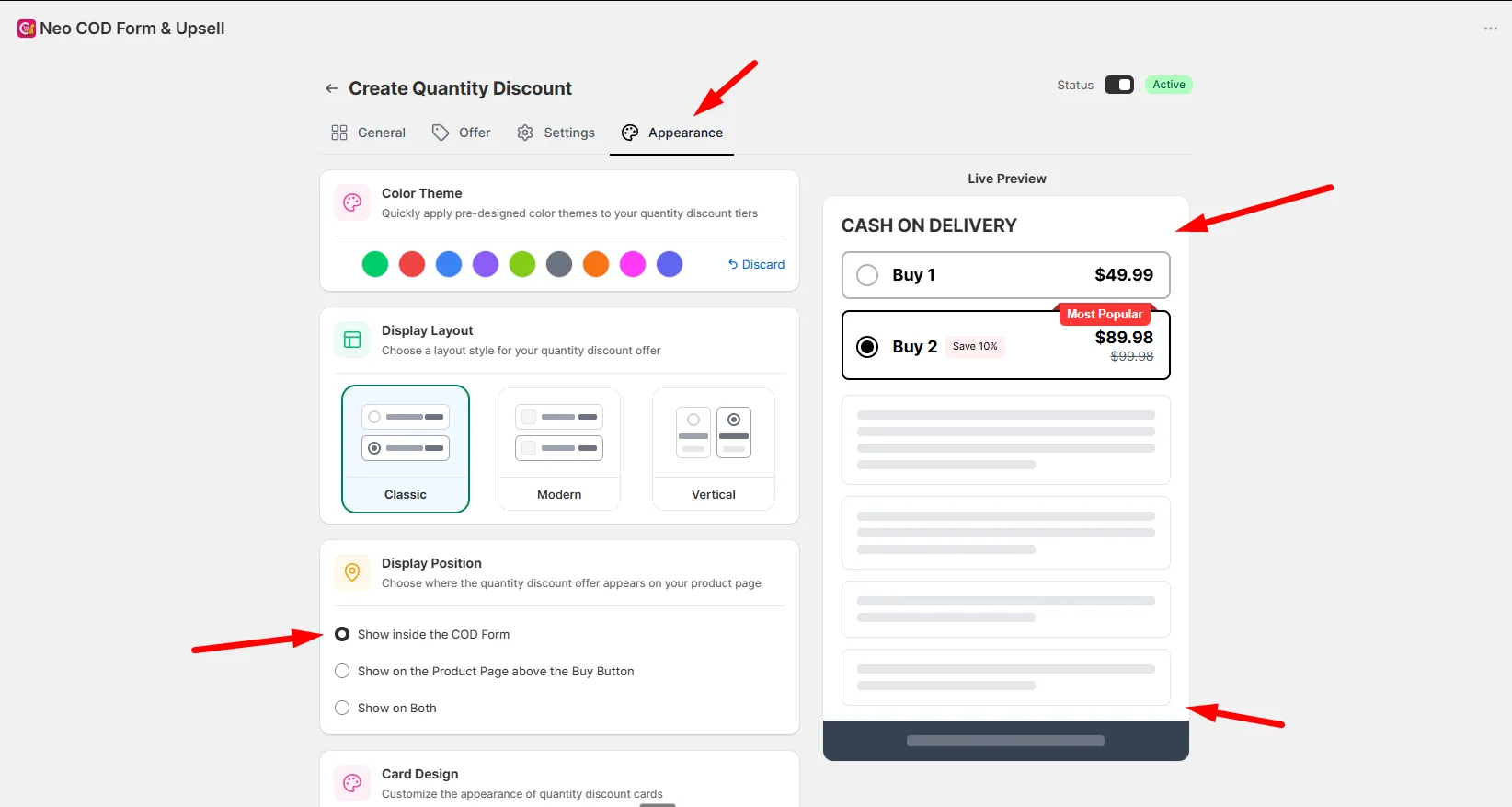
Change display position
Section titled “Change display position”Choose where the offer shows on the product page:
- Show inside the COD Form
- Show on the Product Page above the Buy Button
- Show on Both
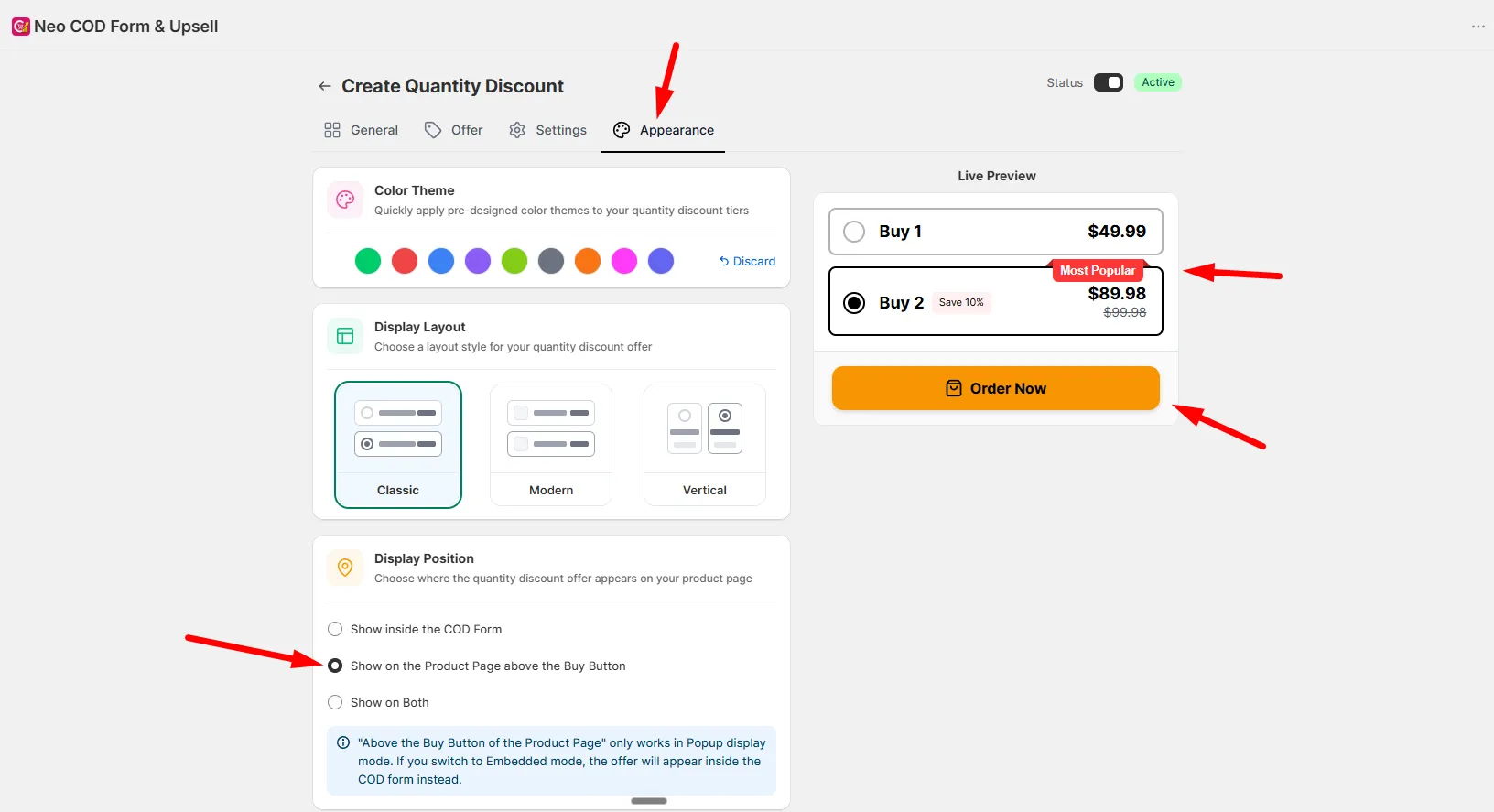
6. Save
Section titled “6. Save”Click Save. The offer is active by default.