
Connect Paperfly Courier
Once Paperfly is connected, you can send orders to Paperfly as parcels straight from the app, and their delivery status updates on its own as the parcel moves.
The setup has two parts:
- Paperfly to the app: copy your Paperfly key and paste it into the app, along with your Paperfly username and password.
- The app to Paperfly: copy the Webhook Endpoint URL and Secret Key from the app and paste them into Paperfly’s webhook settings.
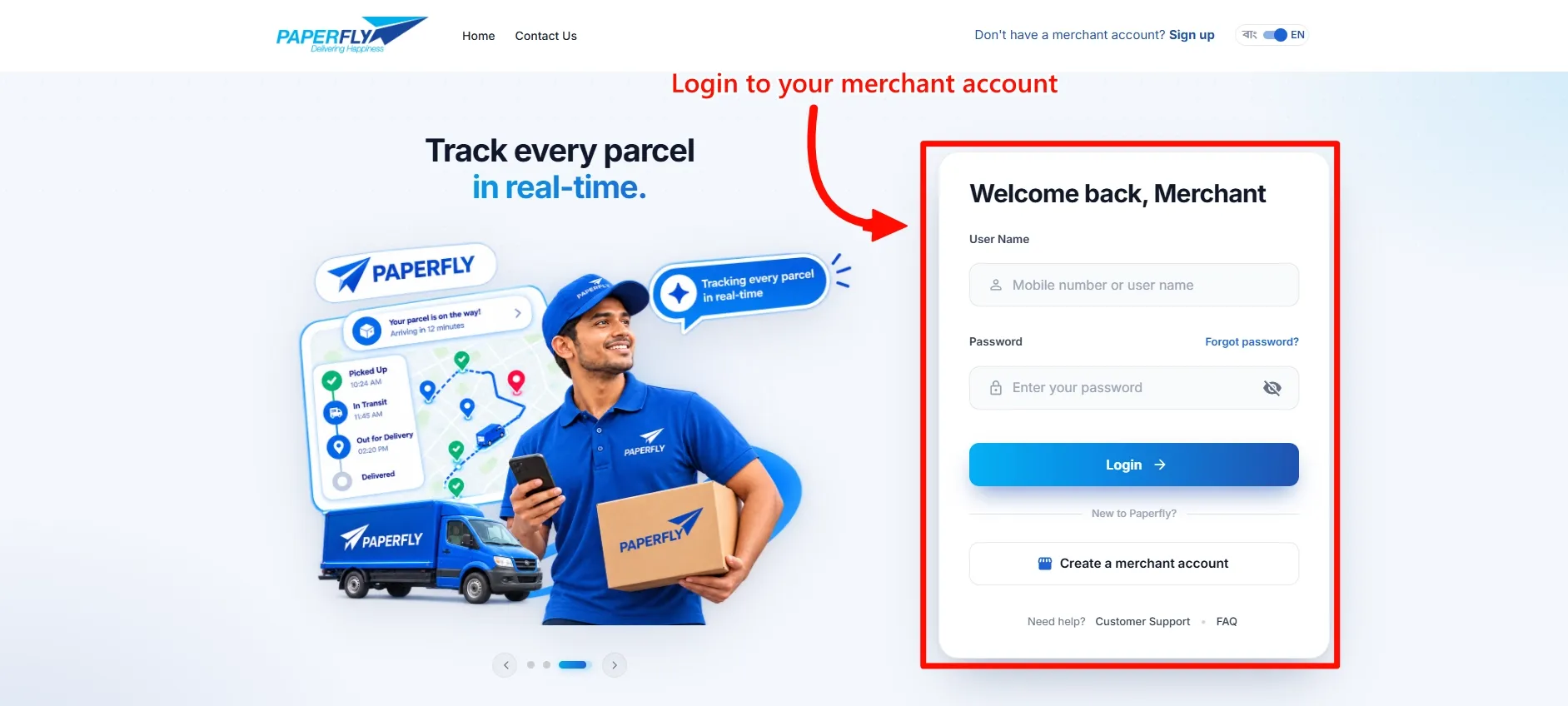
You’ll need a Paperfly merchant account. If you don’t have one yet, click Create a merchant account on the Paperfly login page first.
Open the Paperfly settings in the app
Section titled “Open the Paperfly settings in the app”Step 1: In the app, go to Order Management and open the Courier Integration tab.
Step 2: Find Paperfly and click Configure.
You’ll land on the Configuration page. Leave it open. The API Configuration section is where your Paperfly details go, and the Webhook Configuration section has the values you’ll paste into Paperfly later.
Part 1: Get your Paperfly key
Section titled “Part 1: Get your Paperfly key”Step 1: Go to the Paperfly login page and log in with your user name (or mobile number) and password.
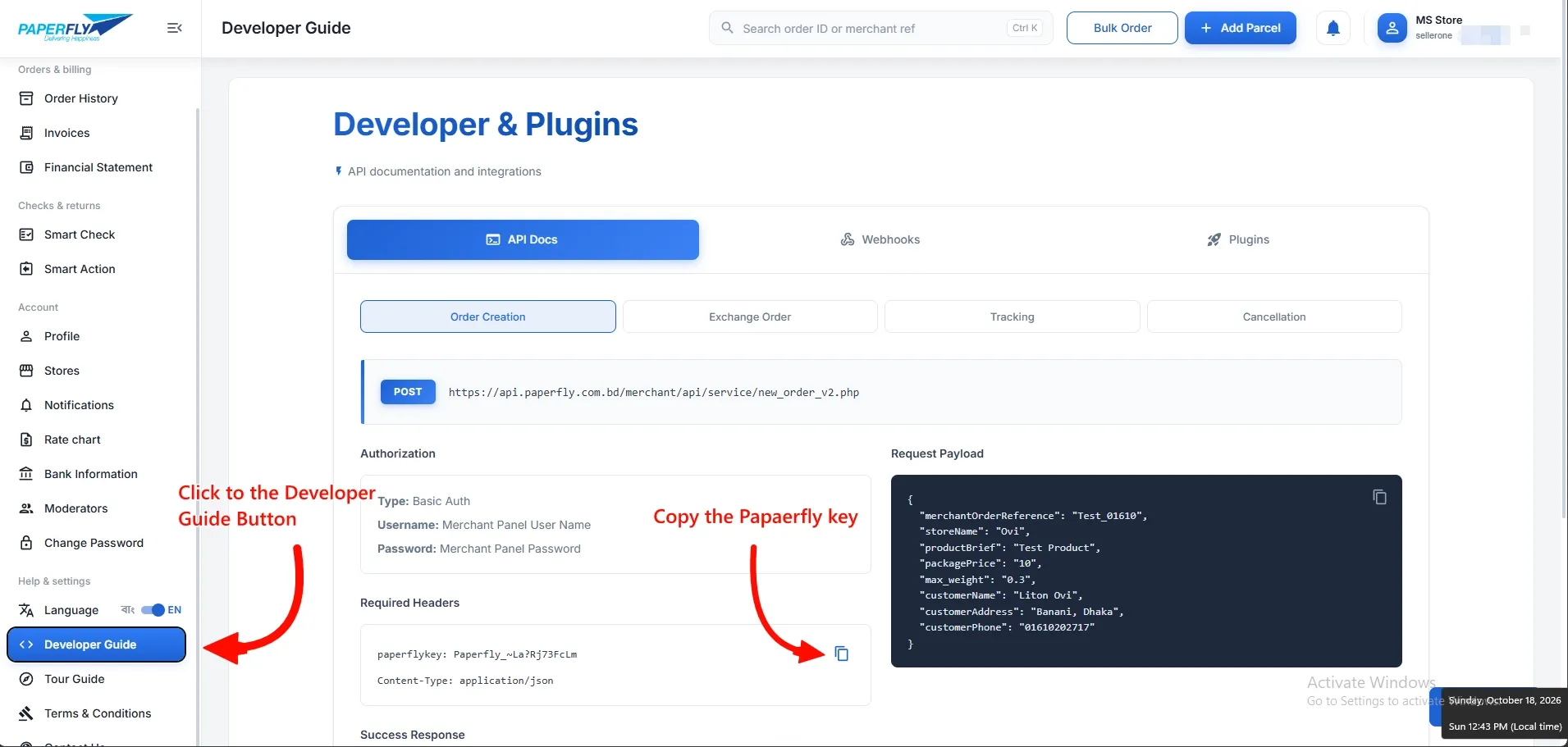
Step 2: In the left menu, click Developer Guide. It’s near the bottom, under Help & settings.
Step 3: The page opens on the API Docs tab. Find the Required Headers box and click the copy icon next to it. Your key is the value after paperflykey:, and it starts with Paperfly_.
Step 4: Back in the app, fill in the API Configuration section:
- Paste the key into Paperfly Key.
- Enter your Paperfly user name in Username.
- Enter your Paperfly password in Password.
Use the same user name and password you logged in with in Step 1. Paperfly checks them along with the key every time the app books a parcel, so all three fields are required.
Step 5: Click Save in the bar at the top of the page.
Part 2: Set up the webhook in Paperfly
Section titled “Part 2: Set up the webhook in Paperfly”The webhook is how Paperfly tells the app that a parcel has been picked up, delivered, returned and so on. Without it, the app won’t know when a parcel’s status changes.
You don’t need to create anything here. The app already gives you both values.
Step 1: In the app, go to the Webhook Configuration section on the same Paperfly page. You’ll see two fields:
- Webhook Endpoint URL
- Secret Key
Step 2: In Paperfly, stay on the Developer Guide page and click the Webhooks tab at the top. Make sure Configuration is selected underneath.
Step 3: In the app, click Copy next to Webhook Endpoint URL. Paste it into the Webhook Endpoint URL field in Paperfly.
Step 4: In the app, click Copy next to Secret Key. Paste it into the Secret Key field in Paperfly.
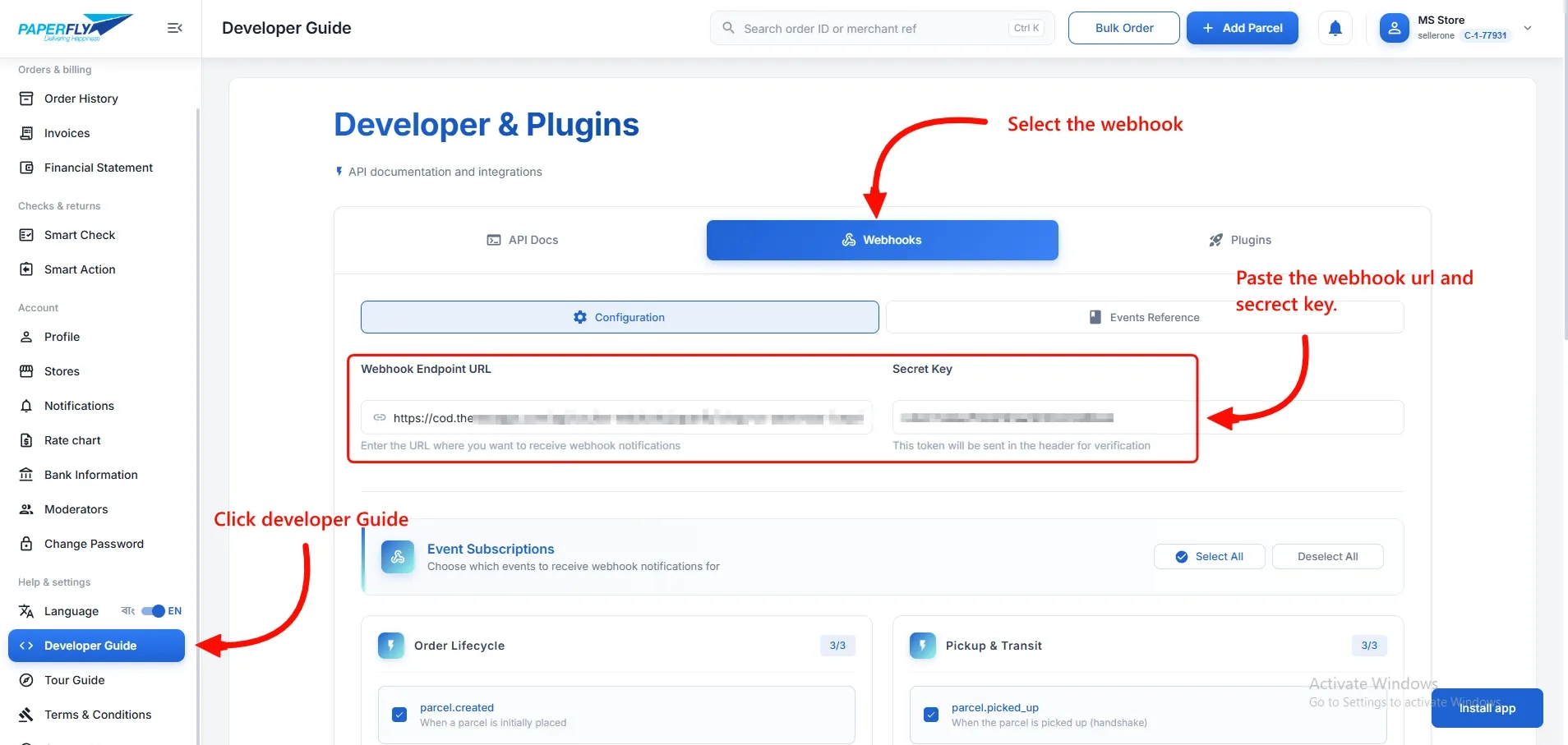
Step 5: Under Event Subscriptions, click Select All so every status change is sent to the app. If you leave some events unticked, those updates won’t show up on your orders.
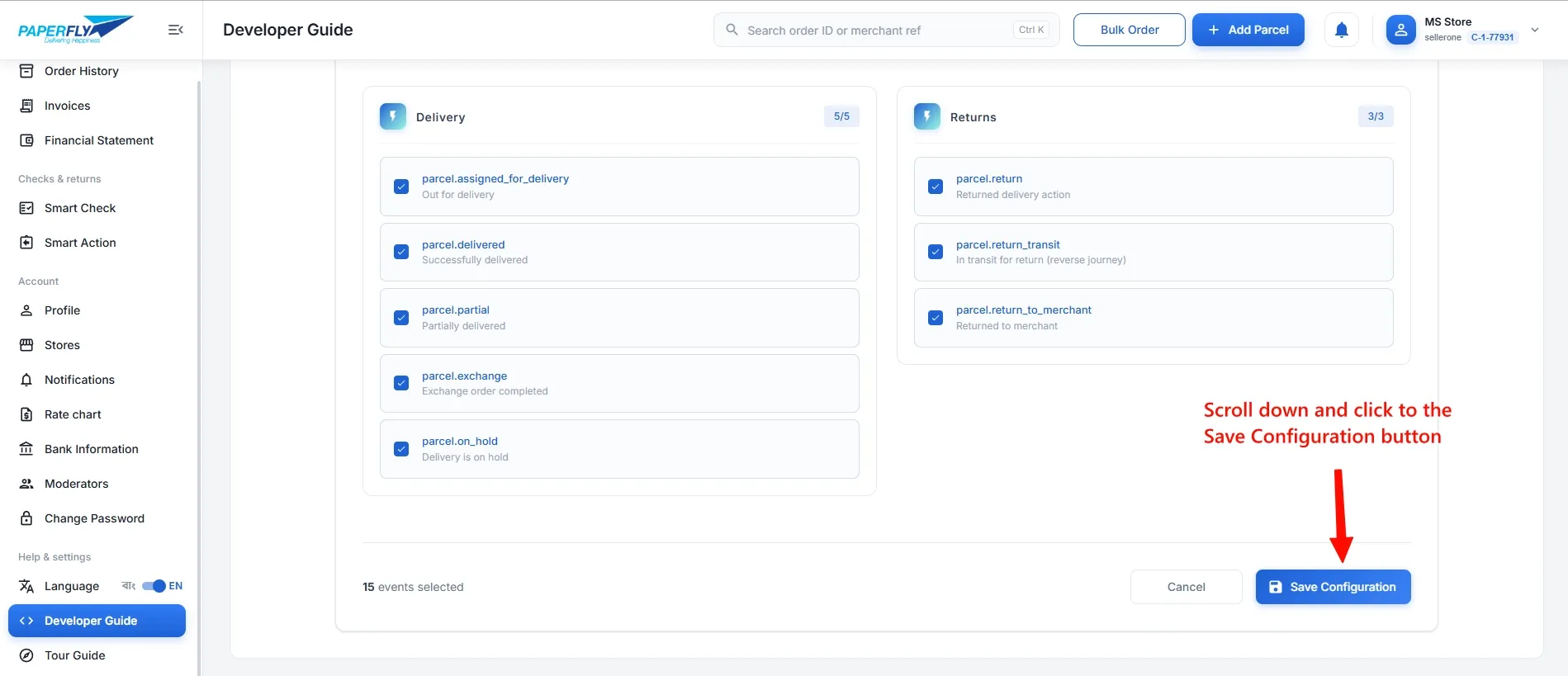
Step 6: Scroll to the bottom of the page and click Save Configuration. The counter next to the button should say 15 events selected.
That’s it. The next time one of your Paperfly parcels changes status, the update will show up on the order in the app.
If updates aren’t coming through
Section titled “If updates aren’t coming through”If a parcel has moved in Paperfly but the order in the app hasn’t changed, check these:
- The values don’t match. Copy the Webhook Endpoint URL and Secret Key from the app again and paste them over what’s in Paperfly. Don’t type them by hand.
- There’s an extra space. Check there’s nothing before or after either value.
- Some events are unticked. Go back to Event Subscriptions, click Select All, and save again.
- The configuration wasn’t saved. Changes in Paperfly only stick after you click Save Configuration at the bottom of the page.
If it still isn’t working, contact us from the Help & Support tab on the Paperfly page in the app and we’ll take a look.
Common questions
Section titled “Common questions”Does the webhook stop working if I change my password? No. The webhook is separate from your login. But the app does need your current user name and password to book parcels, so update them in the app if they change.
What’s the difference between the Paperfly key and the Secret Key? The Paperfly key comes from Paperfly and goes into the app. It lets the app book parcels on your account. The Secret Key comes from the app and goes into Paperfly. Paperfly sends it with every webhook so the app knows the update really came from Paperfly.