
Connect RedX Courier
Once RedX is connected, you can send orders to RedX as parcels straight from the app, and their delivery status updates on its own as the parcel moves.
RedX is the simplest courier to set up. There are only two values to move:
- RedX to the app: copy your API token from RedX and paste it into the app.
- The app to RedX: copy the Callback URL from the app and paste it into RedX’s webhook settings.
You’ll need a RedX merchant account. If you don’t have one yet, click Sign up on the RedX login page first.
Open the RedX settings in the app
Section titled “Open the RedX settings in the app”Step 1: In the app, go to Order Management and open the Courier Integration tab.
Step 2: Find Redx and click Configure.
You’ll land on the Configuration page. Leave it open. The API Configuration section is where your RedX token goes, and the Webhook Configuration section has the Callback URL you’ll paste into RedX later.
Part 1: Get your API token
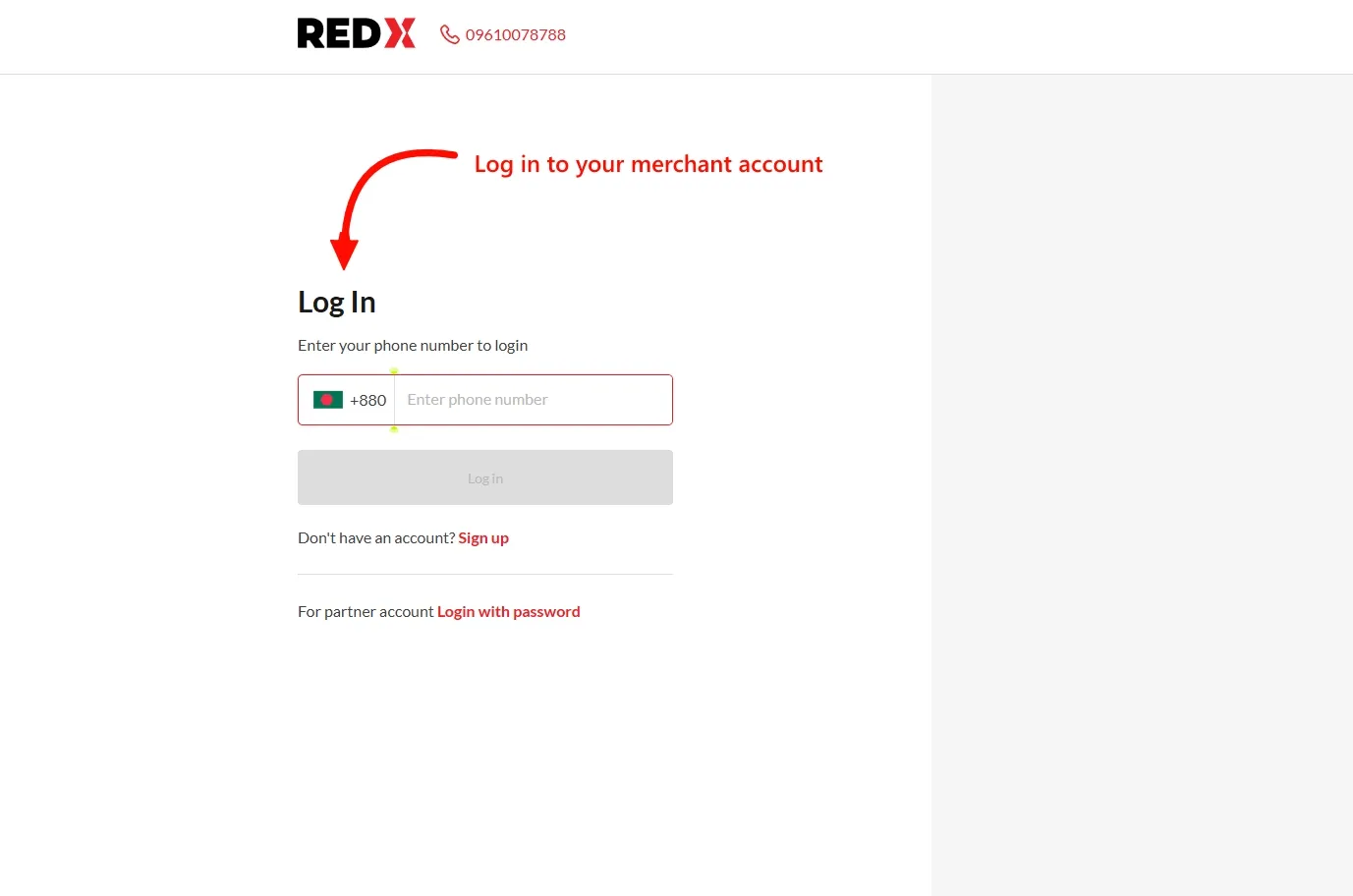
Section titled “Part 1: Get your API token”Step 1: Go to the RedX login page, enter the phone number on your merchant account, and click Log in. RedX will then ask you to verify the number before it lets you in.
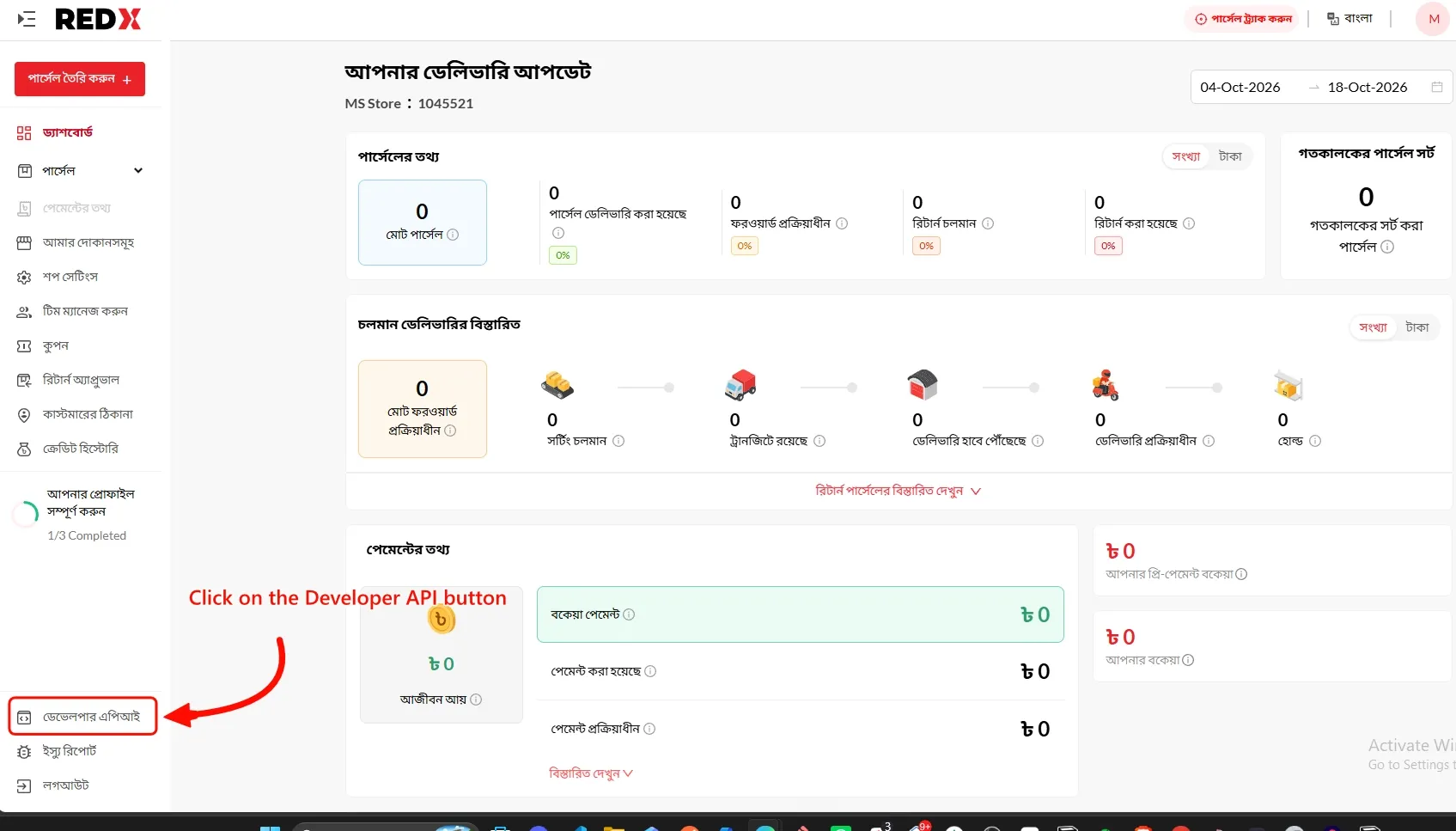
Step 2: On your RedX dashboard, click ডেভেলপার এপিআই (Developer API) at the bottom of the left menu.
Step 3: The Developer API page has its own menu. Under Open API, click Configuration.
Step 4: Scroll to the Production box. Click the eye icon at the end of the Token field to show the token, then select the whole token and copy it.
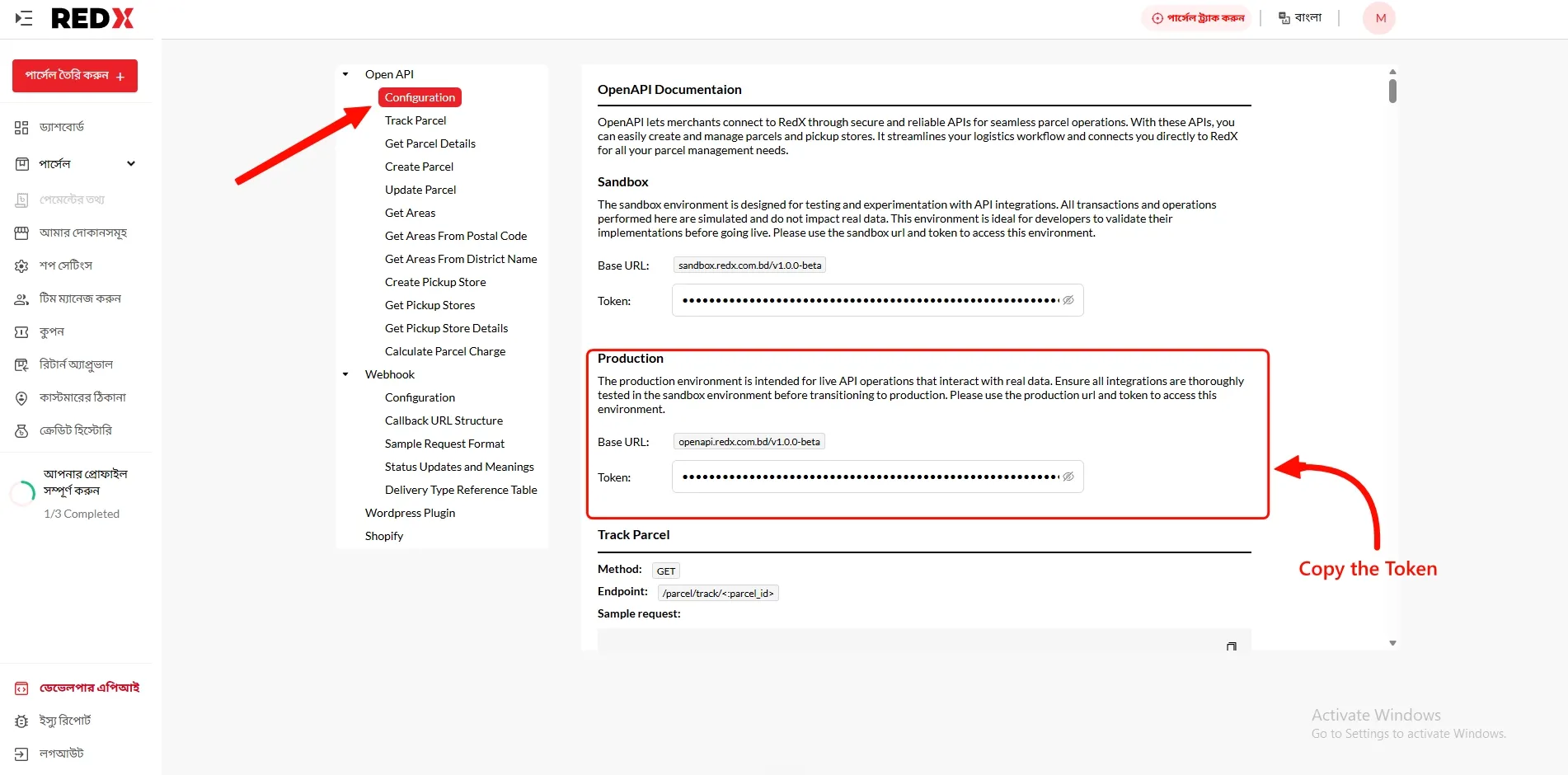
The token is long, so make sure you copied all of it. It’s easy to miss the last few characters when selecting by hand.
Step 5: Back in the app, paste the token into API Token in the API Configuration section.
Step 6: Click Save in the bar at the top of the page.
Part 2: Set up the webhook in RedX
Section titled “Part 2: Set up the webhook in RedX”The webhook is how RedX tells the app that a parcel has been picked up, delivered, returned and so on. Without it, the app won’t know when a parcel’s status changes.
RedX only needs one value for this, the Callback URL. There’s no separate secret to copy, because the app builds it into the URL itself.
Step 1: In the app, go to the Webhook Configuration section on the same RedX page and click Copy next to Callback URL.
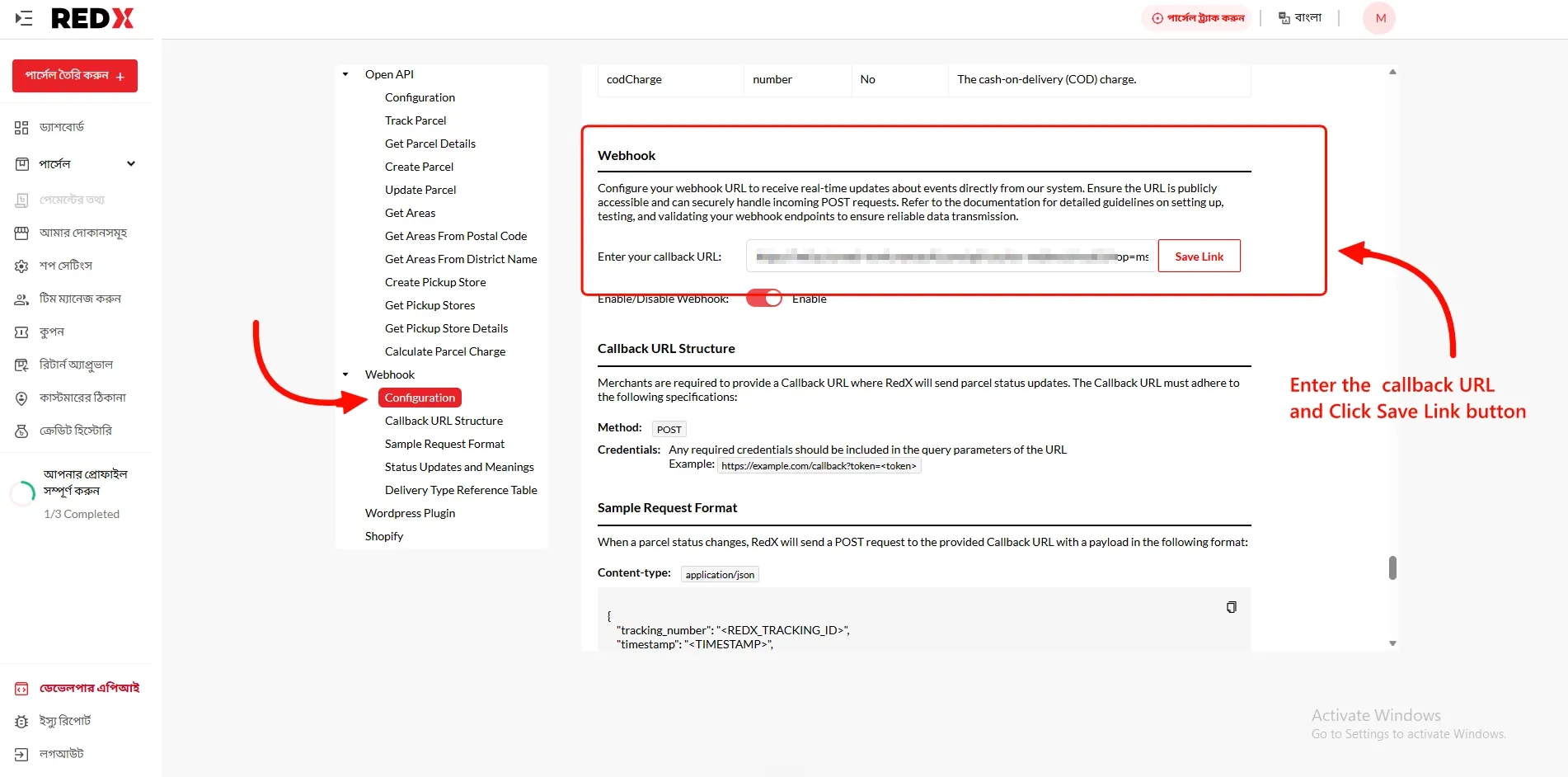
Step 2: In RedX, stay on the Developer API page. In its menu, under Webhook, click Configuration.
Step 3: Paste the URL into the Enter your callback URL field, then click Save Link.
Step 4: Check that the Enable/Disable Webhook switch under the field is turned on and says Enable. If it’s off, RedX won’t send any updates even with the URL saved.
That’s it. The next time one of your RedX parcels changes status, the update will show up on the order in the app.
If updates aren’t coming through
Section titled “If updates aren’t coming through”If a parcel has moved in RedX but the order in the app hasn’t changed, check these:
- The URL was cut short. The field in RedX is narrow, so you can’t see the whole URL at once. Copy it from the app again, clear the RedX field completely, paste, and click Save Link.
- There’s an extra space. Check there’s nothing before or after the URL.
- The webhook is switched off. Make sure Enable/Disable Webhook says Enable.
- You didn’t click Save Link. Pasting the URL on its own doesn’t save it.
If it still isn’t working, contact us from the Help & Support tab on the RedX page in the app and we’ll take a look.
If parcels won’t book
Section titled “If parcels won’t book”If the app can’t create parcels on RedX, the problem is in Part 1:
- You used the sandbox token. Go back to Open API → Configuration and copy the token from the Production box instead.
- Part of the token is missing. Copy it again, making sure you get every character, and paste it over the old one in the app.
Common questions
Section titled “Common questions”Why doesn’t RedX have a webhook secret like the other couriers? It does, it’s just inside the Callback URL. RedX asks for any credentials to go in the URL itself, so that’s where the app puts it. As long as you paste the full URL, it works the same way.
Does the webhook stop working if my API token changes? No. The webhook and the API token are separate. If you get a new token from RedX, paste it into the app and save. You don’t need to touch the Callback URL.