
Set up Google Analytics 4
This guide shows how to connect Google Analytics 4 (GA4) to your store using the app.
Steps to enable
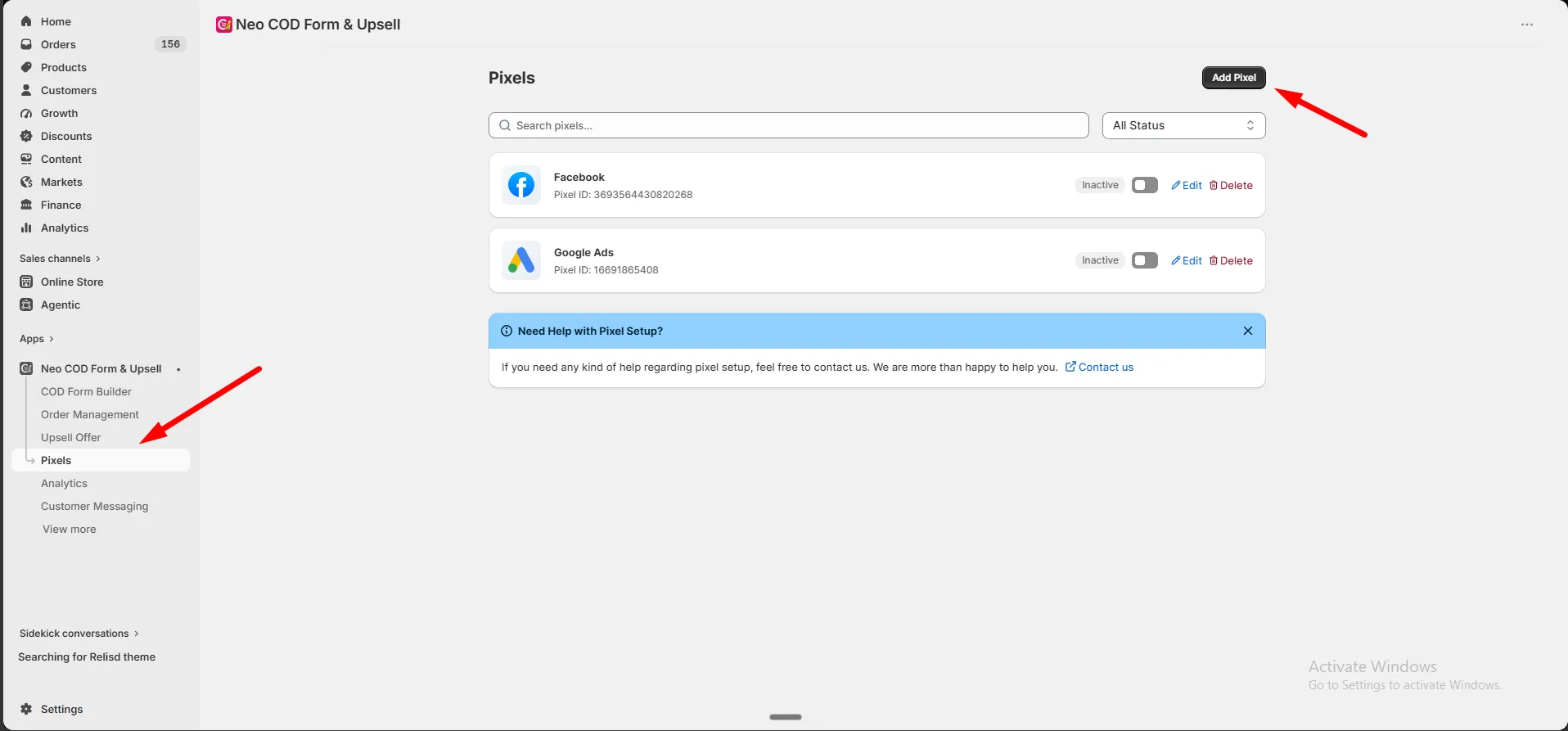
Section titled “Steps to enable”Step 1: Open the app and go to Pixels from the side menu, then click Add Pixel.
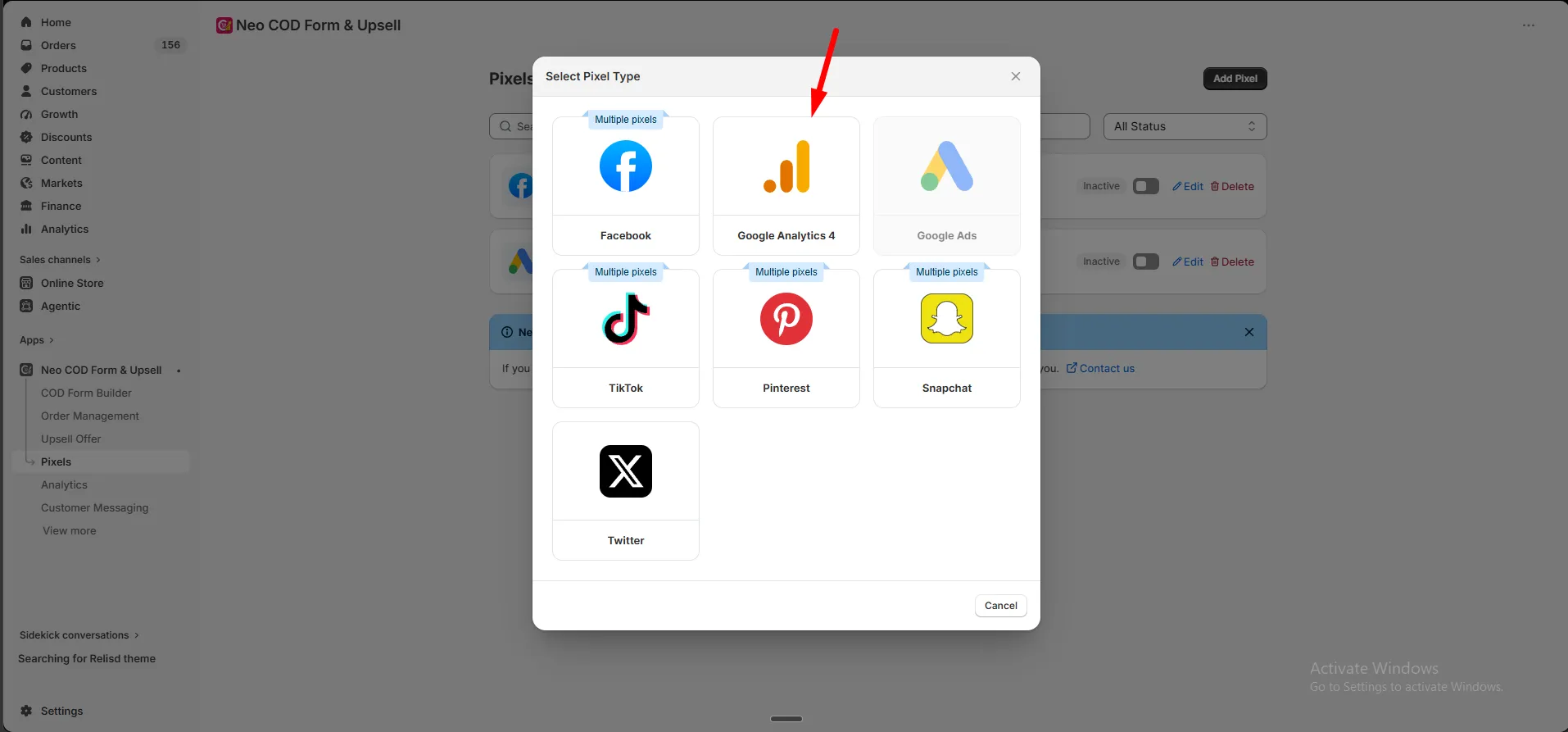
Step 2: Select Google Analytics 4.
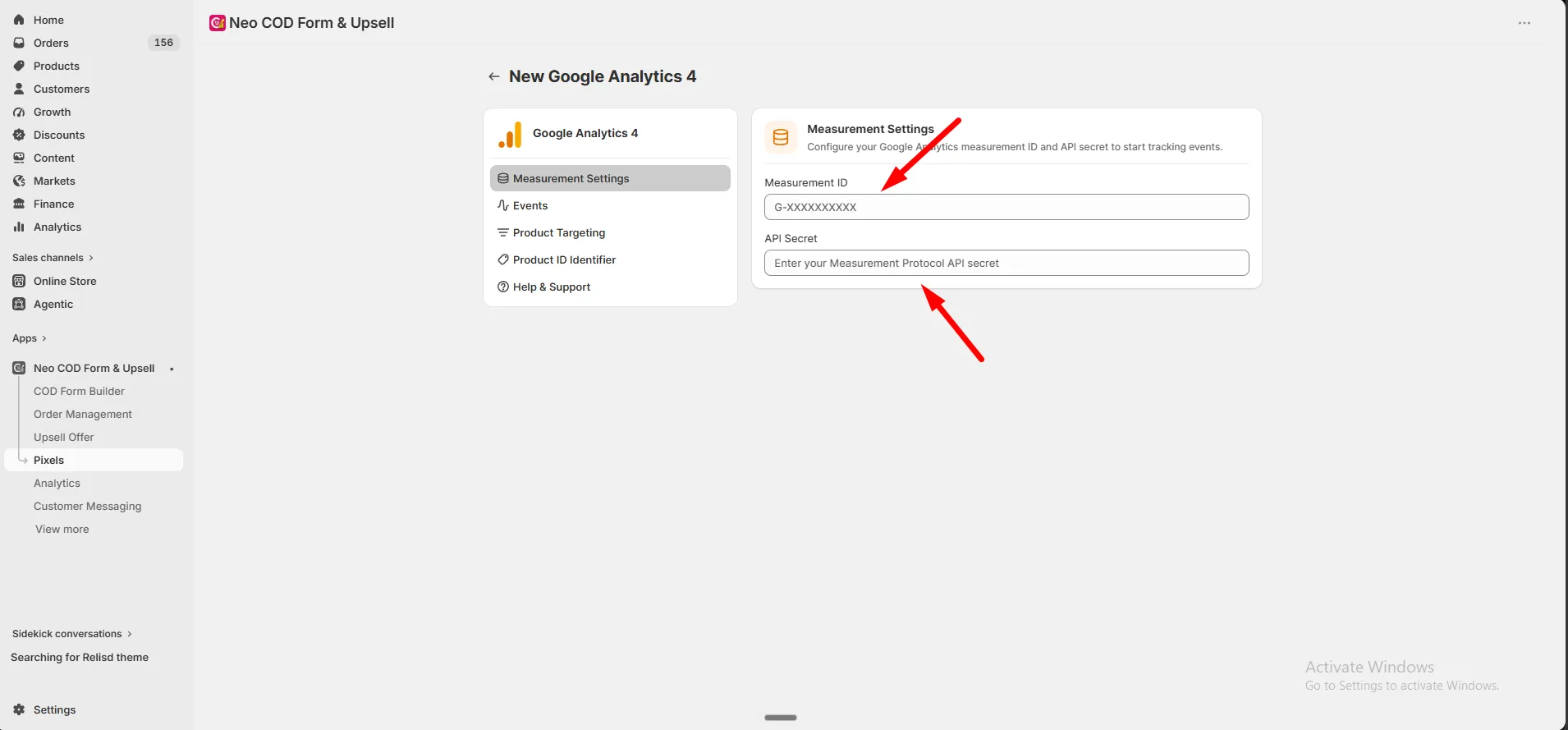
Step 3: Under Measurement Settings, enter your Measurement ID and API Secret.
Step 4: Go to the Events tab and turn on the events you want to track:
- Search
- Collection View
- Product Page View
- Add to Cart
- Initiate Checkout
- Purchase
Step 5: Click Save.
Find your Measurement ID and API Secret
Section titled “Find your Measurement ID and API Secret”Step 1: Log in to your Google Analytics account.
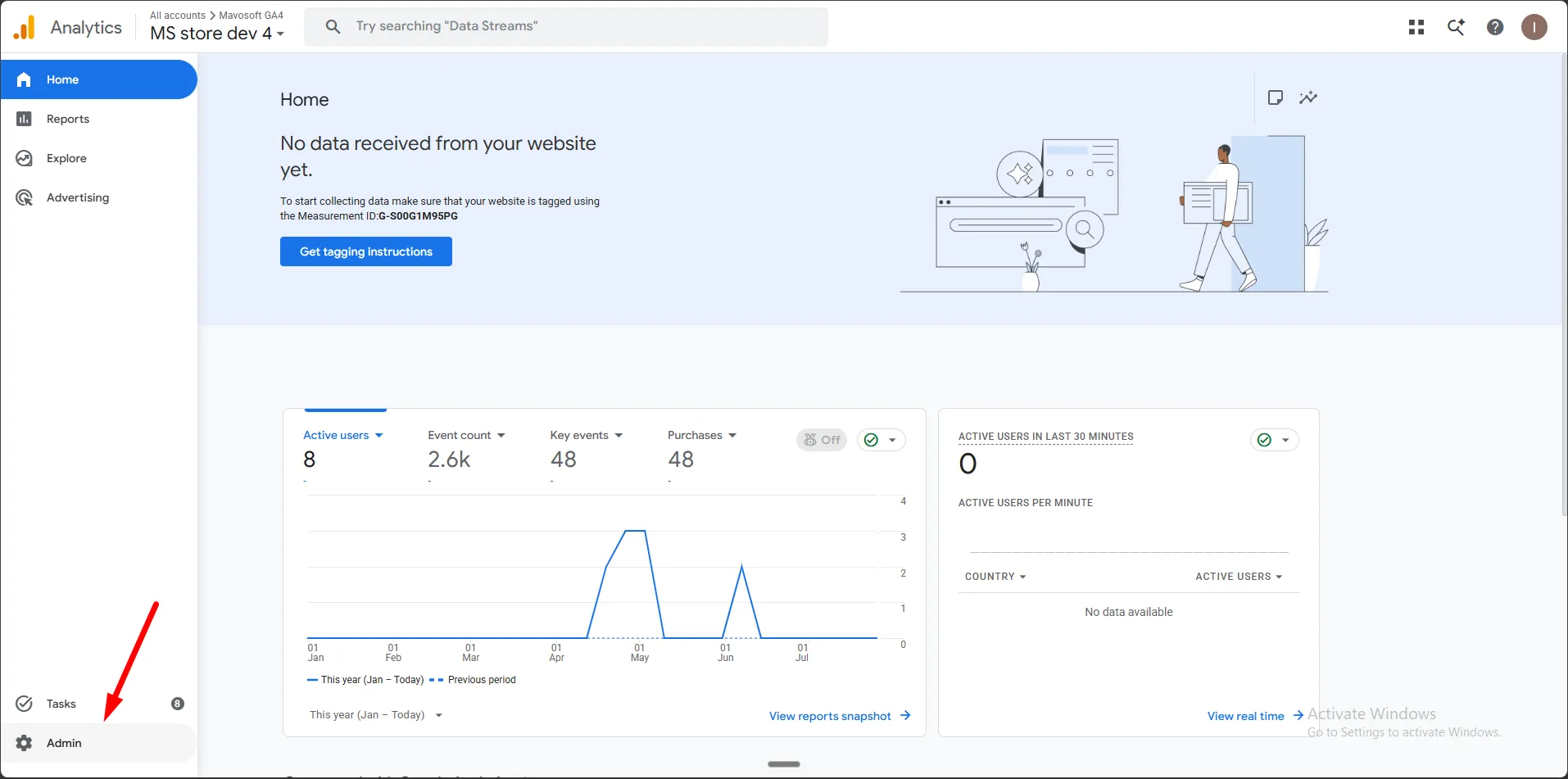
Step 2: Go to Admin — the gear icon at the bottom left.
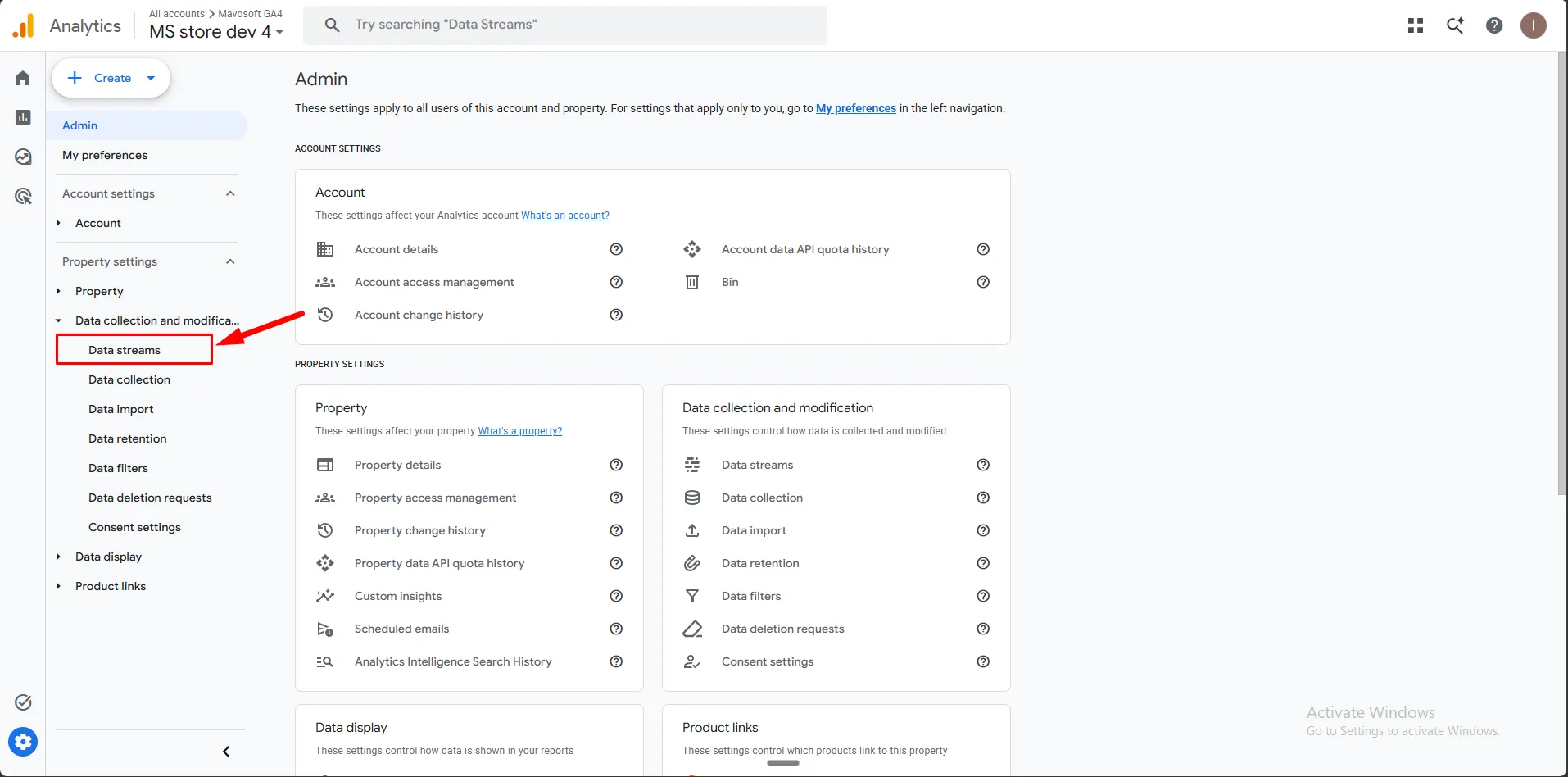
Step 3: Under Data collection and modification, click Data streams.
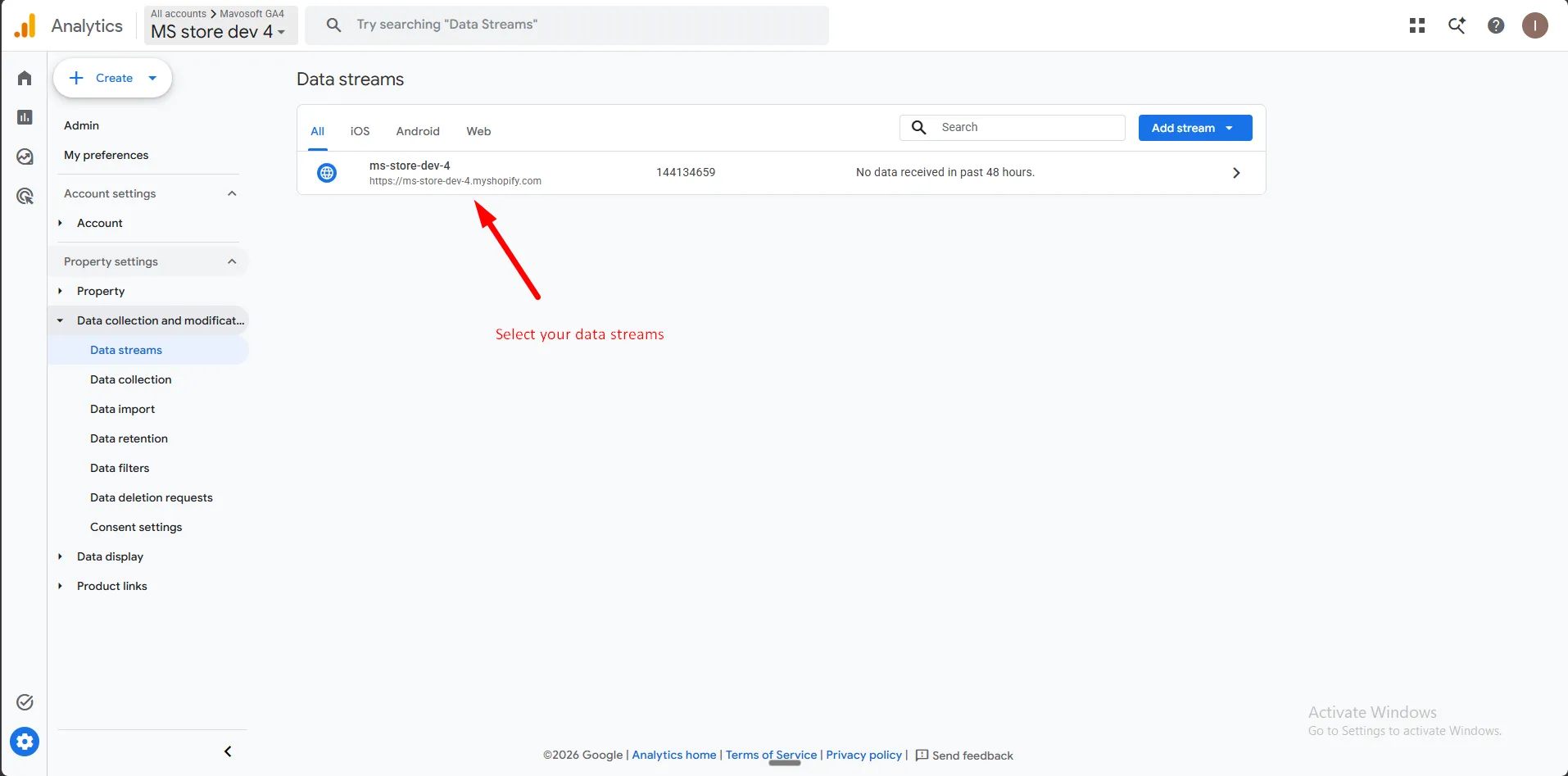
Step 4: Select your web data stream.
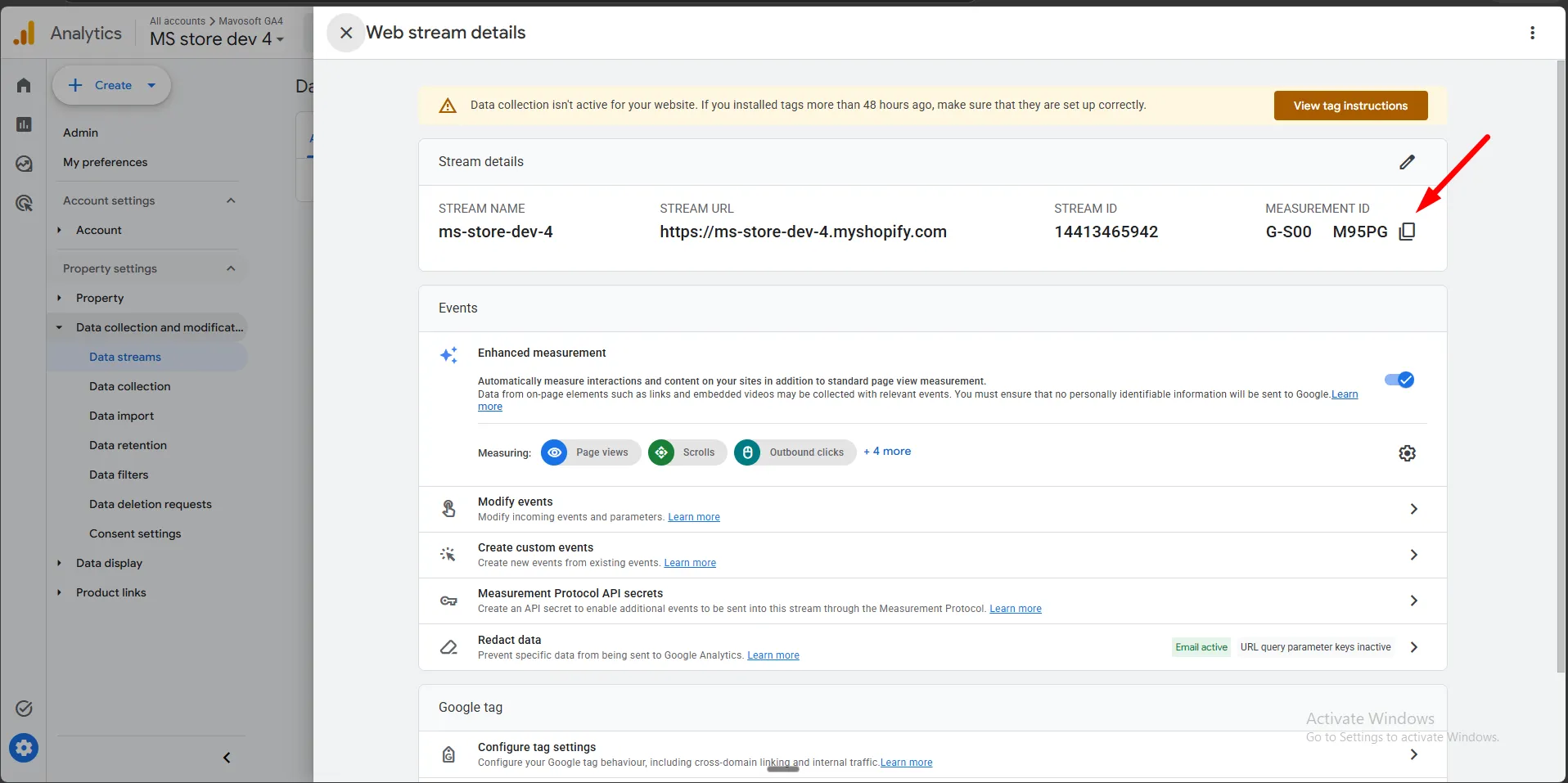
Step 5: Copy the Measurement ID shown at the top. It starts with G-.
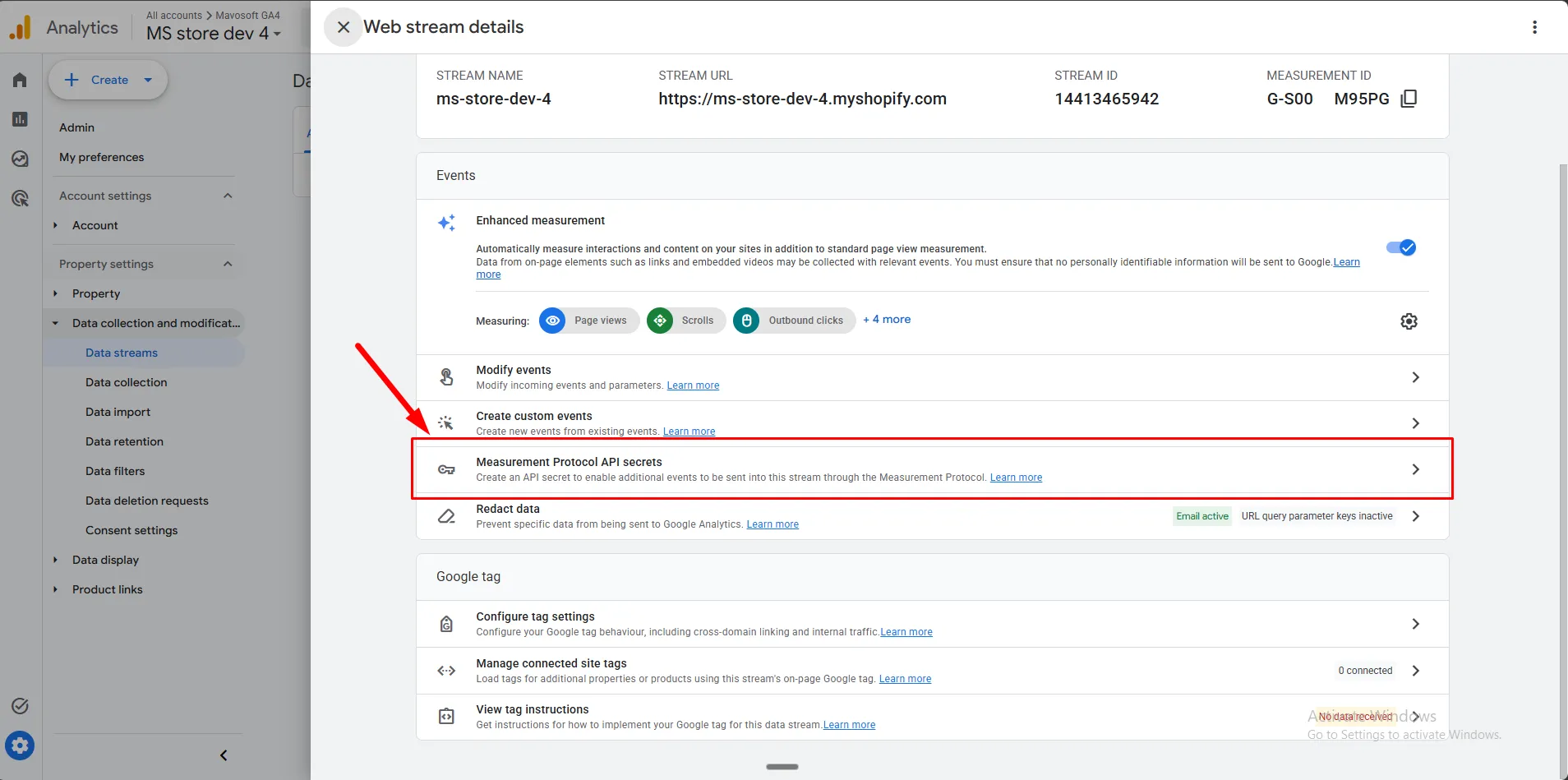
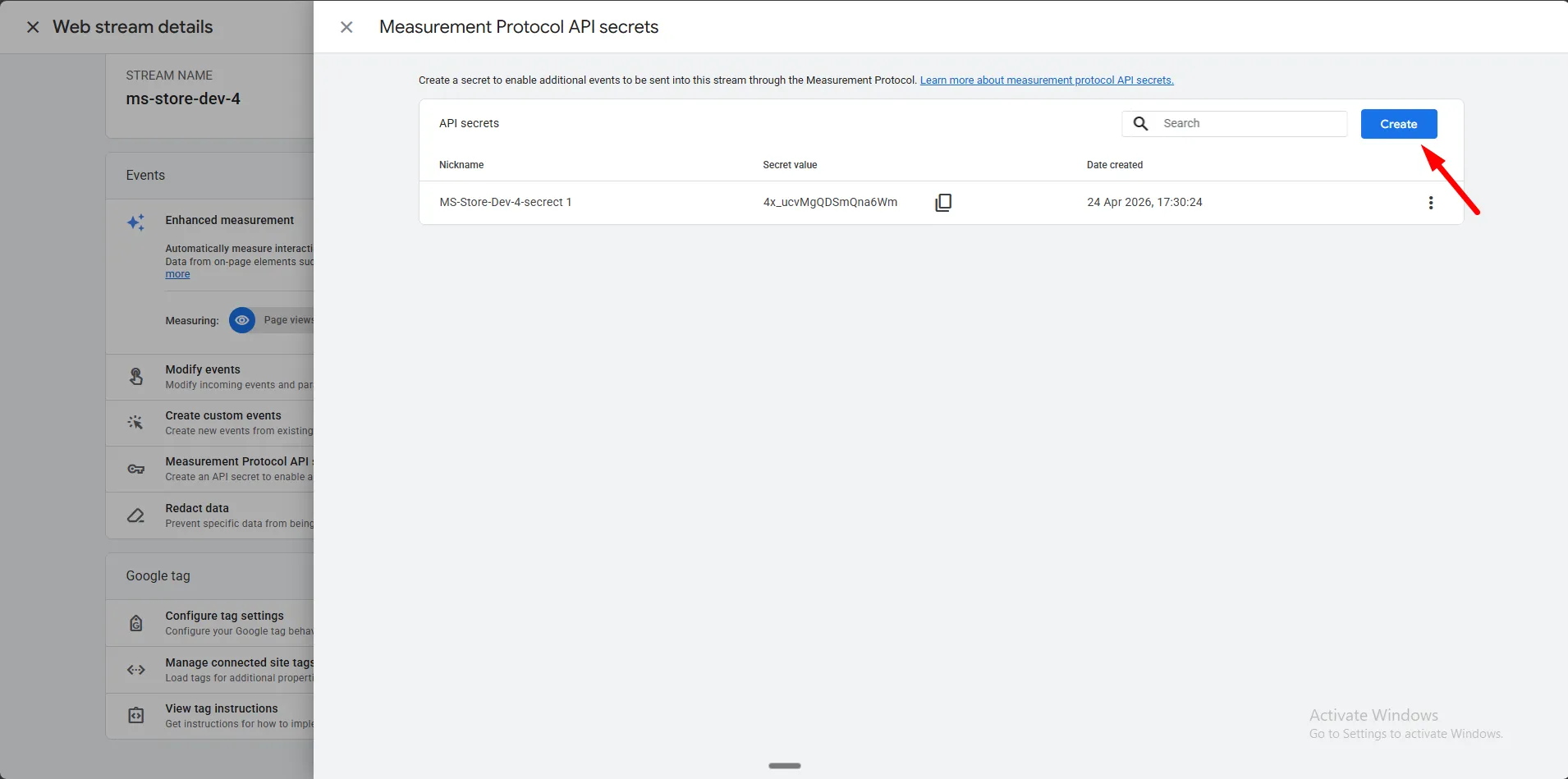
Step 6: Scroll down and click Measurement Protocol API secrets.
Step 7: Click Create to generate a new secret, then copy it.
- Measurement ID and API Secret are both required to save the pixel.
- The Purchase event needs at least one purchase type turned on, or saving will show an error.
- You can turn the pixel on or off anytime from the Pixels list without losing your settings.