
Add the COD button with an app block
Use the Neo COD Form / Button app block to choose exactly where the COD button (or form) appears on your product page.
Add the app block
Section titled “Add the app block”Step 1: In your Shopify admin, go to Online Store and click Edit theme (the pencil icon).
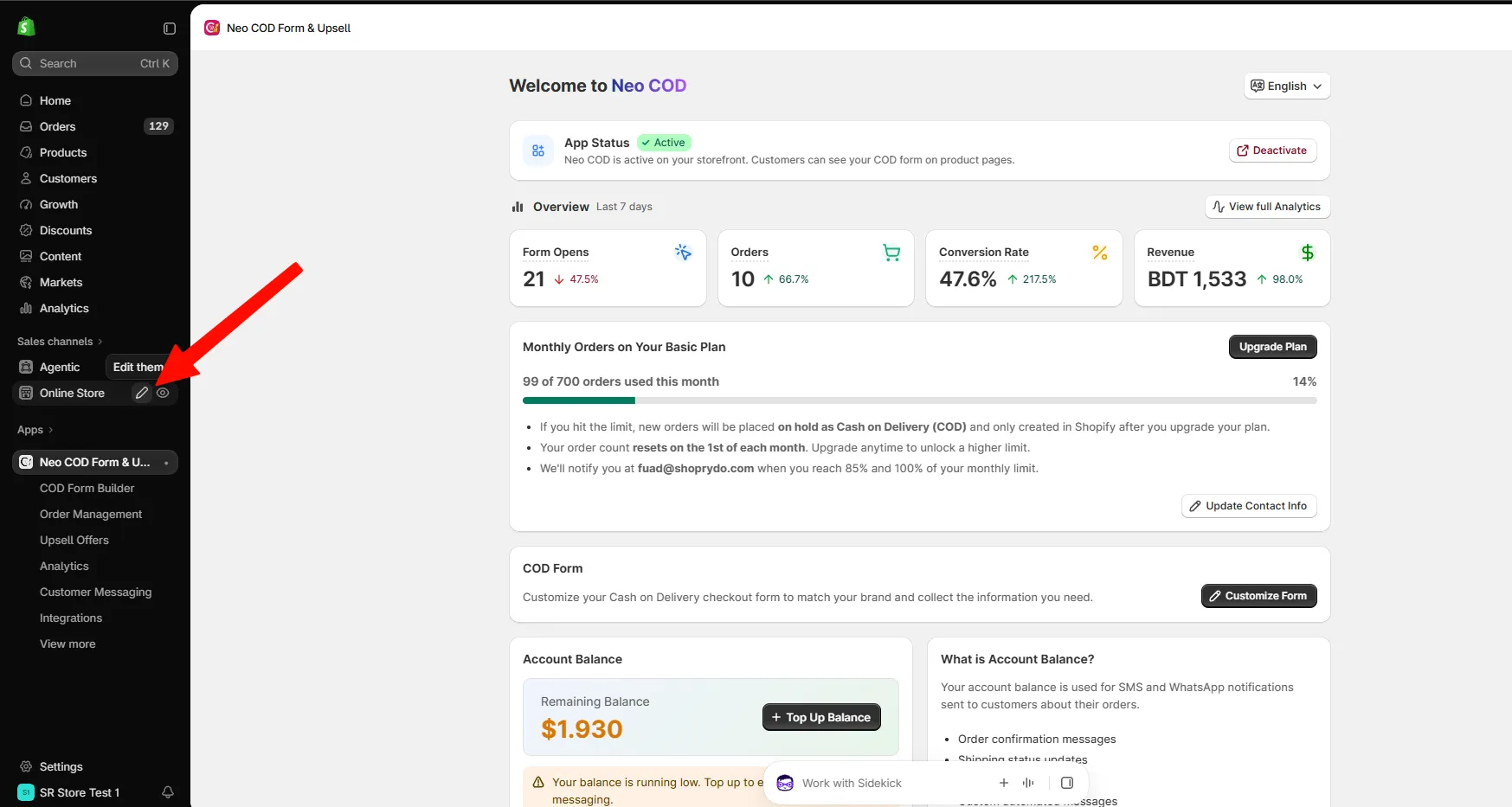
Step 2: At the top of the theme editor, open the page selector and choose Products, then your product template.
Step 3: In the left sidebar, find your theme’s product section and click Add block. Depending on the theme, this section may be called Product information, Main product, or similar.
Step 4: Open the Apps tab and select Neo COD Form / Button.
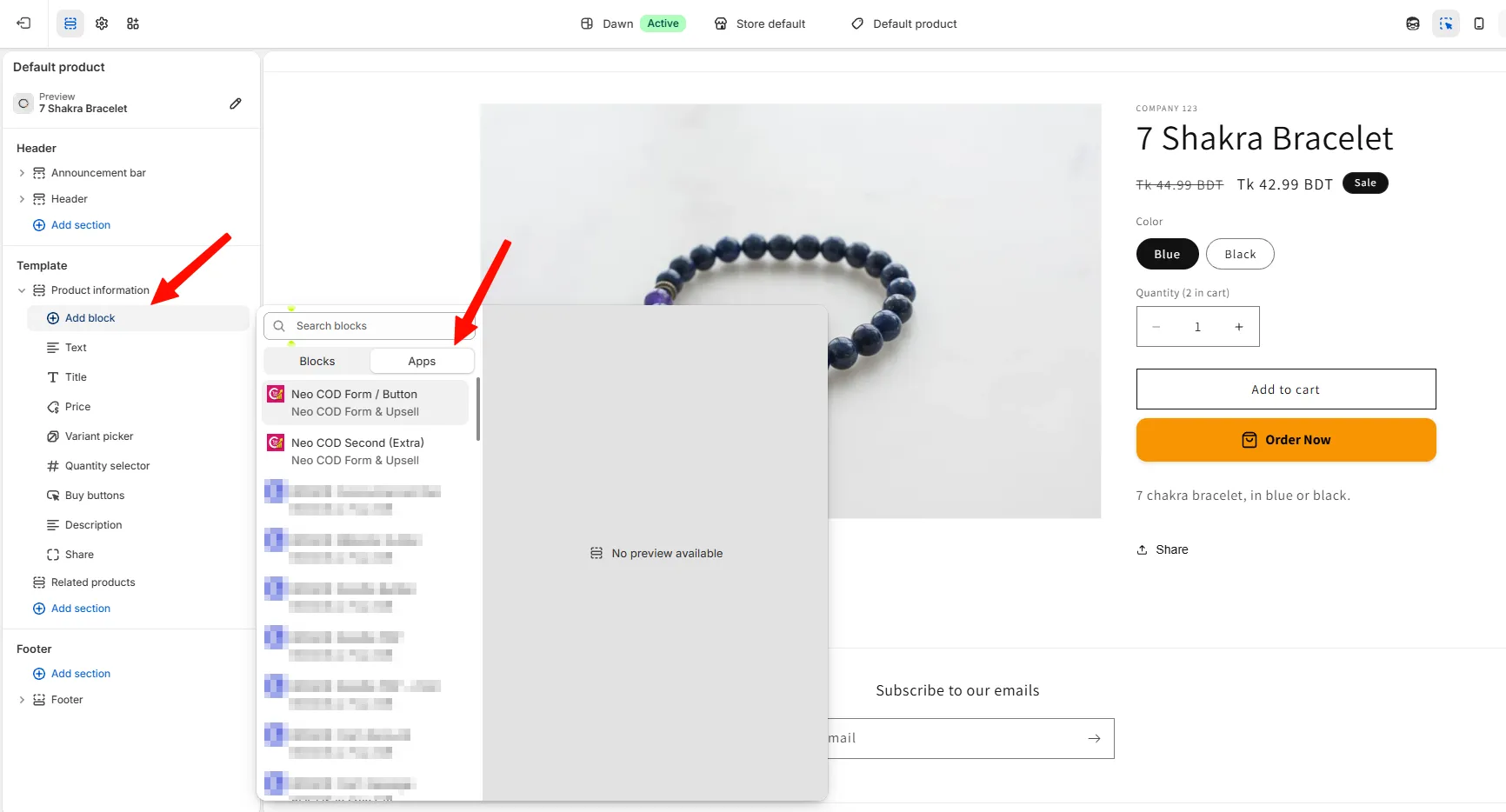
Step 5: Drag the block to where you want the button, then click Save.
Block settings
Section titled “Block settings”Click the block in the left sidebar to see its settings on the right.
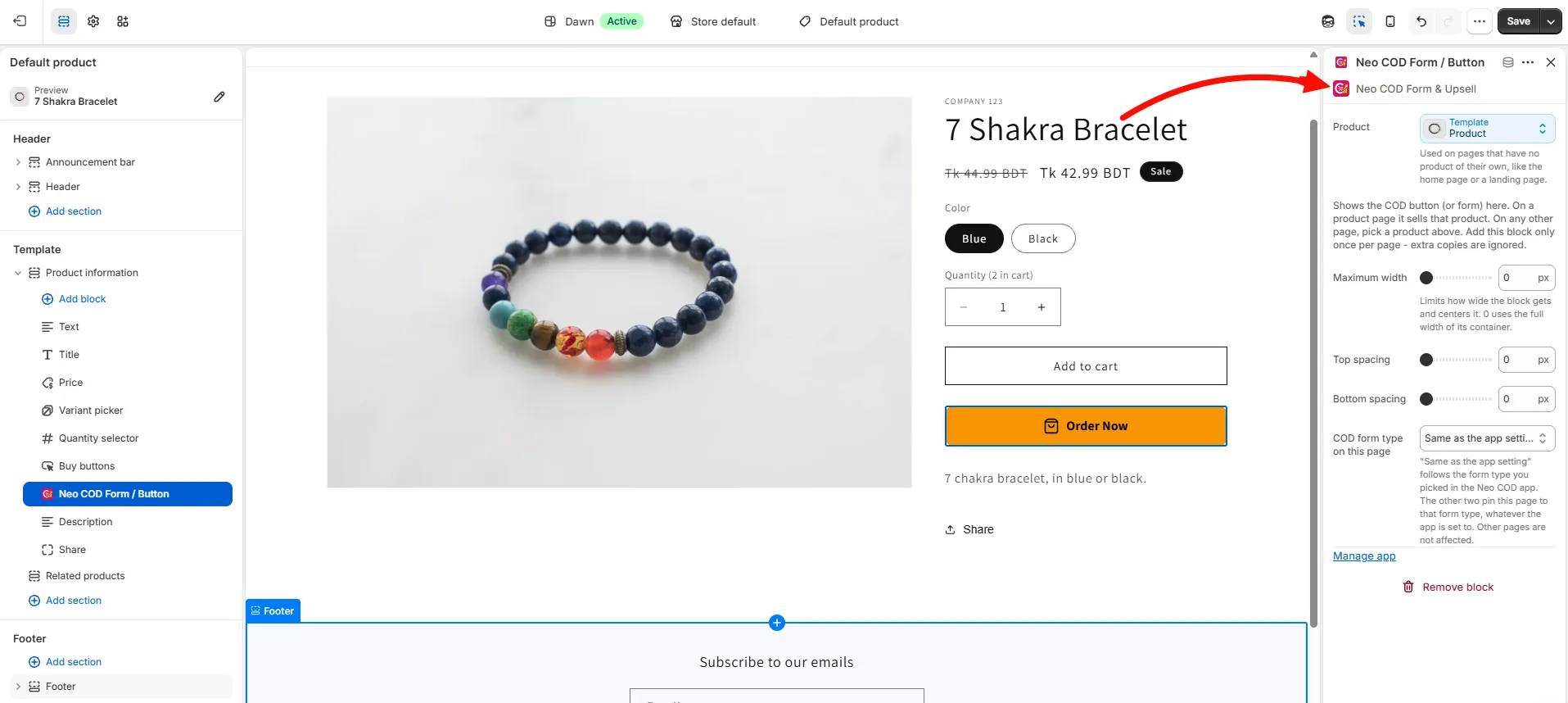
- Product: only needed on pages without a product, like the home page. On a product page, leave it as is.
- Maximum width: limits the block’s width.
0uses the full width. - Top spacing / Bottom spacing: adds space above or below the block.
- COD form type on this page: keep Same as the app setting, or choose Embedded form or Popup form for this page only. With Embedded form, you can also set the form colors for this page.
Add a second COD button
Section titled “Add a second COD button”To show another COD button on the same page, add the Neo COD Second (Extra) block the same way. You can add it as many times as you like.