
Enable OTP verification
OTP verification confirms a customer’s phone number with a code before a COD order is created, reducing fake orders.
How to enable OTP verification
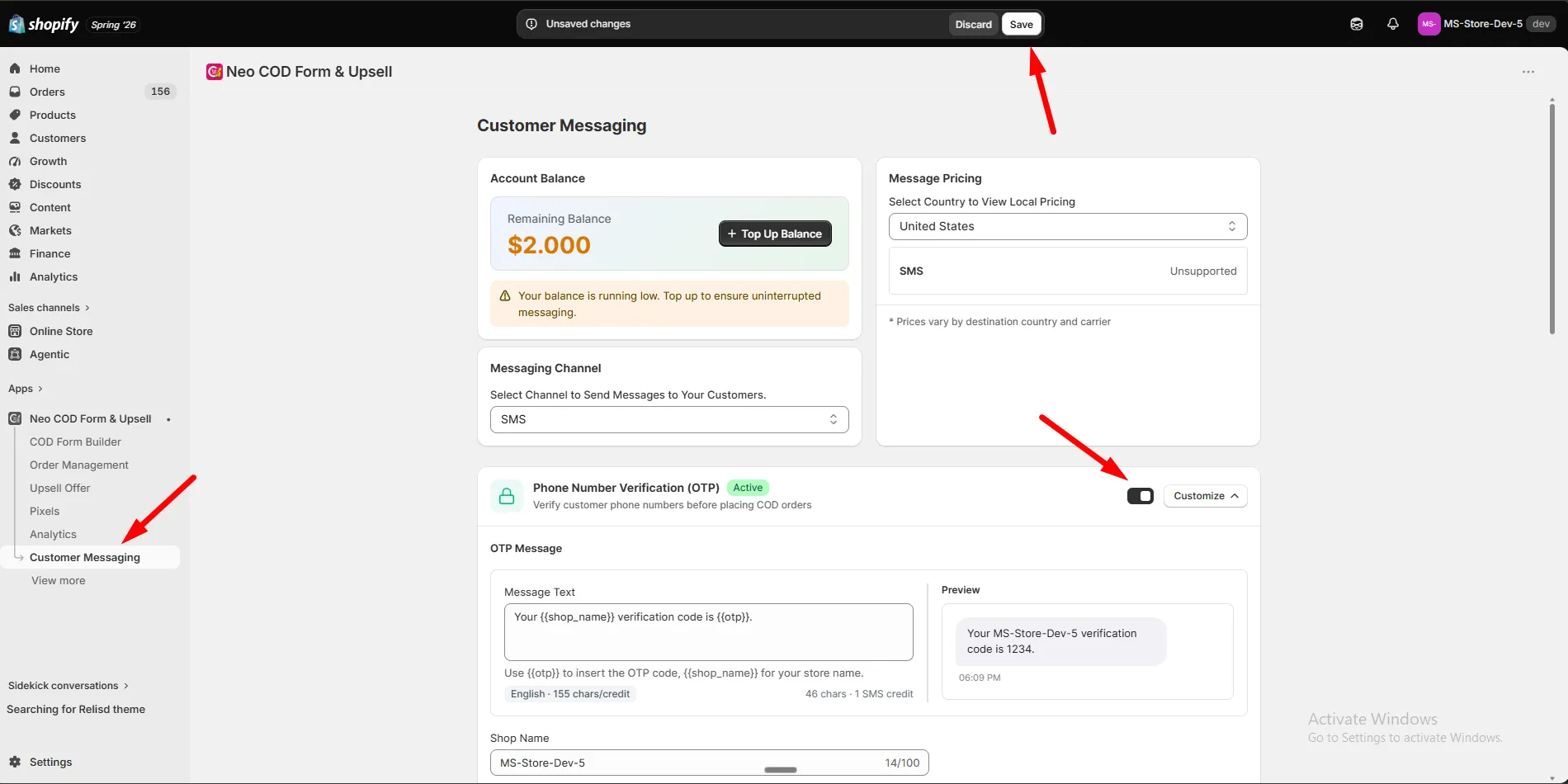
Section titled “How to enable OTP verification”Step 1: Go to Customer Messaging.
Step 2: Find Phone Number Verification (OTP) and turn on the switch.
Step 3: Click Customize.
OTP message
Section titled “OTP message”Step 1: Write the message under OTP Message.
Step 2: Use these variables:
| Variable | Inserts |
|---|---|
{{otp}} |
The verification code |
{{shop_name}} |
Your store name |
Step 3: Check the Preview.
Popup customization
Section titled “Popup customization”| Tab | What you can change |
|---|---|
| OTP Verification | Title, description, Verify and Resend button text, code-sent message, resend-limit error |
| Appearance | Popup and failure-screen colors. Use a color template, or Sync Colors with COD Form |
Check the Live Preview for changes.
Settings
Section titled “Settings”| Setting | What it does |
|---|---|
| Ask before order | The order is created only after phone verification |
| Max retries | How many times (1–5) a customer can request a new code |
Click Save.