
Create a one-tick upsell
A one-tick upsell is an extra offer customers can add to their order with a single tick.
1. Create the offer
Section titled “1. Create the offer”-
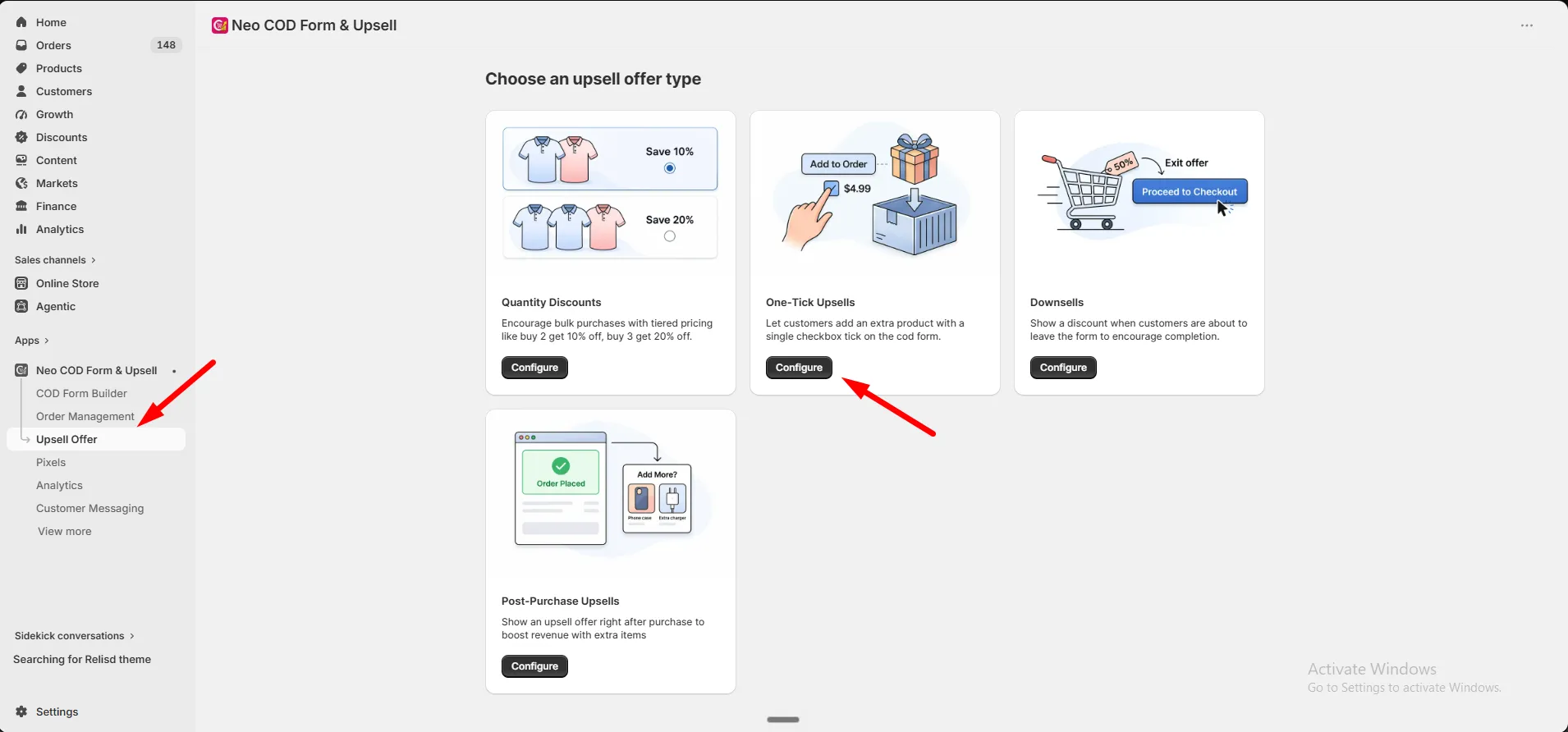
Go to Offers → One-Tick Upsells.
-
Click Add Offer.
2. Set up the offer
Section titled “2. Set up the offer”On the General tab:
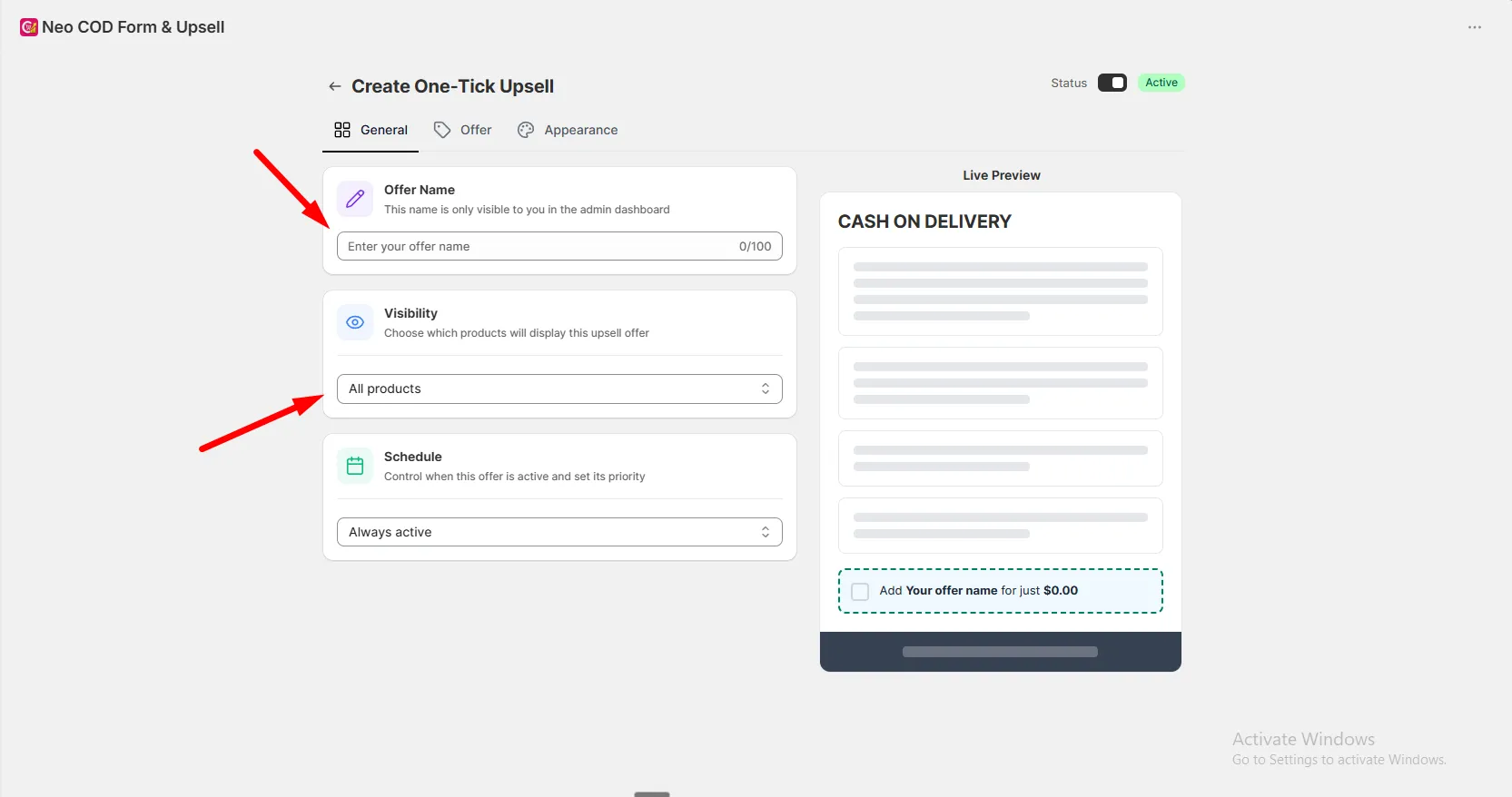
| Setting | What it does |
|---|---|
| Upsell Name | Internal name, admin use only |
| Visibility | All products, Specific products, Specific collection, or All products except |
| Schedule | Optional start and end date |
On the Offer tab:
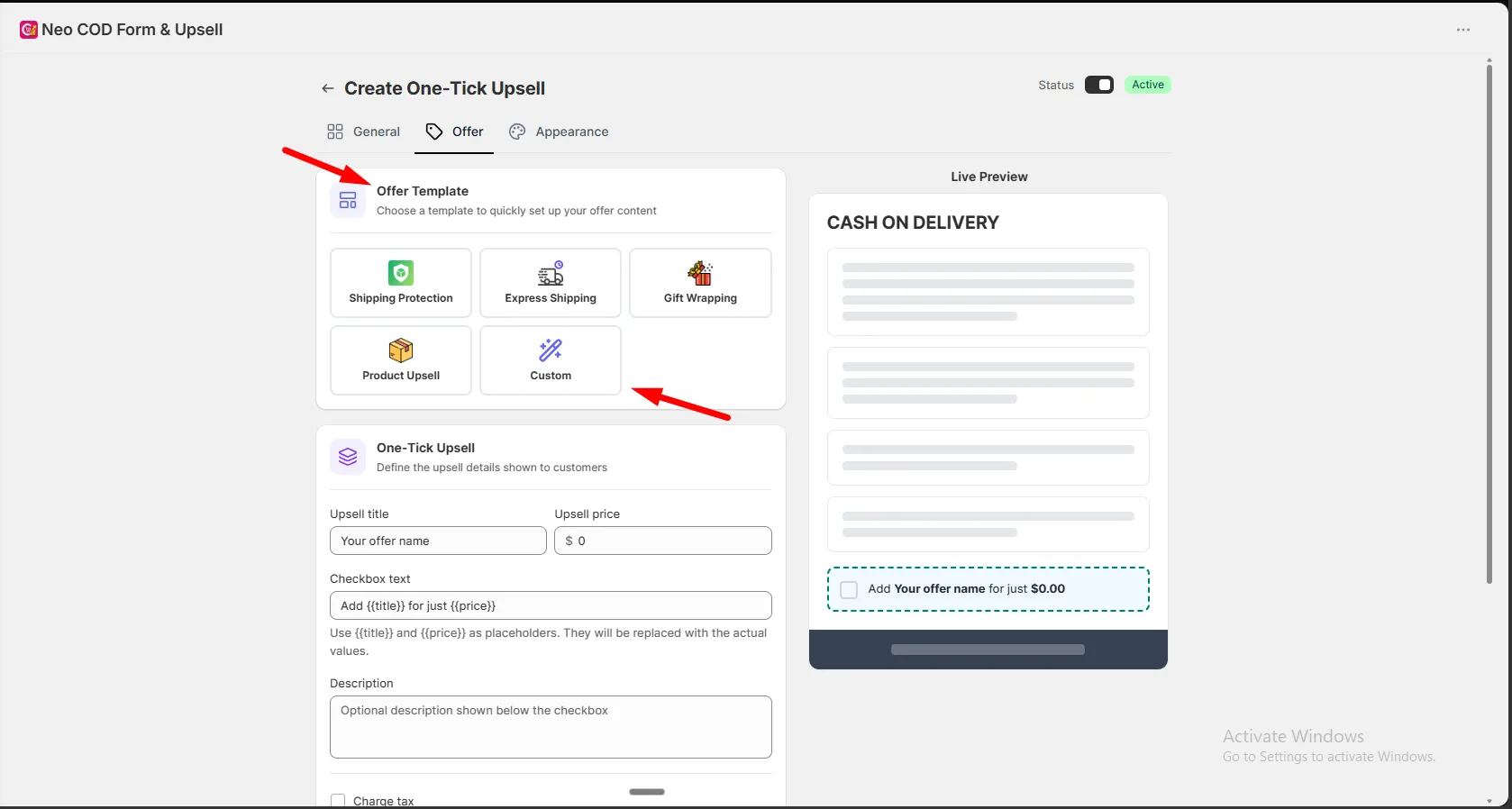
- Template: pick a ready-made template, or choose Custom.
- Upsell title, price, checkbox text, and description.
- Image & Icon.
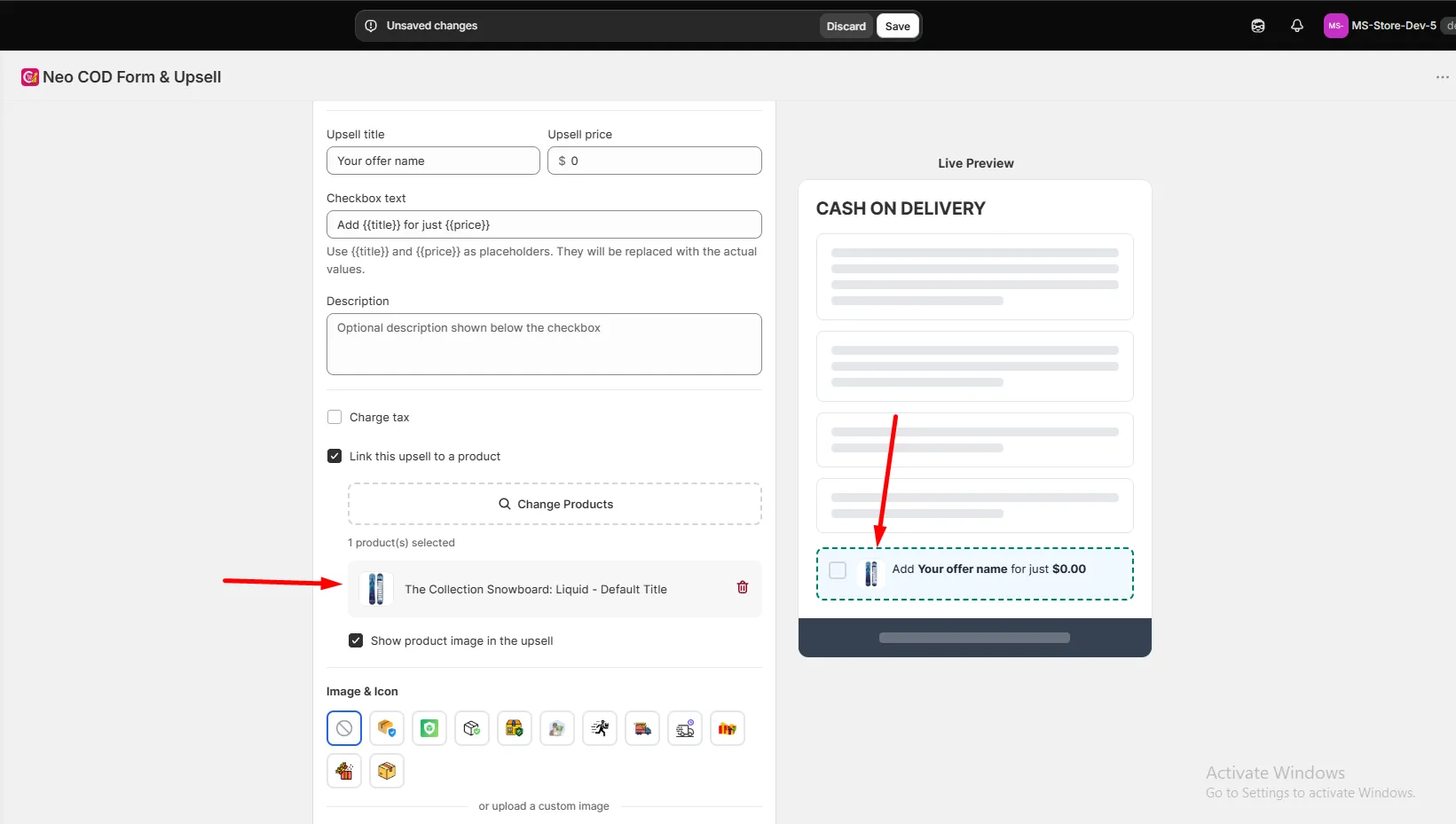
3. Connect a product
Section titled “3. Connect a product”-
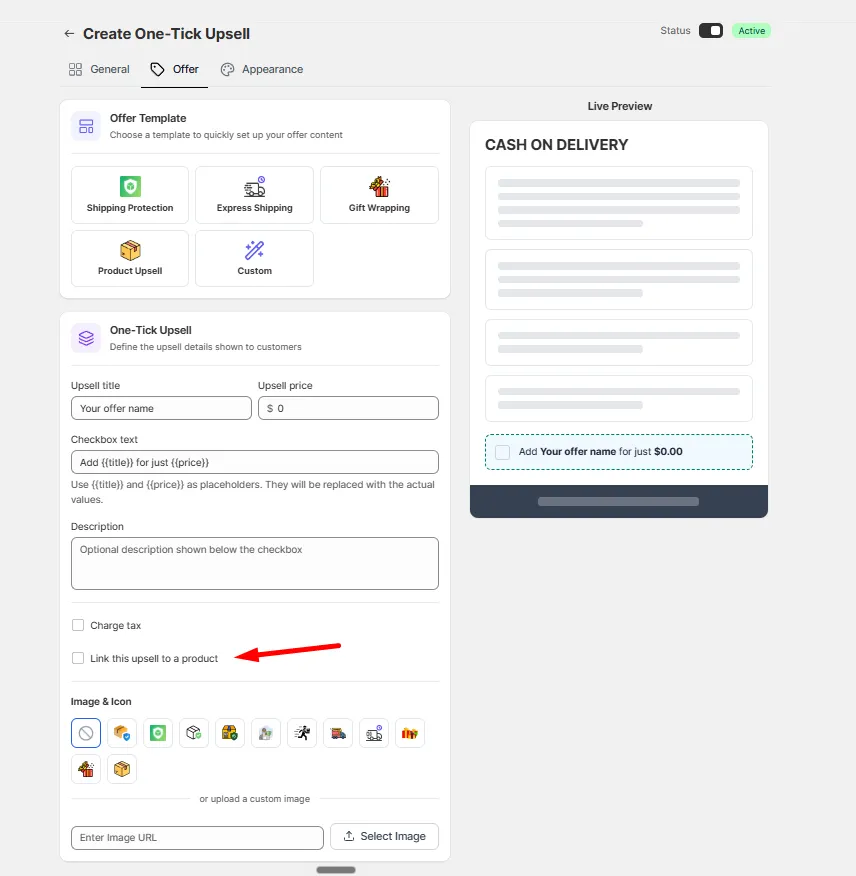
Check Link this upsell to a product.
-
Click Browse products and select a product or variant.
-
Optionally check Show product image.
4. Style the offer
Section titled “4. Style the offer”Go to the Appearance tab for button type, placement, border, colors, image size, and whether the box is ticked by default.
5. Save
Section titled “5. Save”Click Save. The offer is active by default.