
Create a post-purchase or pre-purchase upsell
This offer shows customers one extra product to add, either right after checkout (Post-Purchase) or before checkout (Pre-Purchase).
1. Create the offer
Section titled “1. Create the offer”-
Go to Offers → Post-Purchase Upsells.
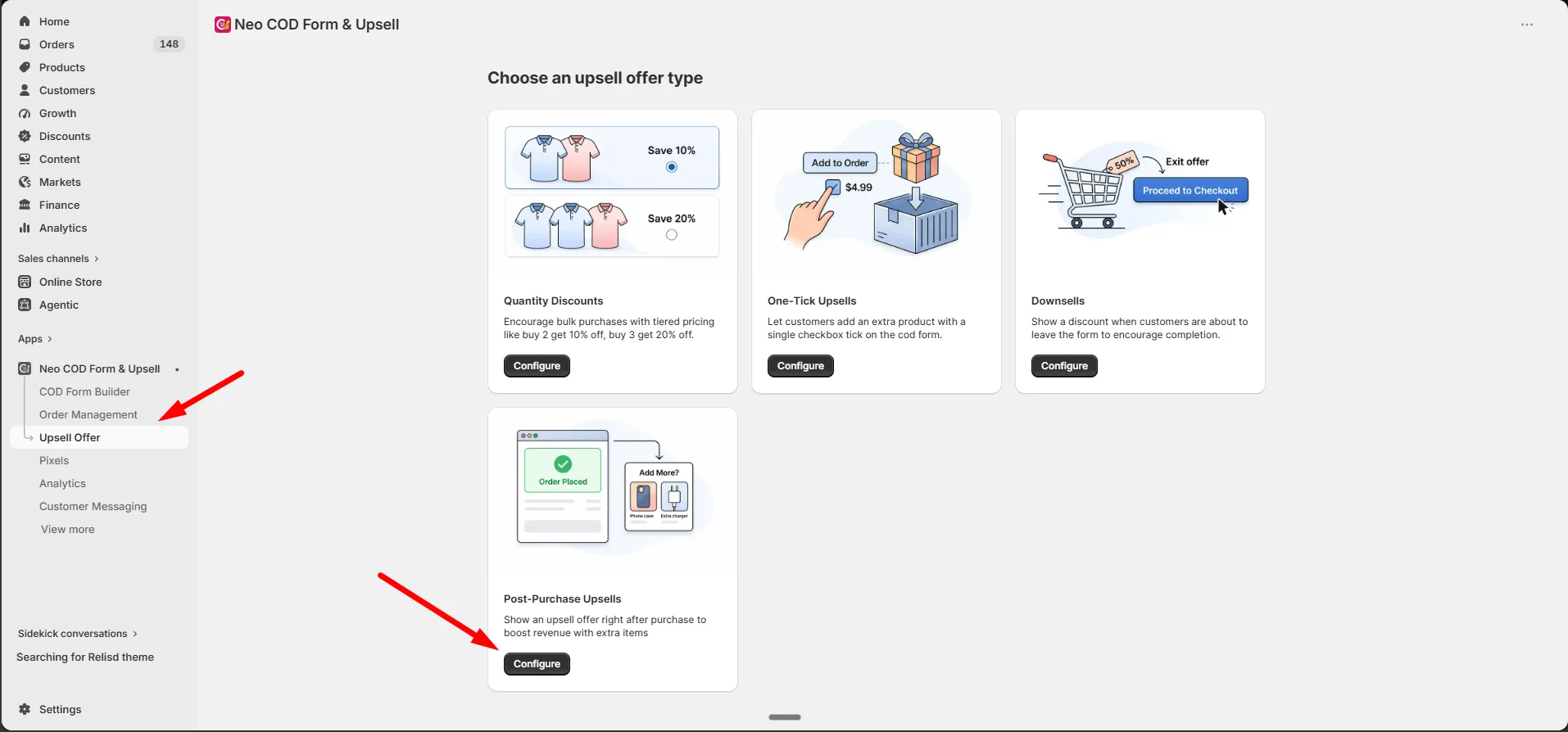
-
Click Add Offer.
2. Set up the offer
Section titled “2. Set up the offer”On the General tab:
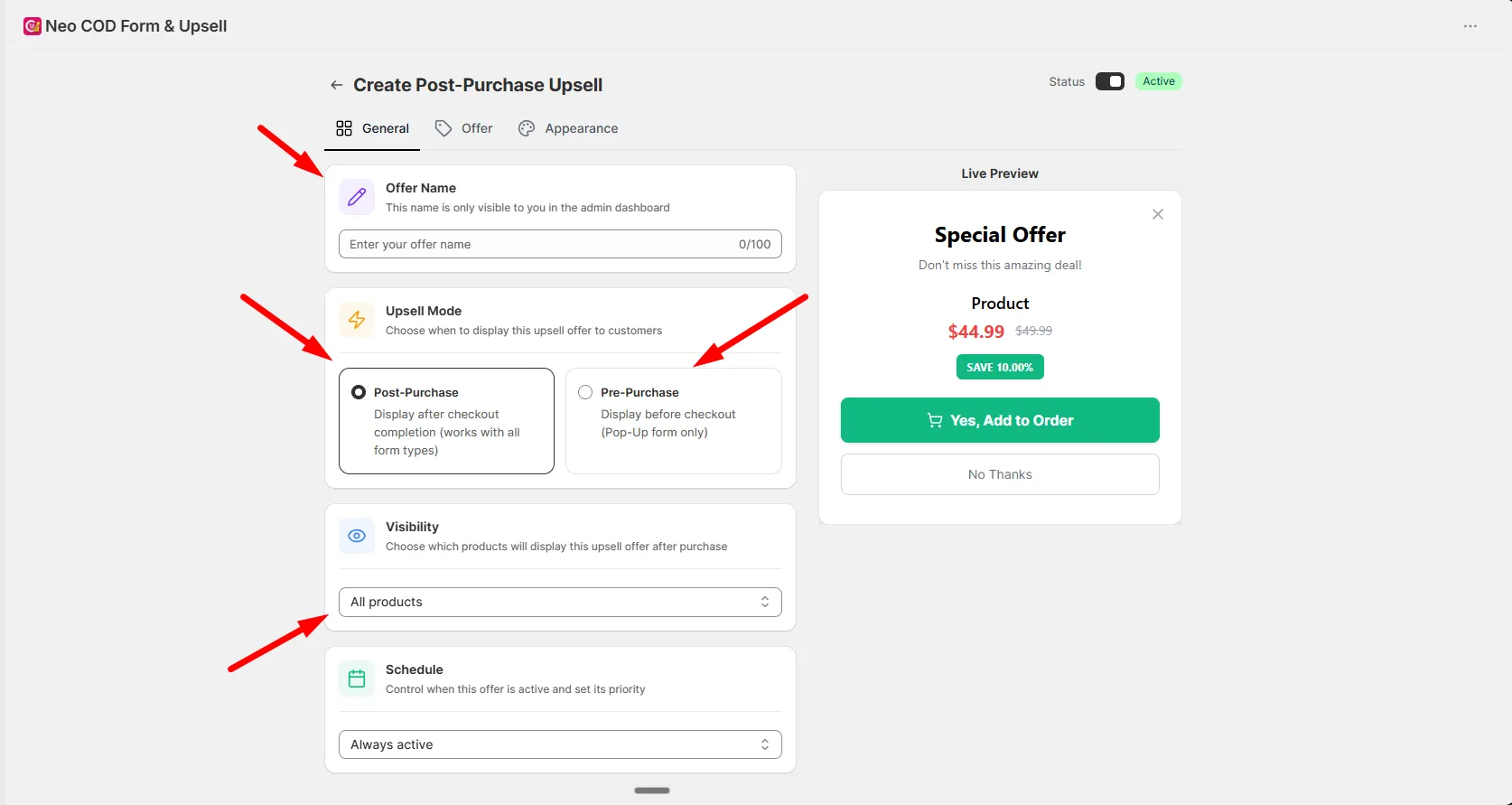
| Setting | What it does |
|---|---|
| Offer Name | Internal name, admin use only |
| Upsell Mode | When the offer appears — see below |
| Visibility | All products, Specific products, Specific collection, or All products except |
| Schedule | Optional start and end date |
Upsell mode
Section titled “Upsell mode”| Mode | When it shows | Works with |
|---|---|---|
| Post-Purchase | After checkout completes | All form types |
| Pre-Purchase | Before checkout | Pop-up form only |
3. Choose the upsell product
Section titled “3. Choose the upsell product”On the Offer tab:
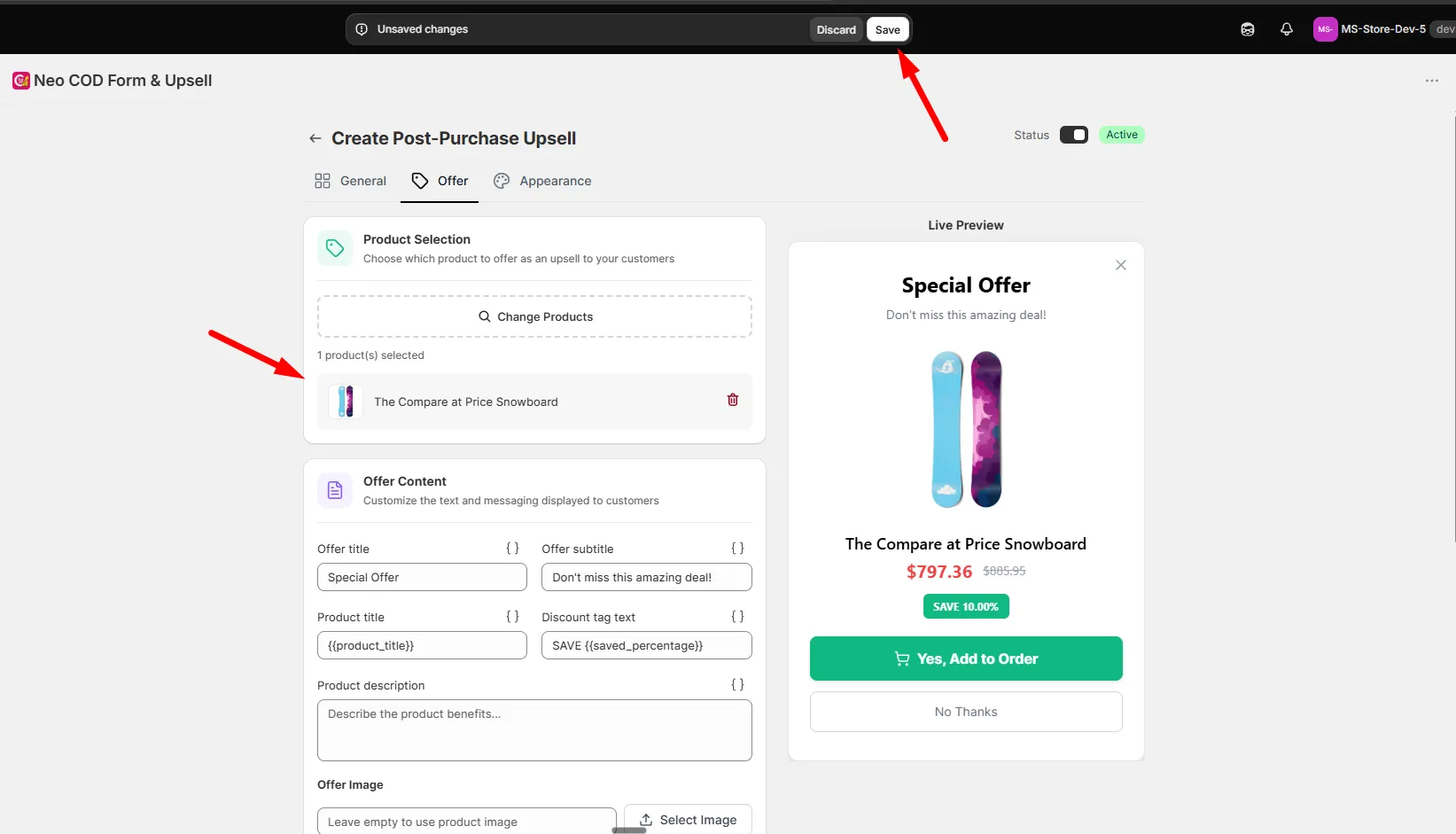
-
Click Browse products and select the product to offer.
-
Fill in the offer content: title, subtitle, product title, discount tag, description, and image.
-
Set the discount: Percentage, Fixed Amount, or Default Price.
-
Optionally check Free Shipping.
4. Extra options
Section titled “4. Extra options”- Countdown Timer: add urgency with a limited-time timer.
- Quick Settings: enable a variant picker, quantity picker, or a dismiss/close button.
5. Style the offer
Section titled “5. Style the offer”Go to the Appearance tab to customize the modal, accept button, no-thanks button, product price, and discount tag design.
6. Save
Section titled “6. Save”Click Save. The offer is active by default.